
 Need help?
Do you have a question about the Toshiba e-STUDIO 206L and is the answer not in the manual?
Lists printouts and DVD contents like Safety Information and Quick Start Guide.
Instructions for accessing software and manuals on the DVD.
Lists various PDF guides for specific functions like copying, scanning, and faxing.
Explains symbols, paper orientation conventions, and screen illustration details.
Advises on using genuine toner for optimal performance and features.
Lists recognized software and product trademarks.
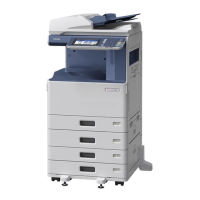
Describes the physical parts and components of the multifunction device.
Details turning power on/off and activating energy saving modes.
Covers placing paper and installing necessary client software.
Details the buttons, lamps, and their functions on the control panel.
Describes remaining control panel buttons and the panel angle adjustment.
Explains the touch panel display, messages, and interactive buttons.
Describes the on-screen keyboard for text entry on the touch panel.
Explains the procedure for powering the equipment on.
Details the proper procedure for shutting down the equipment.
Describes automatic energy save, sleep, and super sleep modes.
Instructions for loading paper into the equipment's drawers.
Guides on placing originals on the glass or document feeder.
Describes the recommended installation process for client software.
Completes software installation and guides printer driver configuration.
Step-by-step guide for performing standard copying tasks.
Explains sending faxes and managing recipients.
Details storing scanned data to a shared folder.
Describes storing and printing documents using the e-Filing function.
Explains printing from a computer application.
How to use menus, templates, and check print counters.
Step-by-step guide for basic copying.
Covers zoom, enlargement/reduction, and finishing modes like sorting.
Explains duplex copying and setting original modes.
Covers density adjustment and using the bypass tray.
Step-by-step guide for sending faxes.
Covers specifying recipients and confirming them in the address book.
Details transmission conditions and canceling reserved transmissions.
Explains checking fax logs and registering new contacts.
Guides on saving scanned data to a shared folder.
Explains how to retrieve scanned data from a shared folder.
Details the process of saving documents to the device's hard disk.
Explains how to print stored e-Filing documents.
Guides on initiating a print job from a computer application.
Explains settings within the Universal Printer 2 driver interface.
Describes accessing menus, templates, and user management.
Step-by-step guide for replacing the toner cartridge.
Instructions for replacing staple cartridges in various finishers.
Details the toner replacement process.
Procedure for replacing staples in the MJ-1101 finisher.
Procedure for replacing staples in the MJ-1106 finisher.
Continues staple replacement for MJ-1106.
Procedure for replacing staples in the MJ-1032 finisher.
Continues staple replacement for MJ-1032.
Covers cleaning scanner, glass, platen, and charger.
Guides on resolving issues like paper jams and touch panel messages.
Explains symbols and messages appearing on the touch panel.
Lists references to the detailed Troubleshooting Guide PDF.
Explains how to find error codes and use the touch panel help feature.
Overviews advanced features for enhanced equipment use.
Improves clarity of color document copies.
Avoids blank pages during copy or scan operations.
Continues the procedure for clear color copying.
Continues the procedure for omitting blank pages.
Combines faxing and shared folder storage.
Saves frequently used scan configurations.
Attaches scanned files to emails.
Stamps documents with date and time.
Prints documents stored on a USB device.
Releases print jobs stored on the device from the control panel.
Lists the components provided with the equipment.
Details the software and manuals contained on the DVD.
Describes necessary client software for printing and scanning.
Lists available optional hardware for enhancing functionality.
Explains how to log in using department or user management.
Provides technical details on paper handling and machine specifications.
Details technical specifications for various optional equipment.
Lists the components provided with the equipment.
Details the software and manuals contained on the DVD.
Describes necessary client software for printing and scanning.
Lists available optional hardware for enhancing functionality.
Explains how to log in using department or user management.
Provides technical details on paper handling and machine specifications.
Details technical specifications for various optional equipment.
 General
| Functions | Print, Copy, Scan |
|---|---|
| Print Speed (Black) | 20 ppm |
| Print Speed (A4) | 20 ppm |
| Print Resolution | 2400 x 600 dpi |
| Copy Speed (A4) | 20 cpm |
| Copy Resolution | 600 x 600 dpi |
| Scan Resolution | 600 x 600 dpi |
| Monthly Duty Cycle | 15, 000 pages |
| Max Paper Size | A3 |
| Interface | USB 2.0 |
| Display | LCD |
| Dimensions | 599 x 620 x 489 mm |
| Weight | 27.4 kg |
| Type | Laser |
| Paper Capacity (Standard) | 250 sheets |
| Paper Size | A4, A5 |
| Connectivity | USB 2.0 |








 To Next Page
