User’s Manual EN-29
Toshiba Thunderbolt™ 3 Dock
Others
Accessories of this series of products may vary depending on the model.
Please understand no advance notice for further product improvement,
appearance design and specification update.
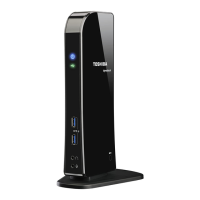
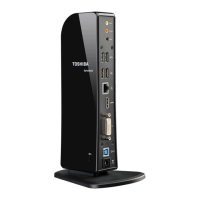
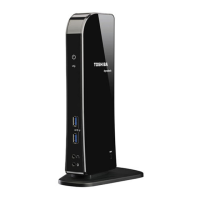
The illustration might be a little different from the real product.
No video on the
monitors attached to
the video output ports
on the dock.
Make sure the computer is connected with the dock.
Check the Using your dock for the first time section
in this manual to re-connect the dock to the
computer.
Make sure that the video cable is tightly secured to
the video port in the dock and that the display
output setting of the monitor is set to the correct
mode.
This might be due to that the monitor(s) support
higher resolutions than what the dock is able to
support. Check the Configuring Video Ports section
in this manual for details.
If only one monitor is shown, while the other is not,
go to the Intel
®
Graphics Control Panel to select the
output for the second monitor.
Only a maximum of three external monitors are
supported.
The USB ports are
not functioning on the
dock.
Check the Using your dock for the first time section
in this manual to re-connect the dock to the
computer.
Remove the USB device from the dock and then
reconnect it to a free port in order to ensure that it is
firmly attached.
Ensure that any required USB device drivers are
properly installed. To achieve this, refer to both the
device documentation and the operating system
documentation.
The RJ-45 LAN port
is not functioning.
Check the Using your dock for the first time section
in this manual to re-connect the dock to the
computer.
Check for a firm cable connection between the LAN
port and the LAN hub.
Problem Procedure


 To Next Page
 Loading...