Need help?
Do you have a question about the Toshiba Thunderbolt 3 Dock and is the answer not in the manual?
Defines abbreviations used for clarity and consistency in the manual.
Explains icons used to identify ports and components of the Thunderbolt 3 Dock.
Details safety instructions and their classification based on risk severity.
Prohibits disassembling, modifying, tampering with, or repairing the product.
Details safe practices for handling AC adaptors, power cables, cords, and plugs.
Emphasizes proper power cable attachment for secure connection and hazard prevention.
Instructions for cleaning power plug connectors and bases to prevent fire or electric shock.
Mandates use of TOSHIBA AC adaptors to avoid product damage or injury.
Warns against incorrect voltage/frequency sources to prevent electric shock.
Prohibits handling power plugs with wet hands to prevent electric shock.
Advises keeping small parts away from children to prevent choking hazards.
Instructs to avoid liquids, moisture, and foreign objects to prevent damage or injury.
Recommends placing product/adaptor on heat-resistant surfaces.
Advises against placing the product in locations with excess heat.
Warns against exposing the product to extremely low temperatures.
Discourages subjecting the product to sudden temperature variations.
Prohibits operating during thunderstorms due to surge risk.
Informs about chemicals known to cause cancer and birth defects.
States compliance with FCC RF exposure requirements for Class B digital devices.
Suggests methods to correct harmful radio interference if it occurs.
Specifies only FCC Class B compliant peripherals should be attached.
Confirms device compliance with Part 15 of FCC Rules, subject to two conditions.
Confirms compliance with Canada license-exempt RSS standards.
Details Canadian RF exposure compliance, requiring no co-location with other antennas.
Provides info on separate collection and disposal of products from household waste in the U.S.
Explains Toshiba's recycling commitment and how to learn more about programs.
Suggests options for reusing, donating, or mailing back functional/non-working computers.
States reproduction requires prior written permission.
Disclaims warranties regarding the document's accuracy and completeness.
Lists trademarks and registered trademarks of various companies and technologies.
Warns functionality may differ due to computer configurations and system updates.
Thanks user for purchase and introduces the docking station's purpose.
Highlights features: single cable connection, display support, USB charging.
Lists items included in the package for user to check.
Specifies necessary computer, memory, and OS requirements for the dock.
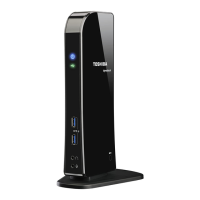
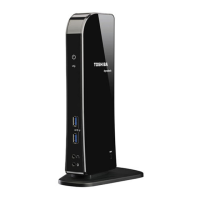
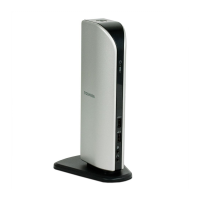
Details power indicators, USB Type-C ports, and combo port on the dock's front.
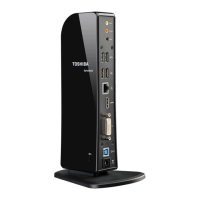
Identifies USB 3.0, RJ-45, Thunderbolt, HDMI, DisplayPort, VGA, Mini DisplayPort on the back.
Details the power button located on the left side of the dock.
Identifies the security lock slot on the right side of the dock.
Step-by-step guide for connecting the AC adaptor to power the dock.
Instructions on how to connect the dock to your computer.
Details connecting the dock to a powered-on computer using the Thunderbolt cable.
Explains methods for safely disconnecting the computer from the dock.
Guides on enabling Thunderbolt Software after connecting the dock.
Explains how to view, approve, and manage Thunderbolt devices.
Details Thunderbolt Networking capabilities and availability.
Explains playback/record options via dock or computer audio ports.
Provides instructions on adjusting audio settings in Windows for dock audio devices.
Steps to set up headphone or microphone combo port for audio playback.
Steps to set up headphone or microphone combo port for audio recording.
Lists available video ports (HDMI, DisplayPort, VGA, Mini DisplayPort) for monitor connections.
Details dock's support for single, dual, and triple display output modes.
Explains PC screen only, Duplicate, Extend, and Second screen only display modes.
Defines resolution and refresh rate as key screen mode components.
Guides on adjusting settings via Intel HD Graphics Control Panel.
Details changing resolution, refresh rate, and scaling in Windows settings.
Explains configuring multiple displays using Intel HD Graphics.
Describes external monitor behavior when the computer enters sleep modes.
Explains other devices stop functioning during computer sleep modes.
Troubleshooting steps when the AC adaptor fails to power the dock.
Solutions for issues with video output to connected monitors.
Steps to resolve non-functioning USB ports.
Solutions for problems with the RJ-45 LAN port.
Notes that accessories may vary depending on the product model.
Informs about potential future product improvements and specification updates.
Provides weight and physical size specifications of the dock.
Lists ambient temperature and relative humidity requirements for operation.
Details power input requirements for the AC adaptor and the dock.
Lists the computer interface and all ports and connectors available on the dock.
Specifies the presence and function of the computer security lock slot.
Details supported video display modes, depending on the operating system.
 General
| Brand | Toshiba |
|---|---|
| Model | Thunderbolt 3 Dock |
| Category | Docking Station |
| Language | English |

 To Next Page