129
Chapter 17
Manage the Router
17. 10. Set the Router to Reboot Regularly
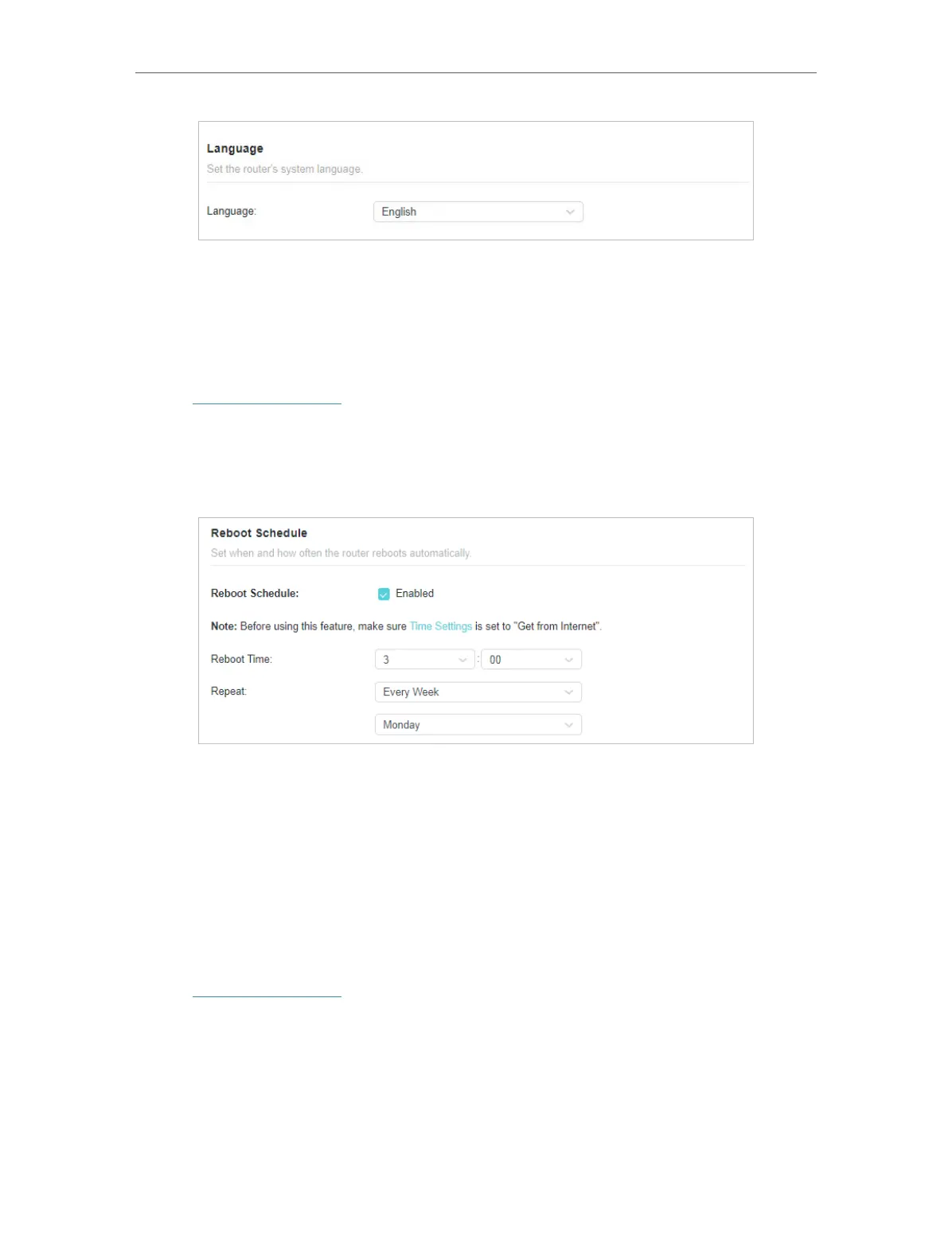
The Scheduled Reboot feature cleans the cache to enhance the running performance
of the router.
1. Visit http://tplinkwifi.net, and log in with your TP-Link ID or the password you set for
the router.
2. Go to Advanced > System > Reboot.
3. Tick the Enable box of Reboot Schedule.
4. Specify the Reboot Time when the router reboots and Repeat to decide how often it
reboots.
5. Click SAVE.
17. 11. Control the LED
The LED of the router indicates its activities and status. You can enable the Night Mode
feature to specify a time period during which the LED is off.
1. Visit http://tplinkwifi.net, and log in with your TP-Link ID or the password you set for
the router.
2. Go to Advanced > System > LED Control.
3. Enable Night Mode.
4. Specify the LED off time, and the LED will be off during this period every day.
5. Click SAVE.








 To Next Page