89
Chapter 15
VPN Server&Client
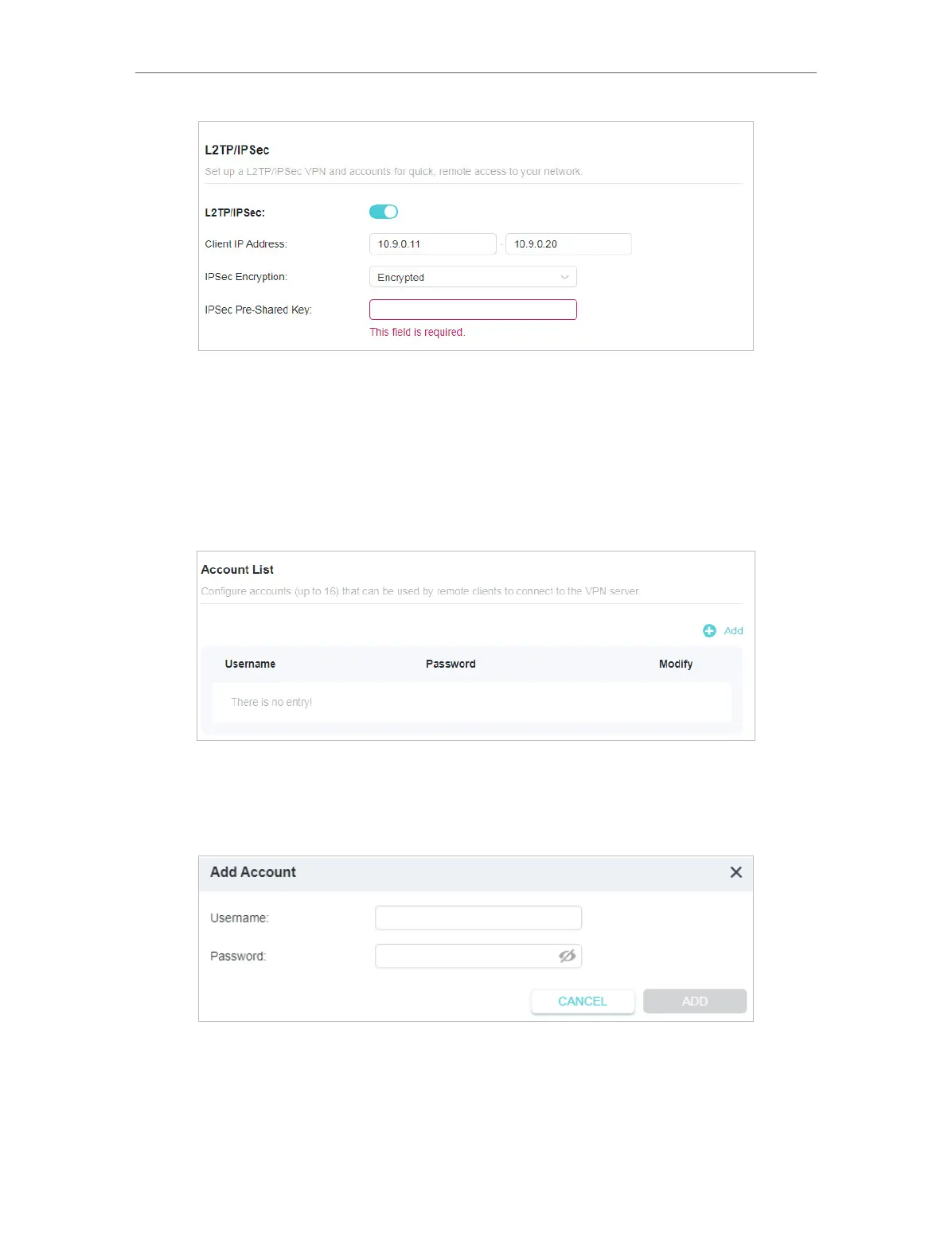
3. In the Client IP Address field, enter the range of IP addresses (up to 10) that can be
leased to the devices by the L2TP/IPSec VPN server.
4. Keep IPSec Encryption as Encrypted and create an IPSec Pre-Shared Key.
5. Click SAVE.
6. Configure the L2TP/IPSec VPN connection account for the remote device. You can
create up to 16 accounts.
4 ) Click Add.
5 ) Enter the Username and Password to authenticate devices to the L2TP/IPSec
VPN Server.
6 ) Click ADD.
Step 2. Configure L2TP/IPSec VPN Connection on Your Remote Device
The remote device can use the Windows or Mac OS built-in L2TP/IPSec software or
a third-party L2TP/IPSec software to connect to L2TP/IPSec Server. Here we use the
Windows built-in L2TP/IPSec software as an example.








 To Next Page