101
2. Visit http://tplinkmodem.net, and log in with password you set for the modem
router.
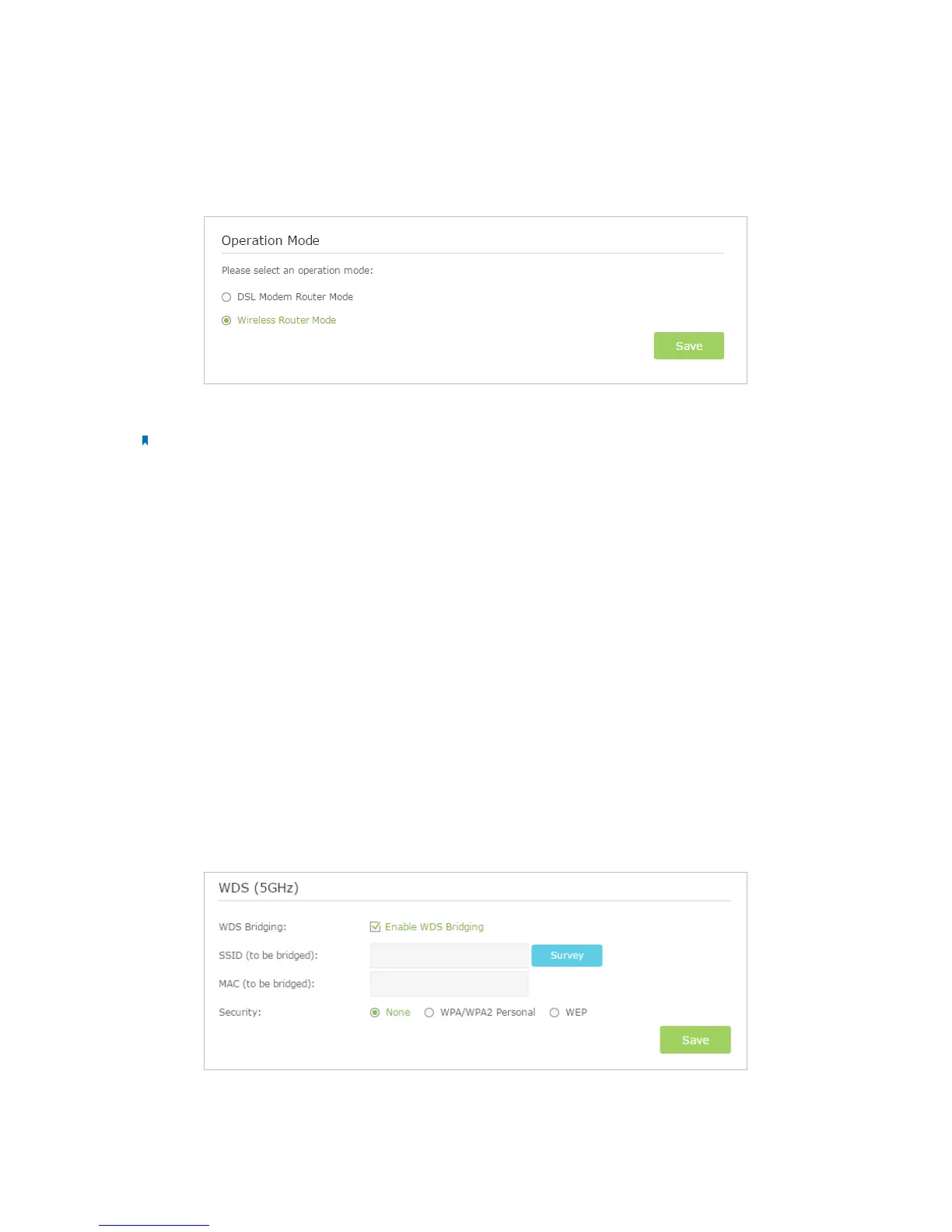
3. Go to Advanced > Operation Mode page.
4. Select the Wireless Router Mode option and click Save to make the settings effective.
Note: IPTV function is not supported in Wireless Router Mode.
T7. How to use the WDS Bridging function to extend my wireless
network?
My house covers a large area. The wireless network coverage of the router I’m using
(the root router) is limited. I want to use an extended router to extend the wireless
network of the primary router. Follow the steps to configure the modem router.
1. Visit http://tplinkmodem.net, and log in with password you set for the modem
router.
2. Configure the LAN IP address of the modem router in the same subnet as the root
router. For example, the IP address of the root router is 192.168.1.1, the IP address
of the extended router should be from 192.168.1.2 to 192.168.1.254.).
3. Go to Advanced > Wireless >Advanced Settings page and select the wireless
network 5GHz. Locate the WDS (5GHz) section and select the checkbox to enable
the WDS Bridging function.
4. Click Survey to scan all the AP devices and choose the root AP to be bridged.




 To Next Page