92
Chapter 15
Manage the Router
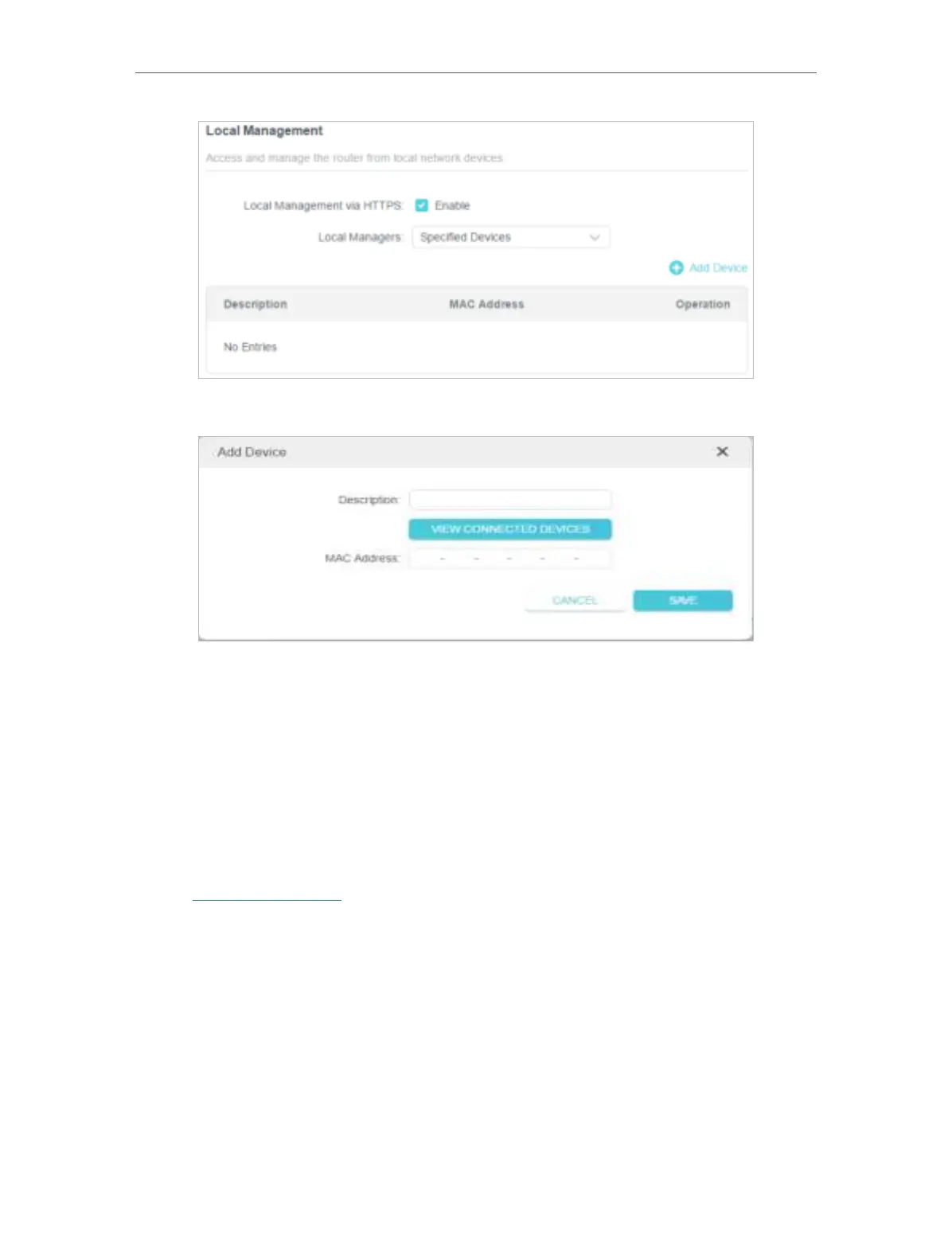
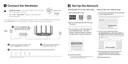
2. Click Add Device.
3. Click VIEW CONNECTED DEVICES and select the device to manage the router from
the Connected Devices list, or enter the MAC address of the device manually.
4. Specify a
Description for this entry.
5. Click
SAV E .
15. 6. Remote Management
This feature allows you to control remote devices’ authority to manage the router.
1. Visit
http://tplinkwifi.net, and log in with your TP-Link ID or the password you set for
the router.
2. Go to
Advanced > System > Administration and complete the settings in Remote
Management
section as needed.
• Forbid all devices to manage the router remotely:
Do not tick the
Enable checkbox of Remote Management.






 To Next Page