32
Chapter 5 Manage Your Extender
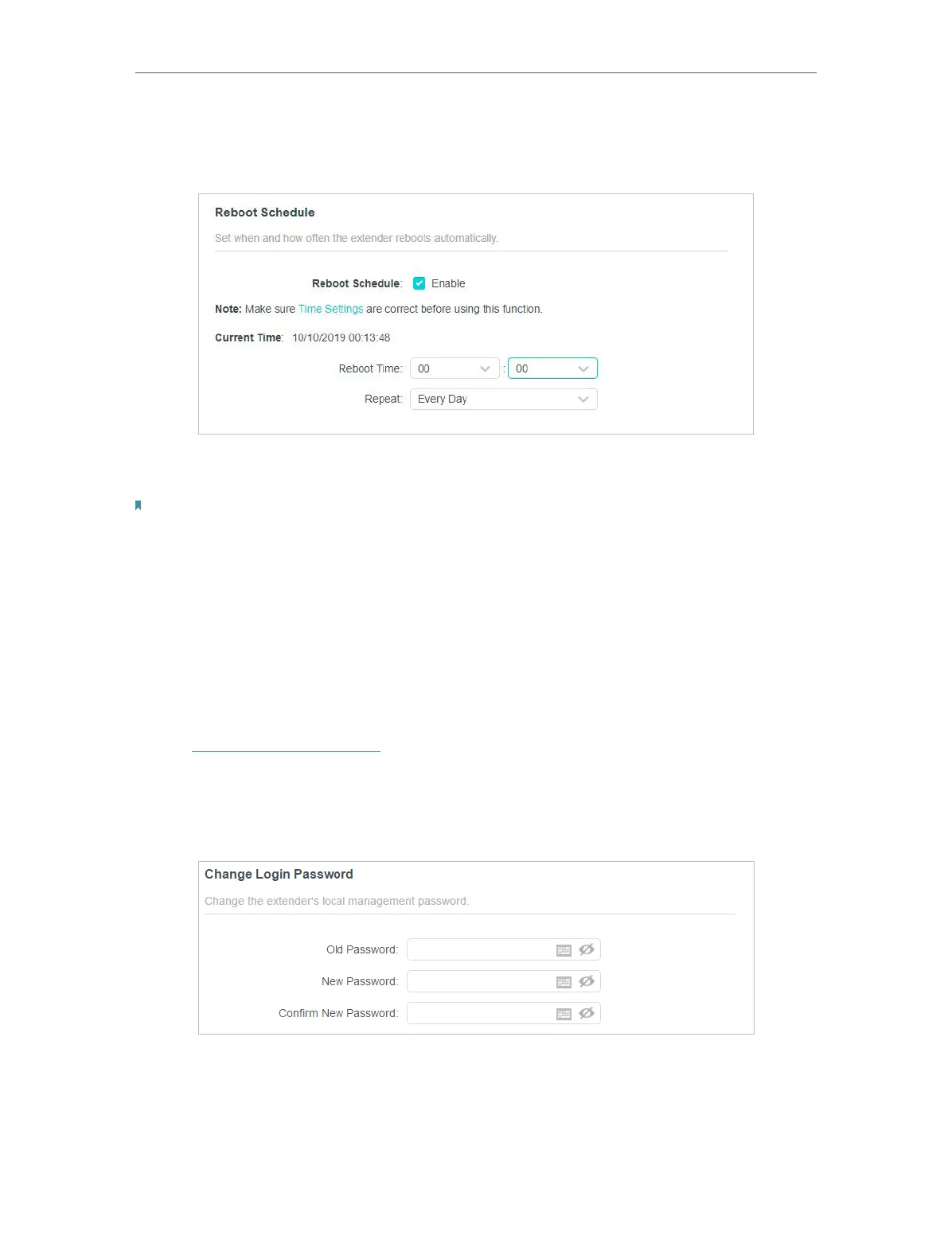
• To Reboot Automatically
1. Locate the Reboot Schedule section and check the box to enable Reboot Schedule.
2. Specify the Reboot Time when the router reboots and Repeat to decide how often
it reboots.
Note:
The effective reboot time is based on the system time of the router. Please go to Settings > System Tools
> Time Settings to set up the correct time.
3. Click Save.
5. 7. Change Login Password
The account management feature allows you to change your login password of the web
management page.
1. Visit http://tplinkrepeater.net, and log in with the password you set for the extender.
2. Go to Settings > System Tools > Change Login Password.
3. Enter the old password, then the new password twice (both case-sensitive) and click
SAVE .
4. Use the new password for future logins.


 To Next Page