EasyManua.ls Logo

TP-Link Wi-Fi 7 - User Manual

TP-Link Wi-Fi 7
11 pages
Print Icon
To Next Page IconTo Next Page
Loading...
Q1. What should I do if I want to change the WAN port for internet service?
Connect to your desired WAN port with an Ethernet cable. During the quick network setup,
select the corresponding port as the internet port. Alternatively, go to
More > Internet
Connection > Internet Port
(Tether app)
or Internet > Internet Port
(web management page) to
change the internet port.
Q2. What should I do if I can’t access the web management page?
Reboot your router and try again.
If the computer is set to a static IP, change its settings to obtain an IP address automatically.
Verify that http://tplinkwifi.net is correctly entered in the web browser. Alternatively, enter
http://192.168.0.1 or http://192.168.1.1 in the web browser.
Use another web browser and try again.
Disable and enable the network adapter in use.
Q3. What should I do if I can’t access the internet?
Power off your modem for about 5 minutes, then power it on and check the internet. If your
modem has more than one Ethernet port, keep the other ports unconnected.
Check if the internet is working normally by connecting a computer directly to the modem via
an Ethernet cable. If it is not, contact your internet service provider.
L
og in to the web management page, and go to the Network Map page to check whether the
internet IP address is valid or not. If it’s valid, go to Advanced > Network > Internet, click
Advanced Settings, select Use the Following DNS Addresses, set the primary DNS to 8.8.8.8,
and set the secondary DNS to 8.8.4.4. If it is not, check the hardware connection or contact your
internet service provider.
For cable modem users, log in to the web management page of the router and go to
Advanced > Network > Internet > MAC Clone. Select Clone Current Device MAC and click
Need Help?
©2023 TP-Link 7106510611 REV1.1.0
BE19000 Tri-Band Wi-Fi 7 Router
Quick Installation Guide
For technical support, replacement services, user guides, and other information, please
visit https://www.tp-link.com/support.
SAVE. Then reboot both the modem and the router.
Q4. What should I do if I forget my wireless password?
• If you have not changed the default wireless password, it can be found on the label at the back
of the router.
• Connect a computer directly to the router using an Ethernet cable. Log in to the router’s web
management page at http://tplinkwi.net and go to the Wireless page to retrieve or reset your
wireless password
.
Q5. How should I position my router for optimal Wi-Fi performance?
• Keep the router vertical while working.
• Don’t place your router in a corner or in a closet.
• Avoid obstacles and high-powered appliances.
• Keep your router in a central location at a certain height.
Q6. Why can't my computer's speed reach 10 Gbps?
• Check if your computer is connected to the 10G LAN port of the router.
• Check if the network bandwidth provided by your ISP is 10 Gbps or higher.
• It is recommended to use Cat6/6a or above network cables to connect devices.
• If you need help, please contact our technical support.
Tether
TP-Link HomeShield premium security services keep your home
network safe with cutting-edge features. Tap the HomeShield tab to
enjoy.
For more details, visit https://www.tp-link.com/homeshield.
Parental Controls
Manage online time and block inappropriate
content to maintain healthy online habits.
Comprehensive Reports
Gain full statistics and insights to help you
know your home network better.
Network Protection
Detects cyber threats to keep your privacy
and connected devices well protected.
Quality of Service (QoS)
Prioritize your bandwidth needs for a better
networking experience.
TP-Link HomeShield
USB Applications
With the USB port, it’s easy to share files and media with multiple devices. Visit
https://www.tp-link.com/app/usb to learn more about the USB applications.
Media Server: Play media from the USB drive on your computer and smart devices
Local Storage Sharing: Share les from the USB drive with devices on your home network
Remote Access: Access the USB drive when you are away from home
For more information, visit https://www.tp-link.com/easymesh/
One-Click Settings
Press the WPS button on the main router and the satellite device within 2 minutes of each
other, then the EasyMesh network will set up. TP-Link routers in factory settings can be
connected to form an EasyMesh network directly without any redundant setup.
EasyMesh-Compatible
You can experience strong, stable, and seamless wireless connections throughout your
home with EasyMesh.
Seamless Roaming
Connects mobile devices to your routers or extenders that provide the best coverage. Devices
compatible with EasyMesh also share a single Wi-Fi name so you stay connected in every room.
Flexible Scalability
Flexibly scale your home networking with dierent vendors,* dierent topologies,
dierent Protocols and dierent product categories.
*Failure may be due to rmware conicts of dierent vendors. A better network
connection can be established between all APs from TP-Link.
Scan for Setup Video
· Keep the device away from water, re, humidity or hot environments.
· Do not attempt to disassemble, repair, or modify the device. If you need service, please contact us.
· Do not use any other chargers than those recommended.
· Do not use damaged charger or USB cable to charge the device.
· Do not use the device where wireless devices are not allowed.
· Adapter shall be installed near the equipment and shall be easily accessible.
Question and Answer IconNeed help?

Do you have a question about the TP-Link Wi-Fi 7 and is the answer not in the manual?

Summary

Hardware Connection Guide

Ethernet WAN Connection

Connect the router's 10 Gbps Combo port to the internet using an Ethernet cable.

Fiber WAN Connection

Connect your PON stick to the router's SFP+ Port 2 for fiber internet.

Network Setup Methods

TP-Link Tether App Setup

Use the Tether app for guided setup of your Archer BE800 router and internet connection.

Web Browser Setup

Router LED Screen Guide

Front Panel Button Functions

HomeShield Premium Security

EasyMesh Compatible Features

USB Port Usage

Troubleshooting and FAQs

Change WAN Port

Steps to change the router's internet connection port for service.

Accessing Web Management

Troubleshooting common issues preventing access to the router's configuration interface.

Internet Connectivity Problems

Solutions for when your router cannot access the internet.

Resetting Wireless Password

How to find or change your Wi-Fi network name and password.

Router Placement Tips

Guide to positioning your router for the best Wi-Fi performance and coverage.

Troubleshooting 10 Gbps Speeds

Diagnosing why your computer's speed may not be reaching the router's 10 Gbps capability.

Summary

Hardware Connection Guide

Ethernet WAN Connection

Connect the router's 10 Gbps Combo port to the internet using an Ethernet cable.

Fiber WAN Connection

Connect your PON stick to the router's SFP+ Port 2 for fiber internet.

Network Setup Methods

TP-Link Tether App Setup

Use the Tether app for guided setup of your Archer BE800 router and internet connection.

Web Browser Setup

Router LED Screen Guide

Front Panel Button Functions

HomeShield Premium Security

EasyMesh Compatible Features

USB Port Usage

Troubleshooting and FAQs

Change WAN Port

Steps to change the router's internet connection port for service.

Accessing Web Management

Troubleshooting common issues preventing access to the router's configuration interface.

Internet Connectivity Problems

Solutions for when your router cannot access the internet.

Resetting Wireless Password

How to find or change your Wi-Fi network name and password.

Router Placement Tips

Guide to positioning your router for the best Wi-Fi performance and coverage.

Troubleshooting 10 Gbps Speeds

Diagnosing why your computer's speed may not be reaching the router's 10 Gbps capability.

Overview

The TP-Link BE19000 Tri-Band Wi-Fi 7 Router is a high-performance networking device designed to provide robust, stable, and seamless wireless connections throughout your home. This Quick Installation Guide outlines the steps for setting up the router and leveraging its advanced features, ensuring an optimal Wi-Fi experience.

Function Description

The BE19000 router serves as the central hub for your home network, connecting all your internet-enabled devices to the internet. It supports the latest Wi-Fi 7 standard, offering tri-band connectivity for enhanced speed and efficiency. The router is equipped with multiple high-speed ports, including a 10 Gbps Combo port (RJ45 and SFP+) and additional WAN/LAN ports, allowing for flexible internet connection options via Ethernet or fiber.

Beyond basic internet connectivity, the router integrates advanced features to optimize network performance, security, and management. It is EasyMesh-compatible, enabling you to create a unified, seamless Wi-Fi network with other compatible devices, eliminating dead zones and ensuring consistent coverage. The router also includes TP-Link HomeShield, a suite of premium security services designed to protect your network from cyber threats, manage bandwidth, enforce parental controls, and provide comprehensive network reports.

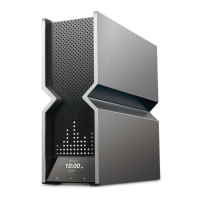
The device features an intuitive LED screen that visually displays various functions and information, such as network status, WPS connection status, and upgrade progress. Physical buttons on the front panel provide quick access to WPS, Wi-Fi on/off, and LED on/off functions, offering convenient control over key router operations.

Usage Features

Hardware Connection:

Setting up the BE19000 router begins with a straightforward hardware connection process. It is crucial to keep the router vertical for optimal Wi-Fi performance. The router's 10 Gbps Combo port can be connected to the internet via an Ethernet cable from your modem or directly to an Ethernet outlet. Alternatively, if your internet service uses fiber, you can connect a PON stick (sold separately) to the router's SFP+ Port 2. After connecting the internet source, the power adapter is plugged in, and the Power button is pressed to turn on the device. The LED screen will cycle through graphics, indicating that the router is ready for the next steps.

For a convenient setup experience, the TP-Link Tether app is recommended. Users can download the app from the App Store or Google Play. Once installed, open the app and log in with your TP-Link ID. If you don't have an account, you'll need to create one first. Within the Tether app, tap the "+" button, select "Wireless Router," and then choose "Archer BE800" (or the specific model if different). Follow the on-screen instructions to complete the setup and connect to the internet. The Tether app also allows you to bind your TP-Link ID to the router for access to more complete services.

Network Setup (Method TWO: Web Browser):

Alternatively, the router can be set up via a web browser. First, connect your device (computer or smartphone) to the router wirelessly using the default Wi-Fi network names (SSIDs) and password printed on the label at the back of the router, or connect via an Ethernet cable. Then, launch a web browser and enter "http://tplinkwifi.net" or "http://192.168.0.1" in the address bar. You will be prompted to create a password to log in. After logging in, follow the step-by-step instructions to configure your internet connection and register for the TP-Link Cloud service.

LED Screen Information:

The LED screen on the router provides visual feedback on its operational status. Pulsing LEDs indicate that the router is starting up or being reset. Cycling graphics mean the router is ready for setup. A stable display of information (set in Tether) or cycling emojis signifies that the router is working correctly and has internet access. During a WPS connection attempt, a checkmark (✓) will appear if successful, while an "x" will indicate a failure. An upward-pointing arrow indicates that the router is being upgraded. A downward-pointing arrow means the router is disconnected from the internet. Lastly, LEDs pulsing in a line at the top indicate that Wi-Fi is off.

Button Functionality:

Three physical buttons on the front of the router offer quick control:

  • WPS Button: Pressing this button initiates the Wi-Fi Protected Setup (WPS) process. Immediately after pressing it on the router, press the WPS button on your client device. A checkmark (✓) on the LED screen confirms a successful WPS connection.
  • Wi-Fi Button: Press and hold this button for approximately 2 seconds to toggle the wireless function of your router on or off.
  • LED Button: This button allows you to turn the LED screen and indicators on or off.

This feature provides premium security services to keep your home network safe. It includes:

  • Network Protection: Detects cyber threats to safeguard your privacy and connected devices.
  • Quality of Service (QoS): Prioritizes bandwidth for specific applications or devices, ensuring a better networking experience.
  • Parental Controls: Allows you to manage online time and block inappropriate content for family members.
  • Comprehensive Reports: Provides statistics and insights into your home network usage.

EasyMesh-Compatible:

The router supports EasyMesh, enabling you to build a unified Wi-Fi network with seamless roaming. This means your mobile devices will automatically connect to the router or extender with the best signal, and all compatible devices will share a single Wi-Fi name. One-click settings allow for easy setup of an EasyMesh network by pressing the WPS button on the main router and satellite device within two minutes. The system offers flexible scalability, allowing you to expand your network with different vendors and product categories, though TP-Link recommends using TP-Link APs for optimal compatibility.

USB Applications:

The router's USB port facilitates file and media sharing across multiple devices. You can access the USB drive remotely when away from home, share files with devices on your local network, or use it as a media server to play content on your computer and smart devices.

Maintenance Features

Troubleshooting Common Issues:

The guide provides solutions for common problems:

  • Changing the WAN port: This can be done during the quick network setup or later via the Tether app (More > Internet Connection > Internet Port) or the web management page (Internet > Internet Port).
  • Accessing the web management page: If you can't access the page, try rebooting the router, ensuring your computer's IP settings are automatic, verifying the URL (http://tplinkwifi.net or http://192.168.0.1/192.168.1.1), trying a different web browser, or disabling/enabling your network adapter.
  • No internet access: Power cycle your modem, ensure only one Ethernet port is connected to the modem (if it has multiple), check internet functionality by connecting a computer directly to the modem, or log into the router's web management page to check the internet IP address. If the IP is valid, configure DNS settings (8.8.8.8 and 8.8.4.4). For cable modem users, use the MAC Clone feature (Advanced > Network > Internet > MAC Clone).
  • Forgetting wireless password: The default password is on the router's back label. If changed, connect a computer directly via Ethernet, log into http://tplinkwifi.net, and go to the Wireless page to retrieve or reset it.

Optimal Router Placement:

For the best Wi-Fi performance, keep the router vertical, avoid placing it in corners or closets, keep it away from obstacles and high-powered appliances, and position it in a central location at a certain height.

Achieving 10 Gbps Speed:

To ensure your computer reaches 10 Gbps speeds, verify it's connected to the router's 10G LAN port, confirm your ISP provides 10 Gbps or higher bandwidth, and use Cat6/6a or higher network cables.

General Device Care:

To ensure longevity and safe operation, keep the device away from water, fire, humidity, and hot environments. Do not attempt to disassemble, repair, or modify the device; contact support if service is needed. Use only recommended chargers and avoid damaged ones. Do not use the device where wireless devices are prohibited. The power adapter should be installed near the equipment and easily accessible.

For further technical support, replacement services, user guides, and other information, users are directed to visit the TP-Link support website: https://www.tp-link.com/support.

TP-Link Wi-Fi 7 Specifications

General IconGeneral
Wi-Fi StandardWi-Fi 7 (802.11be)
MU-MIMOYes
OFDMAYes
BeamformingYes
BandsTri-band (2.4 GHz, 5 GHz, 6 GHz)
SecurityWPA3
PortsVaries by model (typically includes multiple Gigabit Ethernet ports and one or more multi-gig ports (2.5G/10G))

Videos

How to Set Up TP-Link Archer Tri-Band Wi-Fi 7 Router (Archer BE800)

How to set up TP-Link Tri-Band Wi-Fi 7 Router (Archer BE700 example)

How to Set Up TP-Link Wi-Fi 7 Gaming Router (Archer GE800)

How to Configure EasyMesh on TP-Link Wi-Fi 7 Routers

How to Setup TP-Link Wi-Fi 7 Wireless Router for Maxis Fibre

How to setup TP-Link Wi-Fi 7 Router for Unifi with Tether App (PPPoE mode)

Related product manuals