25
System Requirements for the Boot-Up Function
• A desktop or notebook computer that supports USB-ZIP, or USB-HDD as the First Boot
Device in BIOS
Enabling the Boot-Up Function
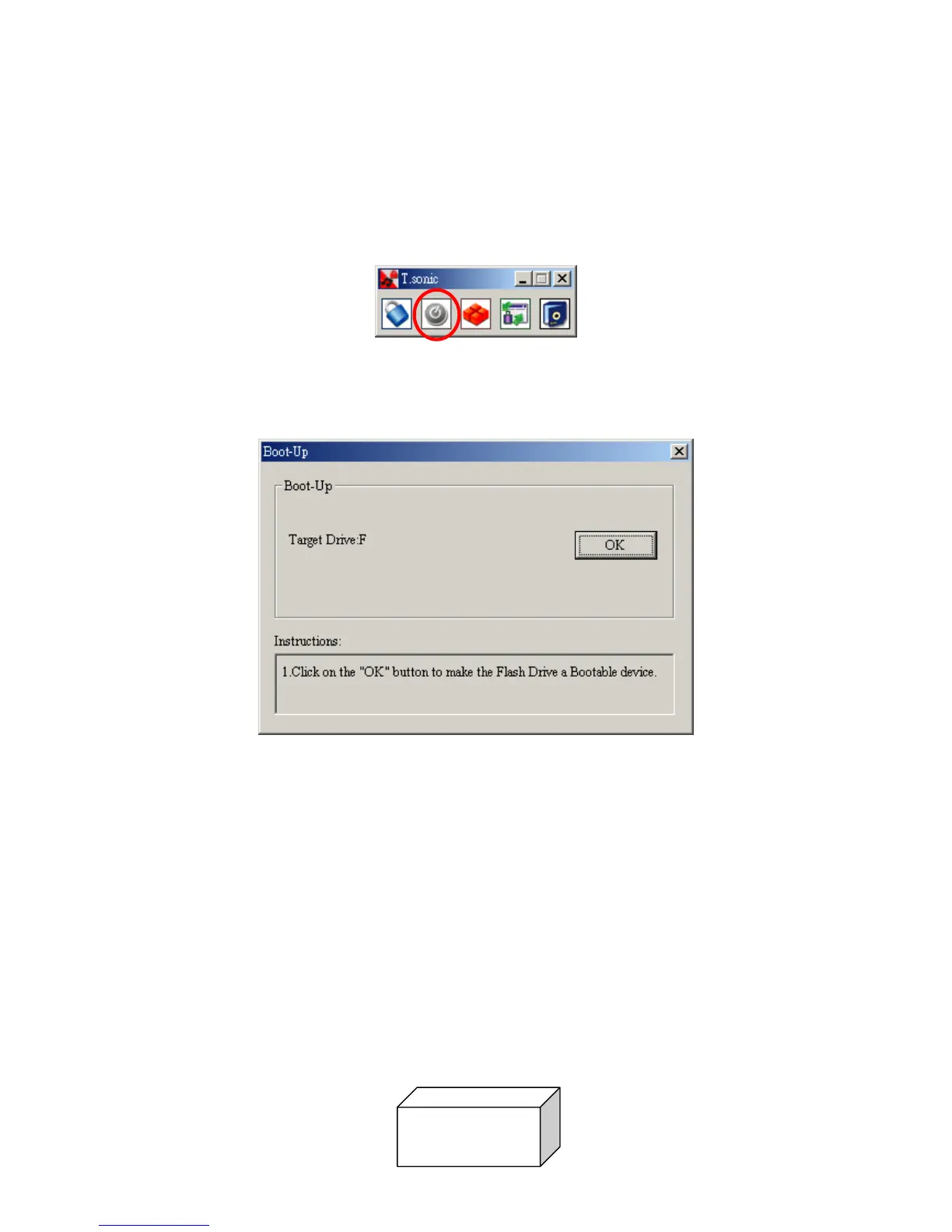
1. Select the Boot-Up button in the T.sonic™ 520 Utility window.
2. The following window will appear, choose the boot-up type you need (USB HDD or USB
ZIP, whichever has been set as the First Boot Device in BIOS) and select Create Boot
Disk.
3. Click on the “OK” button to make the Flash Drive a Bootable device.
Partition & Security Function
Partition Types
You can partition the T.sonic™ 520
into two partition types. The two types are:
Type 1: “Public Area Only"
This is the default partition type for the T.sonic™ 520. It allows the entire volume of the T.sonic™
520’s memory to be accessed by anyone. No secure data area is established.
Public Area


 To Next Page