Page 9
E1150 Mobile Reader
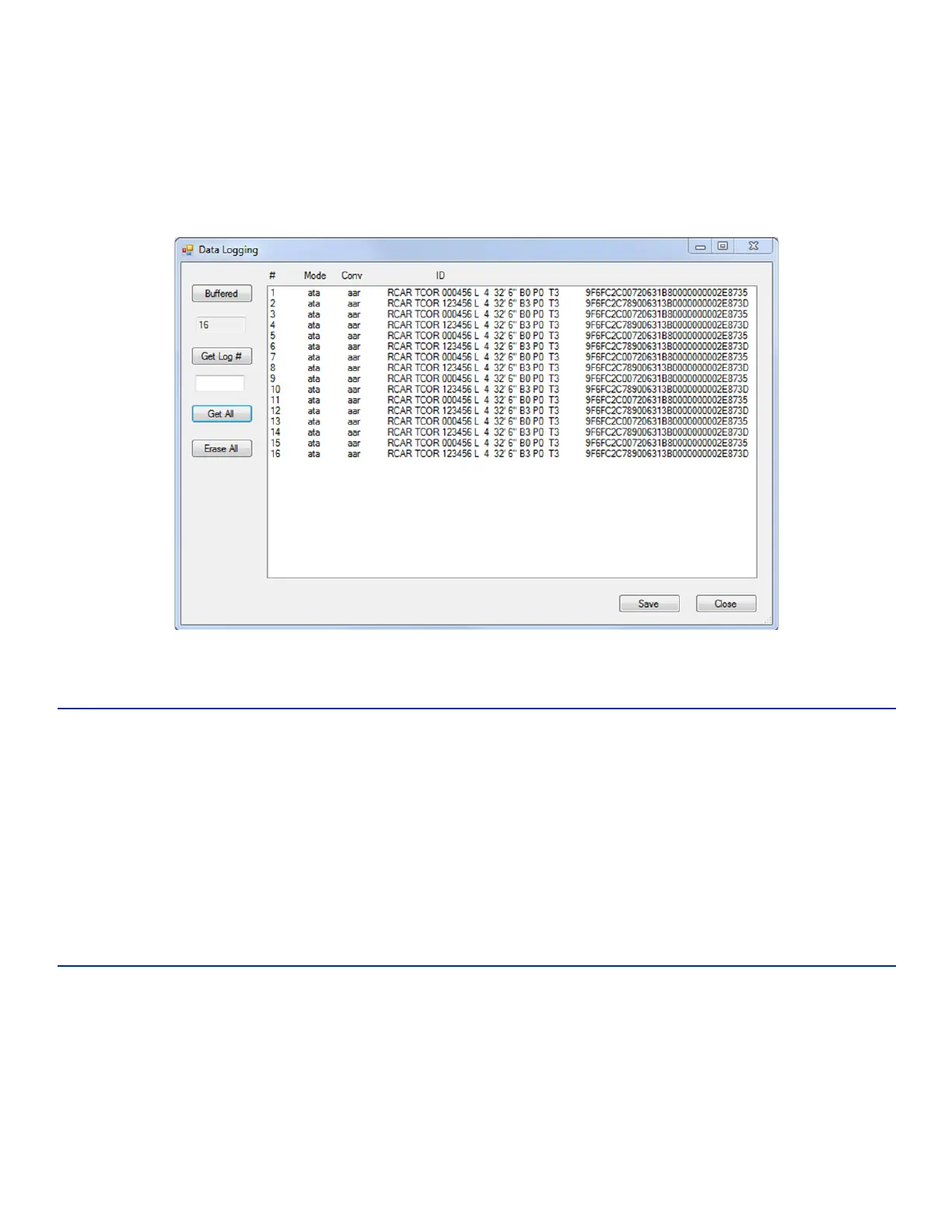
Once activated, the Buered Tag View (Figure 11) gives the option to download the E1150’s tag data buer.
Selecting the Buered button returns the amount of tags in the buer. By inputting a requested tag buer
number in the field below Get Log #, it is possible to retrieve a specific buered tag read. Get All returns all
tags in the buer, while Erase All empties the tag buer. Save allows the current displayed tag buer to be
saved to a log file, and Close closes the tag buer window.
Disconnect the E1150
Note: It is important to exit the software on the host computer before disconnecting the reader from
the system.
1. Exit the software on the host computer before you disconnect the reader. Click Disconnect in the
E1150 FCSW Window. Observe that the status on the lower left corner of the window reads Not
Connected.
2. Click the X on the upper right corner of the window to exit the software.
3. Disconnect the E1150 reader from the host PC.
Firmware Update
Do not attempt to update the firmware unless you have obtained an ocial firmware upload file from
TransCore. Save this firmware download file to a known location on your computer such as the Windows
desktop.
Firmware is updated via the Option tab under Firmware Upload.
Select Option > Firmware Upload.
Figure 11 Buered Tag View


 To Next Page