6
SGETF10xx-1xx
24-hour Technical Support: 1-800-260-1312 International: 00-1-952-941-7600
Installation -- Continued
Install the copper cable
1. Locate a 1000Base-T compliant copper cables with male, RJ-45 connectors
installed at both ends.
2. Connect the RJ-45 connector at one end of the cable to the RJ-45 port on
the SGETF10xx-1xx media converter.
3. Connect the RJ-45 connector at the other end of the cable to the RJ-45 port
on the other device (switch, workstation, etc.).
RJ-45 port
on the other device
(switch, work station, etc
RJ-45 port
on the media
converter
Power the media converter
AC
The external power supply provided with this device is UL listed by the
manufacturer of the power supply.
1. Install the power adapter cord to the back of the media converter.
2. Connect the power adapter plug to AC power.
3. Verify that the media converter is powered by observing the illuminated LED
power indicator light.
DC
Consult the user’s guide for the Transition Networks SPS1872-xx DC external
power supply for powering the media converter.
Power Connector
Converter Rear Panel
techsupport@transition.com -- Click the “Transition Now” link for a live Web chat.
7
Operation
Status LEDs
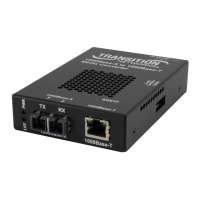
Use the status LEDs to monitor the SGETF10xx-1xx media converter operation in
the network.
PWR (Power) ON = Connected to external AC power.
LKF (Fiber link) ON = Fiber Connection
RXC (Copper receive) Flashing = Receiving data on the copper link.
ON = Copper Link connection
Duplex ON = Full
Remote-Fault Detect
Remote fiber fault detect (RFD) monitors the status of the fiber link. RFD must
only be enabled on the remote converter. If RFD is enabled in the device at each
end of the link, a link pass-through event will put the converters into an
unrecoverable state (unable to establish a link).
Pause
The pause feature can improve network performance by allowing one end of the
link to signal the other to discontinue frame transmission for a set period of time
to relieve buffer congestion.
The pause feature can be set to one of four settings:
• Disable (i.e., no pause)
• Symmetrical pause
• Asymmetric TX (transmit) pause
• Asymmetric RX (receive) pause
Enable the pause feature if it is present on ALL network devices attached to the
media converter(s); otherwise, disable the pause feature.
AutoCross (always on)
The AutoCross feature allows either straight-through (MDI) or crossover (MDI-X)
cables to be used when connecting to 10Base-T, 100Base-TX, or 1000Base-T
devices, such as hubs, transceivers, or network interface cards (NICs). AutoCross
determines the characteristics of the cable connection and automatically configures
the unit to link up to its companion device regardless of the cable configuration.
LKF PWR
RXTX
1000Base-X 1000Base-T


 To Next Page
 Loading...