EasyManua.ls Logo

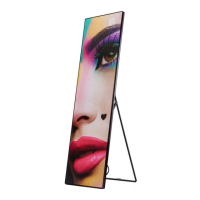
Transtech iPOSTER P1.9 - User Manual

Default Icon
65 pages
Print Icon
To Next Page IconTo Next Page
Loading...
Made-in-China
World-Class Quality
Edition NoTRT-MKT-2016/03
www.trtled.com
:
:
:
USER MANUAL
4
iPOSTER
Indoor series:P2.5/P1.9
Question and Answer IconNeed help?

Do you have a question about the Transtech iPOSTER P1.9 and is the answer not in the manual?

Summary

Safety Information

General Safety Warnings

General warnings and precautions for safe operation and handling of the product.

Electrical Safety Precautions

Protection from Electric Shock

Guidelines for safe electrical connections, grounding, and handling of power components.

Fire Hazard Prevention

Protection from Fire

Instructions to prevent fire risks, including avoiding modifications and using genuine parts.

Injury Prevention Measures

Protection from Injury

Precautions for safe installation, disassembly, and securing hardware to prevent physical harm.

Product Specifications

iPoster-2.5 mm Model Specs

Detailed technical specifications for the iPoster 2.5mm model.

iPoster-1.9 mm Model Specs

Detailed technical specifications for the iPoster 1.9mm model.

Installation Methods

Supporter Standing Setup

Instructions for setting up the iPoster using the supporter stand.

Pedestal Standing Setup

Guide for mounting the iPoster on a pedestal base using screws.

Wall-mounted Setup

Steps for securely mounting the iPoster onto a wall.

Hanging Installation Method

Procedure for installing the iPoster using hanging accessories.

Service and Maintenance Access

Front Service Access

Procedure for accessing and servicing modules from the front of the iPoster.

Rear Service Access

Method for accessing and servicing components from the rear of the iPoster.

Control System Overview

Main Controller Specifications

Technical specifications for the iPoster main controller (C6).

LEDVISION Software Setup Guide

Installing LEDVISION Software

Step-by-step guide for downloading and installing the LEDVISION software.

C6 Controller Parameter Configuration

Connection Settings for C6

Procedure for connecting the C6 to a computer and setting up screen management.

C6 Network Configuration

WiFi Setup and Hotspot

Steps to connect the C6 to a WiFi network and configure hotspot settings.

C6 LAN Network Connection

IP Address Configuration

Guide to automatically obtaining or manually setting an IP address for the C6.

Async Content Publishing via USB

Publishing Content Using USB Drive

Steps for publishing content to the iPoster using a USB drive.

C6 Network Management

LAN Connection and Refreshing Devices

Connecting C6 via LAN and refreshing to identify devices on the network.

Cloud Platform Operations

Internet ID Application and Login

Steps to apply for an Internet ID and log in to manage terminal equipment.

Terminal Group Management

Creating, Editing, and Deleting Groups

Creating, editing, and deleting terminal groups within the C-CLOUD system.

Individual Terminal Management

Adding and Editing Terminals

Steps for adding new LED terminals and editing their information.

Terminal Internet Connection

Connecting via USB and LEDVISION

Steps to connect the C6 to the internet using USB and LEDVISION.

Terminal Management Operations

Rebooting and Program Switching

Operations for rebooting equipment, switching, deleting, and clearing cache.

Media Management

Media Upload Process

Instructions for uploading media files (images, videos) to the server.

Media List Viewing and Deletion

How to view, delete, and manage media files in the media list.

Program Management

Program Allocation and Publishing

Command Scheduling

Server Connection Settings

Terminal Add;Delete Function

C-Cloud Chrome Plugins Setup

Chrome Extension Setup

C-CLOUD User Instruction

iOS App Operation

Connecting to Colorlight LED Player

Selecting Target LED Player

Creating a New Program on App

Editing Program Region

Setting Region Type

Adding Image or Logo

Selecting Pictures for Program

Typing Text for Program

Program Text and Movement Settings

Uploading Carousel Program

Naming the Program

Checking LED Screenshot

Full Screenshot Verification

Maintenance and Troubleshooting

Common Failures and Troubleshooting

Troubleshooting common failures like black screen and module malfunction.

Summary

Safety Information

General Safety Warnings

General warnings and precautions for safe operation and handling of the product.

Electrical Safety Precautions

Protection from Electric Shock

Guidelines for safe electrical connections, grounding, and handling of power components.

Fire Hazard Prevention

Protection from Fire

Instructions to prevent fire risks, including avoiding modifications and using genuine parts.

Injury Prevention Measures

Protection from Injury

Precautions for safe installation, disassembly, and securing hardware to prevent physical harm.

Product Specifications

iPoster-2.5 mm Model Specs

Detailed technical specifications for the iPoster 2.5mm model.

iPoster-1.9 mm Model Specs

Detailed technical specifications for the iPoster 1.9mm model.

Installation Methods

Supporter Standing Setup

Instructions for setting up the iPoster using the supporter stand.

Pedestal Standing Setup

Guide for mounting the iPoster on a pedestal base using screws.

Wall-mounted Setup

Steps for securely mounting the iPoster onto a wall.

Hanging Installation Method

Procedure for installing the iPoster using hanging accessories.

Service and Maintenance Access

Front Service Access

Procedure for accessing and servicing modules from the front of the iPoster.

Rear Service Access

Method for accessing and servicing components from the rear of the iPoster.

Control System Overview

Main Controller Specifications

Technical specifications for the iPoster main controller (C6).

LEDVISION Software Setup Guide

Installing LEDVISION Software

Step-by-step guide for downloading and installing the LEDVISION software.

C6 Controller Parameter Configuration

Connection Settings for C6

Procedure for connecting the C6 to a computer and setting up screen management.

C6 Network Configuration

WiFi Setup and Hotspot

Steps to connect the C6 to a WiFi network and configure hotspot settings.

C6 LAN Network Connection

IP Address Configuration

Guide to automatically obtaining or manually setting an IP address for the C6.

Async Content Publishing via USB

Publishing Content Using USB Drive

Steps for publishing content to the iPoster using a USB drive.

C6 Network Management

LAN Connection and Refreshing Devices

Connecting C6 via LAN and refreshing to identify devices on the network.

Cloud Platform Operations

Internet ID Application and Login

Steps to apply for an Internet ID and log in to manage terminal equipment.

Terminal Group Management

Creating, Editing, and Deleting Groups

Creating, editing, and deleting terminal groups within the C-CLOUD system.

Individual Terminal Management

Adding and Editing Terminals

Steps for adding new LED terminals and editing their information.

Terminal Internet Connection

Connecting via USB and LEDVISION

Steps to connect the C6 to the internet using USB and LEDVISION.

Terminal Management Operations

Rebooting and Program Switching

Operations for rebooting equipment, switching, deleting, and clearing cache.

Media Management

Media Upload Process

Instructions for uploading media files (images, videos) to the server.

Media List Viewing and Deletion

How to view, delete, and manage media files in the media list.

Program Management

Program Allocation and Publishing

Command Scheduling

Server Connection Settings

Terminal Add;Delete Function

C-Cloud Chrome Plugins Setup

Chrome Extension Setup

C-CLOUD User Instruction

iOS App Operation

Connecting to Colorlight LED Player

Selecting Target LED Player

Creating a New Program on App

Editing Program Region

Setting Region Type

Adding Image or Logo

Selecting Pictures for Program

Typing Text for Program

Program Text and Movement Settings

Uploading Carousel Program

Naming the Program

Checking LED Screenshot

Full Screenshot Verification

Maintenance and Troubleshooting

Common Failures and Troubleshooting

Troubleshooting common failures like black screen and module malfunction.

Transtech iPOSTER P1.9 Specifications

General IconGeneral
Brightness600 cd/m²
Refresh Rate3840 Hz
Life Span100, 000 hours
Cabinet MaterialAluminum
ResolutionCustomizable
Gray Scale16bit
Operating Humidity10% to 90% RH
Control SystemNova
WeightCustomizable
Power SupplyAC100~240V

Related product manuals