Photo settings
1
In photo capture mode, press to
enter photo settings menu.
2
Press / to toggle through the
sub-menus and press to enter the
sub-menu.
3
Press / to select an option and
press to confirm.
You can adjust the following settings:
•
Capture Mode
•
Resolution
•
Sequence
•
Quality
•
Sharpness
•
White Balance
•
Color
•
ISO
•
Exposure
•
Anti-Shaking
•
Quick-Review
•
Date Stamp
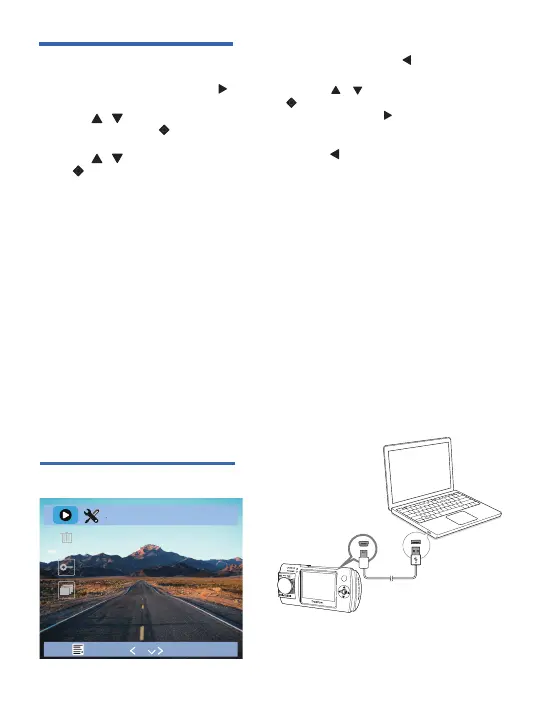
6 Playback
Video playback
7 Connect the dash
cam to a computer
When the dash cam is connected
to a computer, the micro SD card will be
automatically recognized. You can then
copy videos or photos from the micro SD
card to your computer.
1
Under stopping status of video
recording mode, Press twice to enter
video/photo playback mode.
2
Press / to select a video, press
to play the video/photo.
•
Playback, press to manage
videos, you can delete the current
video, all videos.
•
Press to return to video recording
mode.
•
During playback, you can
pause/restart the video, delete the
video, or slide show.
Mini USB cable
is not included.
Delete
Slide Show
Protect
Playback
1/1
07


 To Next Page