Mac® OS
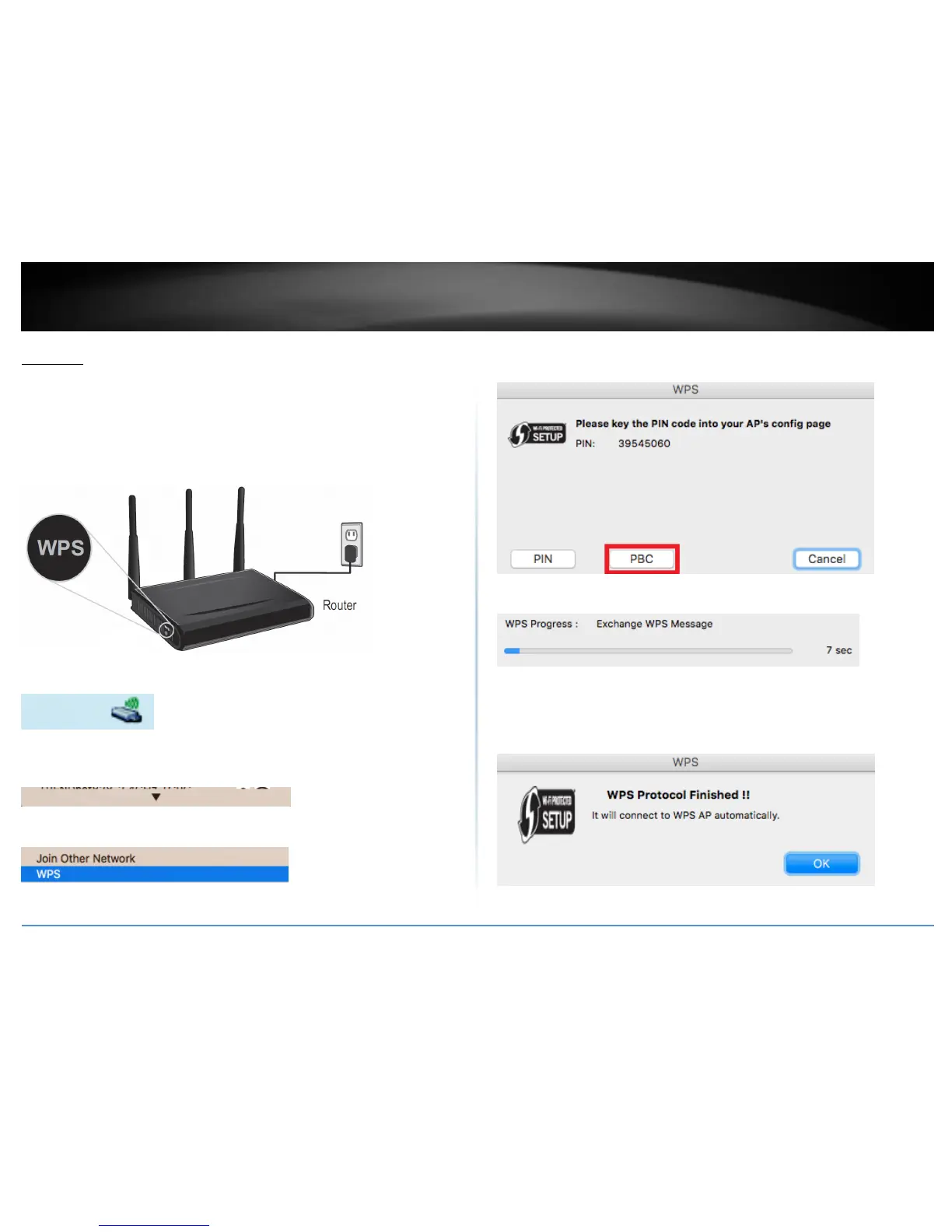
WPS connection using the built in utility (Virtual Push Button)
1 On your wireless router/access point, push the WPS button.
Note: Typically, the WPS button hold time is 3-5 sec., then release. For TRENDnet
routers/access points, the WPS hardware push button hold time is 3 seconds. If you are
using another brand device, you may need to refer to your device documentation for
WPS operation.
2. Click on the wireless adapter icon in the top menu bar.
3. Scroll to the bottom of the available wireless networks list and click the arrow at the
bottom.
4, After the additional menu opens, click on WPS.
5. In the WPS window, click PBC to activate WPS.
6. A series of status messages will appear. Wait for the WPS process to complete.
7. A status message will appear to indicate a successful connection.
Note: If the WPS process fails, you will receive not receive a message “Connected”. You
may need to attempt the WPS process again. Please refer to your wireless router/access
point documentation regarding the operation of WPS.



 To Next Page