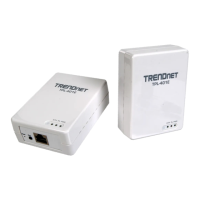
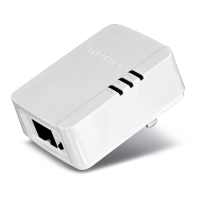
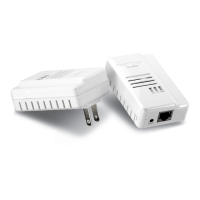
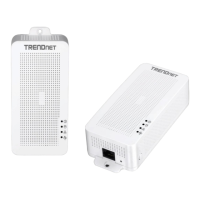
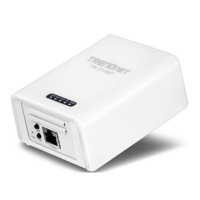
The TRENDnet Powerline 1300 AV2 Adapter (TPL-422E) and Powerline 1300 AV2 Adapter Kit (TPL-422E2K) enable the creation of a high-speed Powerline 1300 network using a home's existing electrical system. Two adapters are required to initiate a network. TRENDnet adapters are secured with 128-bit AES Encryption. The first adapter connects to an existing router, and subsequent adapters on the same electrical system automatically connect to the first for instant internet access. The TPL-422E kit includes two TPL-422E adapters, two quick installation guides, two CD-ROMs (with utility and user's guide), and two 1.5m (5 ft) network cables. The single TPL-422E package includes one adapter, a quick installation guide, a CD-ROM, and one 1.5m network cable.
Function Description
The Powerline 1300 AV2 Adapters leverage Powerline 1300 technology to deliver fast and stable networking, facilitating seamless device connectivity and 4K video streaming. They feature a Gigabit port for connecting computers, smart TVs, and other network-enabled devices. The adapters are cross-compatible with Powerline 1200, 600, 500, and 200 adapters.
Important Technical Specifications
- Standards: IEEE 802.3, IEEE 802.3u, IEEE 802.3x, IEEE 802.3ab, IEEE 1901, IEEE 1905.1
- Device Interface: 1 x Gigabit LAN port, Sync button, Reset button, LED indicators.
- Power Plug: North America Type B (NEMA 5-15).
- Frequency Band: 2 – 67.5MHz.
- Modulation/Protocol: OFDM, 4096/1024/256/64/16/8-QAM, QPSK, BPSK, ROBO, HS-ROBO, Mini-ROBO, CSMA/CA.
- Data PHY Rate: Up to 1300Mbps.
- Networking Distance: Up to 300m (980ft.) linear distance over electrical power lines.
- Encryption: 128-Bit AES (Advanced Encryption Standard).
- Powerline Nodes: Up to 8 (max.).
- Overlapping Powerline Networks: Up to 4 (per electrical system).
- Special Features: Auto-connects to other TRENDnet Powerline adapters, IPv6 support, IGMP / MLDv2 Streams.
- Optional Utility OS Compatibility: Windows 10, 8.1, 8, 7, Vista, XP.
- Power Input: 100-240V AC, 50-60Hz.
- Power Consumption: Active mode: 4W (max.); Standby mode: 0.5W (max.).
- Operating Temperature: 0-50°C (32-122°F).
- Operating Humidity: Max. 90% non-condensing.
- Certifications: FCC, IC, ETL.
- Dimensions: 58 x 77 x 65 mm (2.3 x 3.0 x 2.6 in.).
- Weight: 108g (3.8 oz.).
- Warranty: 3 year limited (AC/DC Power Adapter, Cooling Fan, and Power Supply carry 1 year warranty).
Usage Features
- MIMO with Beamforming Technology: Utilizes Multiple Input Multiple Output (MIMO) Powerline with Beamforming technology, using live, neutral, and ground wires to enhance performance between adapters.
- Expandable: Supports up to 8 adapters on a single Powerline network.
- Easy Installation: TRENDnet adapters auto-connect out of the box.
- Sync Button: Pressing the Sync button for 2 seconds initiates a synchronization session, causing the POWER LED to blink for 2 minutes. Pressing the Sync button on additional adapters within this timeframe synchronizes them to the Powerline network. Holding the Sync button for 10 seconds generates a new random network name and encryption key (all LEDs will turn off and on again).
- Reset Button: Pressing the Reset button for 1 second resets the device to factory default settings, including the private network name "HomePlug AV".
- Power Save Mode: Adapters automatically enter standby mode to reduce power consumption after 10-20 minutes of no network traffic, turning off all LEDs. They automatically wake up when network traffic resumes.
- LED Indicators:
- Power LED:
- Green Solid: Device is powered on.
- Green Blinking: Powerline synchronization in progress.
- N/A Off: Device is powered off or in sleep mode.
- Powerline LED:
- Green Solid: Powerline connected (Best).
- Green Blinking: Data transmitting over powerline (Best).
- Amber Solid: Powerline connected (Good).
- Amber Blinking: Data transmitting over powerline (Good).
- Red Solid: Powerline connected.
- Red Blinking: Data transmitting over powerline.
- N/A Off: Powerline is not connected or synchronized, or the adapter is in sleep mode.
- Ethernet LED:
- Green Solid: Network connection established.
- Green Blinking: Network transmitting over Ethernet port.
- N/A Off: No Ethernet connection or adapter is in sleep mode.
- Powerline Connections: The Powerline LED color indicates connection strength and quality. Factors affecting quality include:
- Ground Wire: Adapters utilize all 3 wire sockets for gigabit Powerline communication speed.
- Noise: Generated by appliances (e.g., microwaves, ovens, hair dryers) can degrade signals.
- Distance: Long electrical wiring lengths between adapters can affect quality.
- Expanding a Powerline Network: Additional Powerline adapters can be added to extend the network to other rooms. The first adapter is connected to the router, and subsequent adapters are plugged into wall outlets near network devices. Ethernet cables connect these devices to the adapters.
- Powerline Security: Adapters auto-connect with a default "HomePlugAV" network name and encryption key. For enhanced security, users can change the network name and encryption key using the physical Sync button or the Powerline Utility.
- Powerline Utility: A software application for Windows (10, 8.1, 8, 7, Vista, XP with .NET Framework 3.5) that allows users to:
- Create customized network names and apply them to multiple adapters.
- View connected Powerline adapters, their MAC addresses, approximate connection quality, and speed.
- View and upgrade Powerline adapter firmware.
- Map View: Displays local and remote devices, their MAC addresses, firmware versions, and network type (public/private). Allows renaming devices, entering device passwords for remote management, and manually scanning for devices.
- Detailed View: Provides system information (utility version, computer details) and a log of remote devices, including MAC addresses, password status, and Tx/Rx rates. Allows deleting devices from the report, saving reports, printing reports, and showing active devices only.
- Device Setup: Allows setting a private network name (or reverting to public default), applying the network name to the local device or all remote devices, and setting the multicast address.
- Advanced: Features include selecting a local device for advanced settings, upgrading firmware, resetting selected devices, and restoring factory defaults. It also provides QoS settings for VLAN Tags or TOS Bits traffic prioritization.
- Options: Configures auto-scan intervals for local and remote devices (from 2 to 60 seconds) or disables auto-scan for manual scanning.
- About: Displays information about the Powerline Utility, including version, release date, and copyright details.
Maintenance Features
- Troubleshooting:
- Direct Plug-in: Always plug adapters directly into wall outlets, not power strips, extension cords, or surge protectors, to avoid performance degradation.
- Sequential Sync: When connecting more than two adapters, sync them one at a time to prevent connection issues.
- Power Cycle: Disconnect adapters from power outlets for 15 seconds and reconnect them to resolve issues.
- Alternative Outlets: If the Powerline LED is red, try plugging the adapter into a different wall outlet for better connection quality.
- Reset to Defaults: If issues arise after changing the encryption key, reset adapters to factory defaults using the physical Reset button (1-second press).
- Avoid GFI/AFCI Outlets: Do not use adapters on GFI protected outlets or electrical systems with AFCI circuit breakers, as this may degrade or block signals.
- Temperature: Avoid using adapters in areas with excessive heat.
- Interference: Fluorescent and incandescent lighting can cause significant Powerline interference.
- Multiple Circuit Breaker Boxes: If a building has multiple circuit breaker boxes, connect a Powerline adapter to an outlet on each box and bridge them with an Ethernet cable.
- Firmware Upgrade: The Powerline Utility allows users to view and upgrade Powerline adapter firmware.
- Factory Defaults Reset: The Powerline Utility includes a function to reset all settings on an adapter to factory defaults, recommended after firmware upgrades.

 Need help?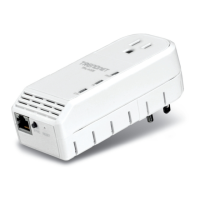


 To Next Page

 General