EasyManua.ls Logo

TRENDnet TV-IP314PI - User Manual

TRENDnet TV-IP314PI
56 pages
Print Icon
To Next Page IconTo Next Page
Loading...

Other manuals for TRENDnet TV-IP314PI

Question and Answer IconNeed help?

Do you have a question about the TRENDnet TV-IP314PI and is the answer not in the manual?

Summary

Product Overview and Features

Key Camera Features

Overview of the camera's main capabilities and benefits.

Hardware and Performance Specifications

Details on physical build, performance metrics, and night vision.

WDR Technology

Explanation of Wide Dynamic Range for handling contrast lighting.

Camera Management and Configuration

Interface and Software Options

Multi-language support, mobile apps, and management software.

Recording and Detection Settings

Motion detection, recording schedules, and tamper alerts.

Network Protocol Support

IPv6, ONVIF, and PSIA compliance for connectivity.

Package Contents and Physical View

Included Package Items

List of items provided in the camera box.

Front View Components and Ports

Identification of camera's front view elements and connectors.

Mounting Hardware

Details about the camera's mounting bracket and holes.

Safety and Precautions

Critical Safety Warnings

Essential safety guidance to prevent injury or death.

Operational Cautions and Handling

Precautions for safe operation and equipment protection.

Installation Procedure Overview

Planning Installation Location

Guidance on selecting the optimal placement for the camera.

Weather Conditions for Installation

Considerations for environmental factors during camera setup.

Camera Setup with CD

Initializing Setup with CD

Steps to start the camera setup process using the installation CD.

Identifying Camera MAC Address

Locating and recording the camera's unique MAC address for setup.

Connecting Network Cable

Connecting the camera to the network using a PoE-capable cable.

Camera Search Utility

How the setup utility finds the camera on the network.

Camera Setup - Network Configuration

Selecting Camera on Network

Choosing the correct camera from a list of detected devices.

IP Address Assignment Options

Configuring camera IP via DHCP or Fixed IP.

Fixed IP Address Setup Details

Manual configuration of IP, subnet mask, and gateway.

Camera Setup - Security and Access

Setting a Secure Administrator Password

Changing the default password for enhanced security.

Accessing Camera Web Interface

Links to access the camera's web page after setup.

Downloading Mobile App

Instructions for obtaining the TRENDnet IPView mobile application.

Hardware Installation Details

Network Cabling Best Practices

Recommendations for proper network cable installation and testing.

Waterproof Cable Connections

Proper use of waterproof caps for cable protection.

Camera Mounting Procedure

Step-by-step guide for physically mounting the camera.

Camera Position Adjustment

Accessing Camera via Web Browser

System Management and Default Settings

Overview of default configurations and software recommendations.

Logging into Camera (Windows)

Initial access steps via web browser on Windows systems.

Web Browser Access - Plug-in Installation

Installing Video Streaming Plug-in

Steps to install the necessary browser plugin for live view.

Handling Security Prompts

Managing security warnings during software installation.

Web Browser Access - Live View

Refreshing Live View Page

Final steps to display the live video stream.

Logging into Camera (OS X)

Initial OS X Login Steps

Accessing the camera from macOS via web browser.

OS X Web Browser Access - Plug-in Installation

Installing Web Components on OS X

Guide for installing the browser plugin on macOS.

OS X Web Browser Access - Installer Steps

WebComponents Installer Process

Detailed steps for the macOS installer for web components.

Entering Password for Installation

Providing user credentials for software installation on macOS.

OS X Web Browser Access - Finalizing Installation

Completing WebComponents Installation

Finalizing the plugin installation on macOS.

Re-logging In and Changing Password

Accessing the camera again and setting a new administrator password.

Live View Display Confirmation

Live View Interface Controls

Snapshot and Zoom Functions

Capturing still images and adjusting magnification.

Recording and Stream Switching

Starting/stopping recordings and changing video streams.

Full Screen and Status Bar

Viewing in full screen and understanding status indicators.

Playback Features and Navigation

Navigating and Searching Recordings

Using the timeline and date selection to find video.

Time Line Controls

Buttons for playback, zoom, and specific time selection.

Playback Operations and Clipping

Video Playback Controls

Buttons for playing, pausing, stopping, and speed control.

Slicing Video Clips

Creating short video clips from recorded footage.

Snapshot and Zoom During Playback

Capturing images and zooming during playback.

Downloading Video and Snapshots

Downloading Video Sections

Saving specific parts of recorded video files.

Downloading Captured Snapshots

Retrieving captured still image files.

Log Management

Searching and Viewing System Logs

Finding and viewing recorded system events and logs.

Saving Logs to Computer

Exporting log files for analysis and record-keeping.

System Information Display

System Configuration Settings

Device Settings (Name & Location)

Configuring camera identification and OSD text.

Authentication Protocols (RTSP;Telnet)

Managing network access protocols for security.

User Account Management

Time and Date Settings

Automatic Time Synchronization (NTP)

Synchronizing camera time with network time servers.

Manual Time Setting

Manually setting the camera's date and time.

Daylight Savings Time Configuration

Live View Stream Settings

Live View Buffer Configuration

Optimizing video stream quality and delay settings.

Record File Size and Storage

Configuring file size and destination for recordings.

Snapshot and Clip Storage

Managing storage directories for snapshots and video clips.

Camera Maintenance and Updates

Rebooting and Resetting Camera

Restarting the camera or restoring factory default settings.

Firmware Upgrade Procedure

Steps to update the camera's operational software.

Network Settings - TCP;IP Configuration

Network Settings - Service Ports

Dynamic Domain Name Service (DDNS) Setup

PPPoE (ADSL) Connection Setup

SNMP Configuration Settings

802.1 X Authentication Setup

IP Address Filtering

Quality of Service (QoS) Configuration

UPnP Configuration

Video Settings - Video Format

Video Settings - Display Adjustments

Video Settings - Light Sensitivity

Smart IR Adjustment

Optimizing infrared light strength for clear night vision.

Exposure Time Configuration

Setting exposure duration for optimal image capture in different lighting.

Day;Night Switch Mode

Configuring automatic or manual switching between day and night modes.

Video Standard and Sensitivity

Setting video refresh rate and light sensor sensitivity.

Video Settings - Advanced Image Adjustments

Backlight Compensation

Adjusting image to compensate for strong light sources.

Wide Dynamic Range (WDR) Level

Fine-tuning WDR for enhanced detail in dark or bright areas.

White Balance and Noise Reduction

Adjusting color temperature and reducing digital noise.

On-Screen Display (OSD) Settings

Text Overlay Configuration

Privacy Mask Configuration

Video Recording Settings

Recording Buffer and Overwrite

Configuring pre/post record times and storage overwrite behavior.

Enabling Record Schedule

Setting up scheduled video recording based on time.

Event Settings - Motion Detection

Motion Detection - Scheduling and Notifications

Motion Detection Arming Schedule

Setting time-based activation for motion detection.

Motion Detection Notification Options

Configuring alerts for motion events (email, snapshot, storage).

Event Settings - Video Tampering Detection

Tamper Detection - Scheduling and Notifications

Tamper Detection Arming Schedule

Setting time-based activation for tamper detection.

Tamper Detection Email Notification

Configuring email alerts for tamper detection events.

System Notification Settings

Snapshot Configuration Settings

Continuous Snapshot Capture

Setting up the camera to continuously capture snapshots.

Event-Triggered Snapshot Capture

Configuring snapshots to be taken when specific events occur.

Snapshot Configuration Details

Event Triggered Snapshot Settings

Configuring interval and capture number for triggered snapshots.

Email Notification Setup

Email SSL and Authentication

Securing email connections and configuring authentication.

Email Receiver Configuration

Setting up recipient names and email addresses for notifications.

Network Storage Setup

Network Storage Configuration Details

Storage Management

FTP Server Configuration

Appendix - Direct Video Access and Regulations

RTSP Direct Video Access

Accessing video streams directly via RTSP protocol.

FCC Compliance and Interference

Information on FCC rules and interference statements for the device.

RoHS Compliance Statement

Statement of compliance with RoHS environmental standards.

Regulatory Compliance - EU Declaration

Limited Warranty Information

Summary

Product Overview and Features

Key Camera Features

Overview of the camera's main capabilities and benefits.

Hardware and Performance Specifications

Details on physical build, performance metrics, and night vision.

WDR Technology

Explanation of Wide Dynamic Range for handling contrast lighting.

Camera Management and Configuration

Interface and Software Options

Multi-language support, mobile apps, and management software.

Recording and Detection Settings

Motion detection, recording schedules, and tamper alerts.

Network Protocol Support

IPv6, ONVIF, and PSIA compliance for connectivity.

Package Contents and Physical View

Included Package Items

List of items provided in the camera box.

Front View Components and Ports

Identification of camera's front view elements and connectors.

Mounting Hardware

Details about the camera's mounting bracket and holes.

Safety and Precautions

Critical Safety Warnings

Essential safety guidance to prevent injury or death.

Operational Cautions and Handling

Precautions for safe operation and equipment protection.

Installation Procedure Overview

Planning Installation Location

Guidance on selecting the optimal placement for the camera.

Weather Conditions for Installation

Considerations for environmental factors during camera setup.

Camera Setup with CD

Initializing Setup with CD

Steps to start the camera setup process using the installation CD.

Identifying Camera MAC Address

Locating and recording the camera's unique MAC address for setup.

Connecting Network Cable

Connecting the camera to the network using a PoE-capable cable.

Camera Search Utility

How the setup utility finds the camera on the network.

Camera Setup - Network Configuration

Selecting Camera on Network

Choosing the correct camera from a list of detected devices.

IP Address Assignment Options

Configuring camera IP via DHCP or Fixed IP.

Fixed IP Address Setup Details

Manual configuration of IP, subnet mask, and gateway.

Camera Setup - Security and Access

Setting a Secure Administrator Password

Changing the default password for enhanced security.

Accessing Camera Web Interface

Links to access the camera's web page after setup.

Downloading Mobile App

Instructions for obtaining the TRENDnet IPView mobile application.

Hardware Installation Details

Network Cabling Best Practices

Recommendations for proper network cable installation and testing.

Waterproof Cable Connections

Proper use of waterproof caps for cable protection.

Camera Mounting Procedure

Step-by-step guide for physically mounting the camera.

Camera Position Adjustment

Accessing Camera via Web Browser

System Management and Default Settings

Overview of default configurations and software recommendations.

Logging into Camera (Windows)

Initial access steps via web browser on Windows systems.

Web Browser Access - Plug-in Installation

Installing Video Streaming Plug-in

Steps to install the necessary browser plugin for live view.

Handling Security Prompts

Managing security warnings during software installation.

Web Browser Access - Live View

Refreshing Live View Page

Final steps to display the live video stream.

Logging into Camera (OS X)

Initial OS X Login Steps

Accessing the camera from macOS via web browser.

OS X Web Browser Access - Plug-in Installation

Installing Web Components on OS X

Guide for installing the browser plugin on macOS.

OS X Web Browser Access - Installer Steps

WebComponents Installer Process

Detailed steps for the macOS installer for web components.

Entering Password for Installation

Providing user credentials for software installation on macOS.

OS X Web Browser Access - Finalizing Installation

Completing WebComponents Installation

Finalizing the plugin installation on macOS.

Re-logging In and Changing Password

Accessing the camera again and setting a new administrator password.

Live View Display Confirmation

Live View Interface Controls

Snapshot and Zoom Functions

Capturing still images and adjusting magnification.

Recording and Stream Switching

Starting/stopping recordings and changing video streams.

Full Screen and Status Bar

Viewing in full screen and understanding status indicators.

Playback Features and Navigation

Navigating and Searching Recordings

Using the timeline and date selection to find video.

Time Line Controls

Buttons for playback, zoom, and specific time selection.

Playback Operations and Clipping

Video Playback Controls

Buttons for playing, pausing, stopping, and speed control.

Slicing Video Clips

Creating short video clips from recorded footage.

Snapshot and Zoom During Playback

Capturing images and zooming during playback.

Downloading Video and Snapshots

Downloading Video Sections

Saving specific parts of recorded video files.

Downloading Captured Snapshots

Retrieving captured still image files.

Log Management

Searching and Viewing System Logs

Finding and viewing recorded system events and logs.

Saving Logs to Computer

Exporting log files for analysis and record-keeping.

System Information Display

System Configuration Settings

Device Settings (Name & Location)

Configuring camera identification and OSD text.

Authentication Protocols (RTSP;Telnet)

Managing network access protocols for security.

User Account Management

Time and Date Settings

Automatic Time Synchronization (NTP)

Synchronizing camera time with network time servers.

Manual Time Setting

Manually setting the camera's date and time.

Daylight Savings Time Configuration

Live View Stream Settings

Live View Buffer Configuration

Optimizing video stream quality and delay settings.

Record File Size and Storage

Configuring file size and destination for recordings.

Snapshot and Clip Storage

Managing storage directories for snapshots and video clips.

Camera Maintenance and Updates

Rebooting and Resetting Camera

Restarting the camera or restoring factory default settings.

Firmware Upgrade Procedure

Steps to update the camera's operational software.

Network Settings - TCP;IP Configuration

Network Settings - Service Ports

Dynamic Domain Name Service (DDNS) Setup

PPPoE (ADSL) Connection Setup

SNMP Configuration Settings

802.1 X Authentication Setup

IP Address Filtering

Quality of Service (QoS) Configuration

UPnP Configuration

Video Settings - Video Format

Video Settings - Display Adjustments

Video Settings - Light Sensitivity

Smart IR Adjustment

Optimizing infrared light strength for clear night vision.

Exposure Time Configuration

Setting exposure duration for optimal image capture in different lighting.

Day;Night Switch Mode

Configuring automatic or manual switching between day and night modes.

Video Standard and Sensitivity

Setting video refresh rate and light sensor sensitivity.

Video Settings - Advanced Image Adjustments

Backlight Compensation

Adjusting image to compensate for strong light sources.

Wide Dynamic Range (WDR) Level

Fine-tuning WDR for enhanced detail in dark or bright areas.

White Balance and Noise Reduction

Adjusting color temperature and reducing digital noise.

On-Screen Display (OSD) Settings

Text Overlay Configuration

Privacy Mask Configuration

Video Recording Settings

Recording Buffer and Overwrite

Configuring pre/post record times and storage overwrite behavior.

Enabling Record Schedule

Setting up scheduled video recording based on time.

Event Settings - Motion Detection

Motion Detection - Scheduling and Notifications

Motion Detection Arming Schedule

Setting time-based activation for motion detection.

Motion Detection Notification Options

Configuring alerts for motion events (email, snapshot, storage).

Event Settings - Video Tampering Detection

Tamper Detection - Scheduling and Notifications

Tamper Detection Arming Schedule

Setting time-based activation for tamper detection.

Tamper Detection Email Notification

Configuring email alerts for tamper detection events.

System Notification Settings

Snapshot Configuration Settings

Continuous Snapshot Capture

Setting up the camera to continuously capture snapshots.

Event-Triggered Snapshot Capture

Configuring snapshots to be taken when specific events occur.

Snapshot Configuration Details

Event Triggered Snapshot Settings

Configuring interval and capture number for triggered snapshots.

Email Notification Setup

Email SSL and Authentication

Securing email connections and configuring authentication.

Email Receiver Configuration

Setting up recipient names and email addresses for notifications.

Network Storage Setup

Network Storage Configuration Details

Storage Management

FTP Server Configuration

Appendix - Direct Video Access and Regulations

RTSP Direct Video Access

Accessing video streams directly via RTSP protocol.

FCC Compliance and Interference

Information on FCC rules and interference statements for the device.

RoHS Compliance Statement

Statement of compliance with RoHS environmental standards.

Regulatory Compliance - EU Declaration

Limited Warranty Information

TRENDnet TV-IP314PI Specifications

General IconGeneral
TypeIP security camera
CertificationCE, FCC
Placement supportedIndoor & outdoor
Connectivity technology-
Wide Dynamic Range (WDR)Yes
Fixed focal length4 mm
Sensor typeCMOS
Optical sensor size1/3 \
Camera shutter speed1/3 – 1/100000 s
Minimum illumination0.01 lx
Total megapixels4 MP
Maximum resolution2688 x 1520 pixels
Video formats supportedH.264, H.264+, H.265, H.265+, M-JPEG
Image quality adjustmentBrightness, Contrast, Saturation, Sharpness
Video compression formatsH.264, H.264+, H.265, H.265+
Number of users32 user(s)
Networking standardsIEEE 802.3, IEEE 802.3af, IEEE 802.3u, IEEE 802.3x
Supported network protocolsIPv4, IPv6, UDP, TCP, ICMP, ONVIF Profile S and Profile G, PSIA, DHCP, NTP, DNS, DDNS, SMTP, FTP, SNMP (v1, v2c, v3), NFS, SMB/CIFS, HTTP, HTTPS, PPPoE, UPnP, Bonjour, RTSP, RTP, RTCP, SSL
AC input voltage100-240 V
DC output current1 A
DC output voltage12
Power source typePoE
AC input frequency50 - 60 Hz
Power consumption (max)5 W
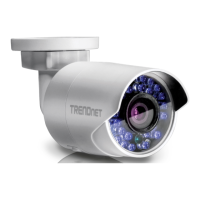
Form factorBullet
Mounting typeCeiling/wall
Product colorWhite
Operating temperature (T-T)-30 - 60 °C
Operating relative humidity (H-H)0 - 95 %
Number of cameras1
Night vision distance30 m
CompatibilityInternet Explorer® 9.0 or higher, Firefox® 13.0 or higher, Safari® 4.0 or higher
Compatible operating systemsWindows 10, 8.1, 8, 7, Vista, XP, Windows Server 2003, 2008, 2012
Weight and Dimensions IconWeight and Dimensions
Depth80 mm
Width55 mm
Weight362 g

Related product manuals