Android & Bluetooth
1. Open your settings app.
2. Go to your Bluetooth settings and activate Bluetooth.
3. Search for other devices and wait for “PilotPlugV2”/“PilotPlugV1” to show up.
4. Select “PilotPlugV2”/“PilotPlugV1” and accept any shown code.
The Pilot Plug is now connected to your Android device.
Apple iOS & Wi-Fi
1. Open the settings for you iOS device.
2. Go to your Wi-Fi settings and make sure it is turned on.
3. Wait for “TRENZ-PilotPlug” to show up in the list of available networks.
4. Select it and enter “12345678” when asked for a password.
5. Click on the small “i” next to the Wi-Fi name and click on IP Configuration “Manual”.
6. Enter the following data in the fields:
• IP: 10.10.10.101
• Mask: 255.255.255.0
ATTENTION: if you have multiple devices simultaneously connected to the Plug, choose different IP addresses for
each device. For Example: device 1 has IP 10.10.10.103 and device 2 has IP 10.10.10.105.
The default configuration to enter in your navigation program is
IP:10.10.10.100 Port: 8919 Protocol: TCP
The Pilot Plug is now connected to your iOS device.
Connecting a Vessel
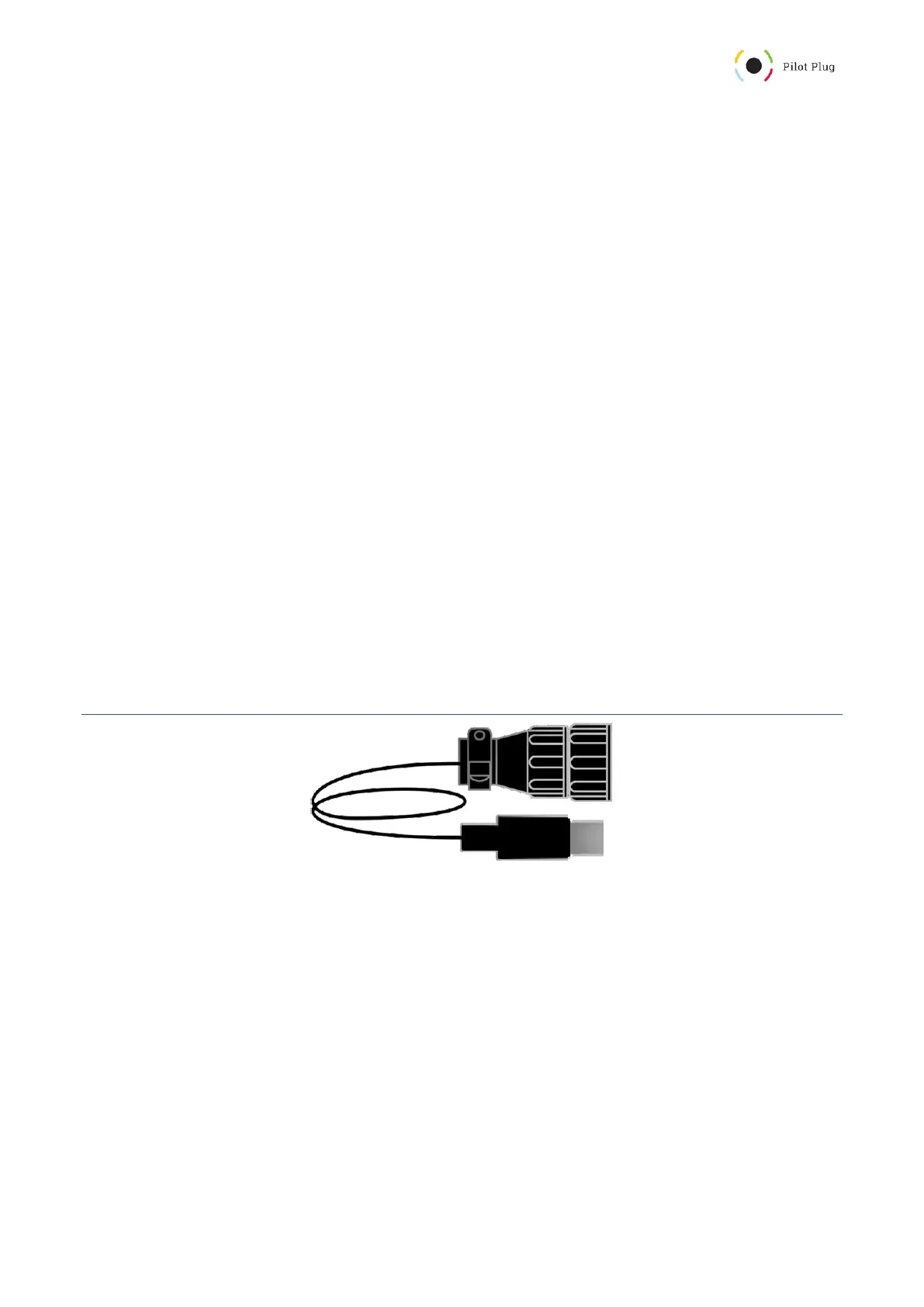
Figure 5: AIS to USB type C cable
To broadcast the AIS data collected by the vessel, you need to connect your Pilot Plug to the Pilot port. To do so,
follow these steps:
1. Connect the AIS to USB Cable (Figure 5) with the Pilot port on the vessel and any of the two available USB
Type C Ports of the Pilot Plug (Figure 1.3 or 1.5).
2. Turn the Pilot Plug on with the power switch (Figure 1.1).
3. The LEDs on top and the red power LED will light up and indicate that the Pilot Plug is booting.
Connect the Pilot Plug with your PPU and open your navigation software. If you need help connecting, please
refer to “Connecting to the Pilot Plug”.



 To Next Page