23
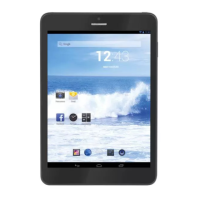
TAB 8 C4
BATTERY MANAGEMENT AND CHARGING
Before using this device, please charge it fully. Put the charger adapter into the DC jack,
the device will start to charge.
TIPS:
•Thisdeviceadoptsbuilt-inpolymerbattery.Onlythespecifiedchargershouldbeused.
when it is charging, the icon of battery will be rolling.
when the charging finish, the battery icon will turn green and stop rolling.
Ifyoudonotusethisdeviceforalongtime,pleasecharge/releaseitoncepermonthto
avoid deep discharge.
•Whenitispoweroffbecauseoflowbattery,connecttothecharger,thedevicewill
indicate “low power” or “charging”, please wait for a second until the machine can turn
to the main interface once the power is enough.
•Thebuilt-inpolymerbatteryshouldbechargedregularly.Thedamagecausedbybattery
over-consuming is not included in the warranty.
BOOT AND SHOUTDOWN
Boot: Press and hold the power button, the system will enter the boot process System has
been started, entering the Android system.
The system enters the default home interface.
Shutdown: Press the power button, pop-up device options, select Power off, Click OK,
you can safely shut down.
CONNECT WITH PC
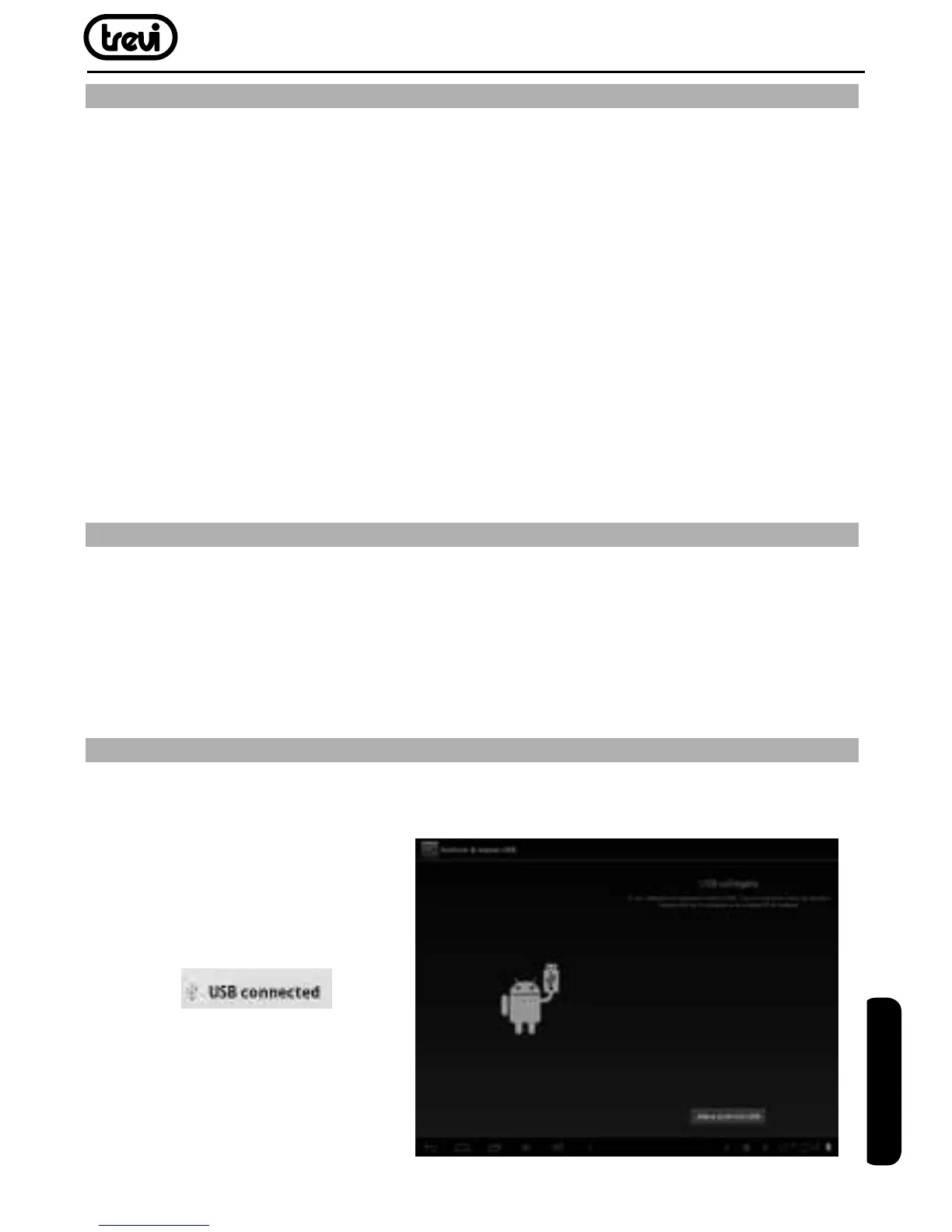
By mini USB (OTG) interface of the device, you can connect with PC by mini USB
cable attached with the device. USB Data transferring is available. You can operate the
files through the PC.
When your device is connected
successfully, to pull up the
notification area of the status
bar, can see the USB icon.
Then click
to enter the next step
ENGLISH


 To Next Page