27
TAB 8 C4
PHOTO BROWSER
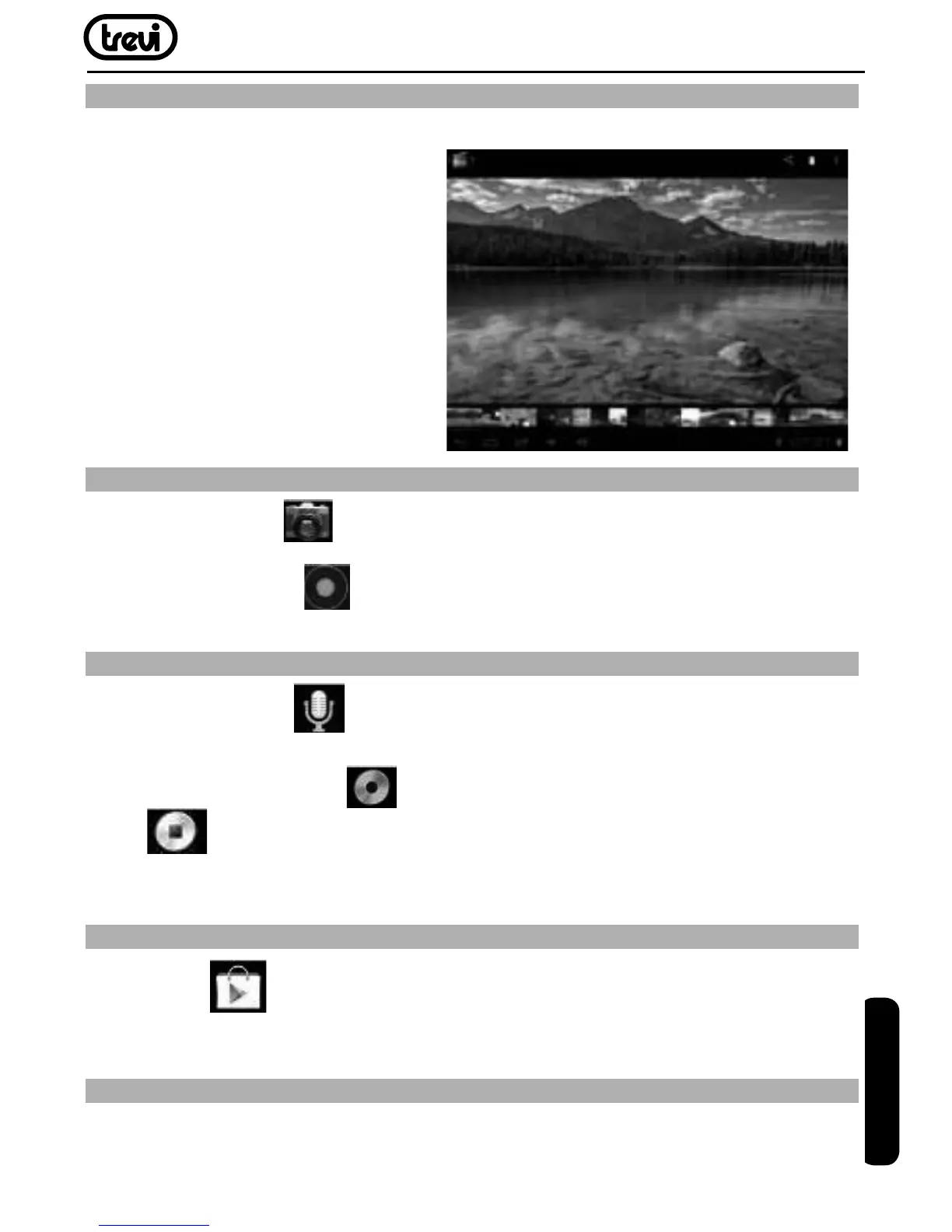
Click “Gallery” to get into Photo Browser directly, there will list all the picture files and
video files.
Select a picture file and enter the picture
playback interface, as shown below.
Can select “Zoom”, “narrow” “set”
and “delete” etc operation.
CAMERA
Click the Camera icon in the applications menu, as shown below
Click the camera shutter
to take photos or videos
SOUND RECORDER
Click the recorder icon in the applications menu.
Note:Select“Record”Button
to record when it is completed select “Stop”
button
. At this point you can find the recordings folder in the file browser,
which saved the recordings.
MARKET
Click the icon into the “Market” interface. If have no Gmail account, should
create a Gmail account
Frequently Asked Questions
Android
Q:WhatAndroidOSversionisonmyDevice?
A:4.0
ENGLISH


 To Next Page