GRAVURE CELL OPTION V8.3 X BETA – MANUALE OPERATORE
Pagina
7
Language
selection lets you choose between
English, German and French (at the time of
writing). Important: You must restart the
application after a language change.
Language Selection consente di scegliere una
lingua tra Inglese, Tedesco e Francese (sino a
questo momento). Importante: è necessario
riavviare l'applicazione dopo aver selezionato
una lingua.
The Gravure Cell Camera Window
Finestra "Gravure cell Camera" (gestione dell' immagine live)
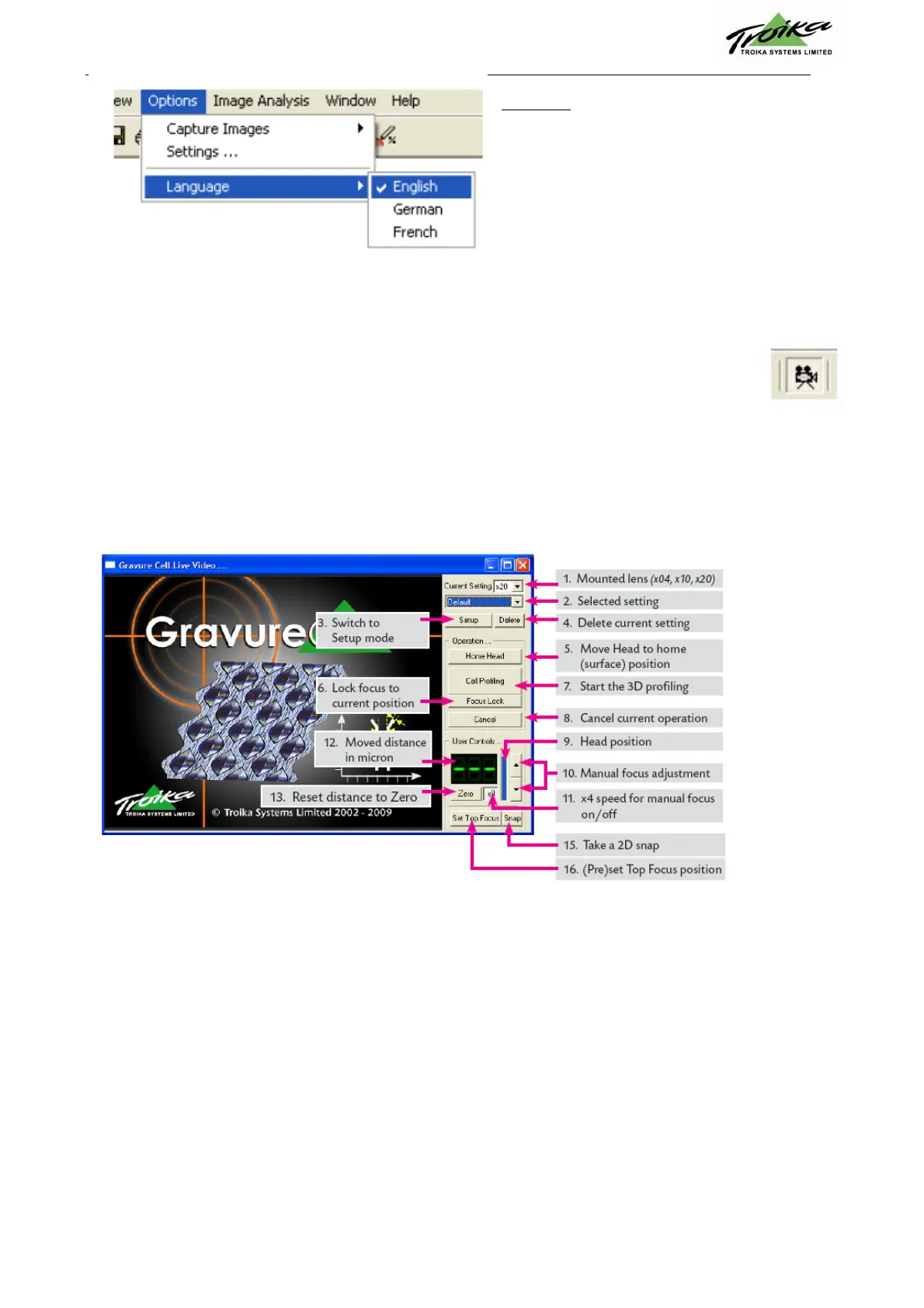
As with the AniCAM software the camera window can be switched on and off by clicking in the
camera icon. The buttons and settings are described below.
Come per il software per gli anilox la finestra dell'immagine live può essere attivata/disattivata cliccando
l'icona della telecamera. Pulsanti e settaggi sono descritti di seguito.
Camera window in Measuring Mode
Finestra camera live in "Measuring Mode" (modalità misurazione)
1. Mounted lens (x04, x10, x20) Lente installata (x04, x10, x20)
2. Selected setting Seleziona impostazioni
3. Switch to Setup mode Apri le impostazioni di setup
4. Delete current setting Annulla i settaggi in essere
5. Move Head to home (surface) position Riporta la testina in posizione
(corretta distanza dalla superficie)
6. Lock focus to current position Fissa la messa a fuoco nella attuale posizione
7. Start the 3D profiling Inizia a catturare l'immagine 3D
8. Cancel current operation Termina l'operazione corrente
9. Head position Posizionamento della TESTINA
10. Manual focus adjustment Regolazione messa a fuoco manuale
11. x4 speed for manual focus on/off Attiva/disattiva velocità di messa a fuoco manuale x4
12. Moved distance in micron Spostamento (distanza superficie) in micron
13. Reset distance to Zero Imposta valore distanza a zero
15. Take a 2D snap Cattura un'immagine 2D
16. (Pre) set Top Focus position (pre) seleziona(ta) posizione messa a fuoco


 To Next Page