4
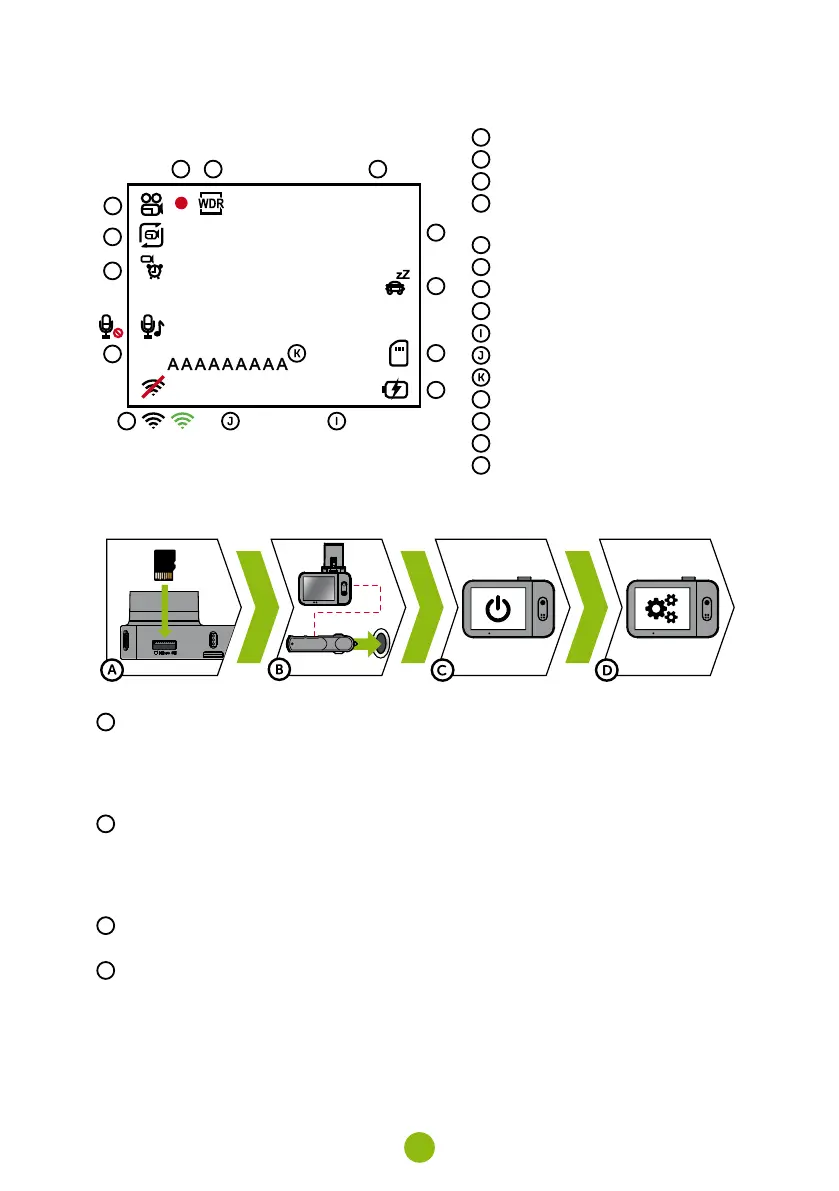
4. ikons and disPlay
02:33:50
1080FHD
00:21:29
01/01/2019
3
A
B C D
E
F
G
H
M
L
O
N
A
Mode
B
Recording started
C
WDR (wide dynamic range)
D
Remaining recording time /
length of current recording
E
Resolution
F
Parking mode
G
Memory card inserted
H
Power supply
Time
Date
Driver name
L
WiFi off / on / connected
M
Sound recording on / off
N
Motion detection
O
Loop recording length
5. First usaGe
A
Insert the microSD card as shown into the camera (card connectors facing the display)
›
Use Class 10 and higher branded cards up to 64 GB
›
Only remove the card, when the camera is turned off
›
When using the card for the first time, format it directly in the camera and repeat the formatting at
least once a month to ensure proper camera operation
B
Insert the adapter into the car cigarette lighter and connect it to the camera holder using the USB
cable
›
The camera is designed to operate only when connected to a power supply
›
Instead of a battery, the camera contains a supercapacitor that provides power which has several
times the lifespan of a conventional battery
C
Camera turns on automatically and begins recording
›
For some vehicles, the ignition key must be turned first
D
Perform basic camera settings before sticking the holder to the glass
›
For maximum convenience, we recommend using the Wi-Fi application for settings – see section 8


 To Next Page