Set function by pressing Menu key
Speed
:
Width
:
Intensity
:
20
mi n
Zero
Recovery
Painrelief
Stretch
Overall
Rockrelax
Select by the navigation keys
Auto
Manual
Air
Roller
Timing
Language
Stop
Exit
Menu
Health care
21
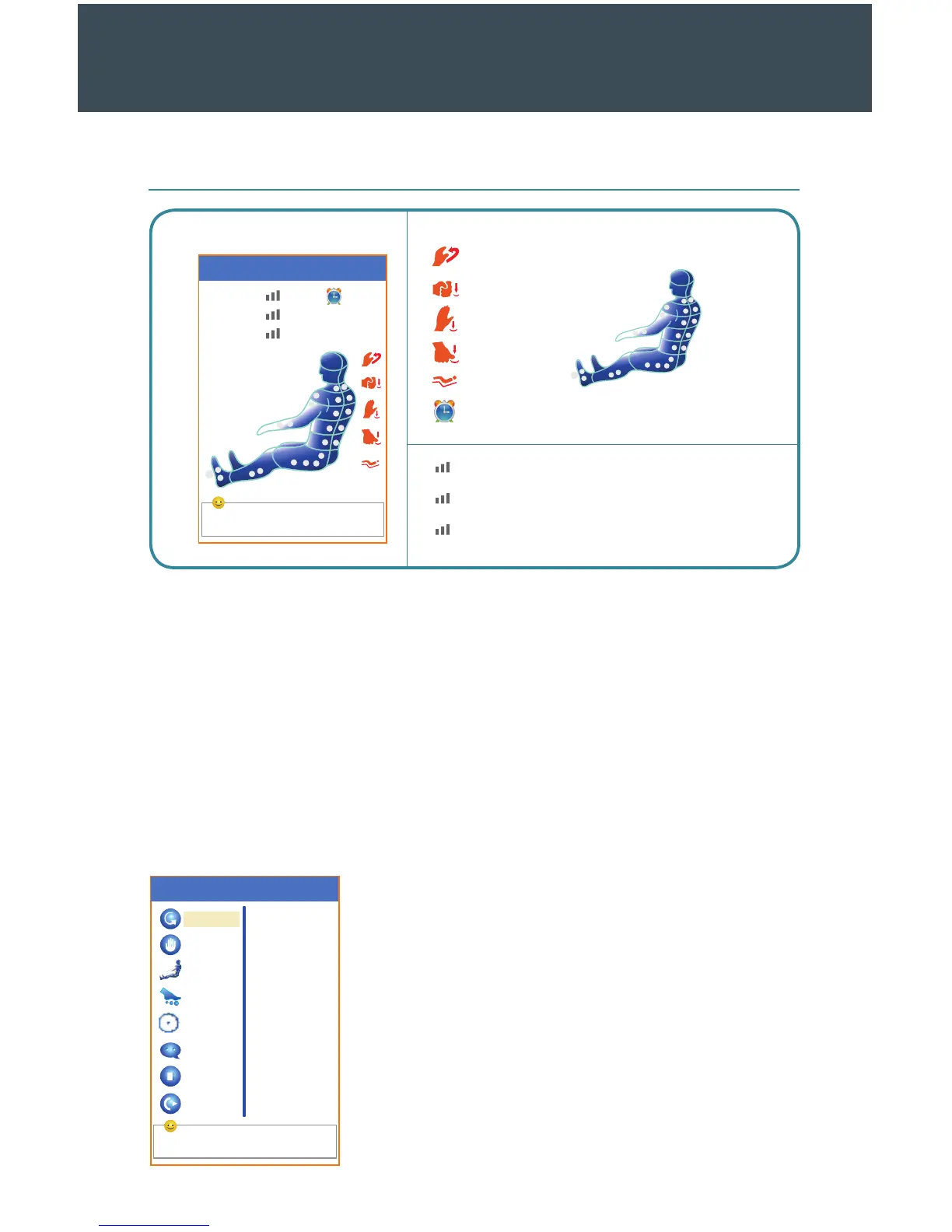
Getting to Know Your LCD Display Screen
Main Interface
Massage Position
Speed (Massage) - Slow, Medium, Fast
Width (Massage) - Narrow, Medium, Wide
Intensity (Air) - Weak, Medium, Strong
Kneading
Tapping
Knocking
Pressing
Massage
Time Le
Menu Interface
Press the Menu button on your remote control to enter
the menu interface and choose customized massage chair
settings. If you are ready to get back to the main screen,
press the Menu button again at any time.
Main Interface
Press the On/O key on your remote control to turn on the compact LCD display
screen. You should hear the remote beep once to indicate power. Within two to three
seconds, you should see the main interface. If you do not press a button shortly aer
powering up the device, it will go into standby mode.
The main interface depicts information about your current massage session, including
the chair’s position, the type of massage, time, and more. The information on the
screen will automatically update every time you choose a new function or change your
massage settings.
THE LCD SCREEN



 To Next Page