GXT 188 Gaming Mouse - USER’S MANUAL
Report rate & DPI settings
DPI setting
- Click on the ‘PERFORMANCE’ tab.
- Click on the checkbox next to the DPI number to enable or disable this DPI level.
- Change the DPI level by dragging the respective bar.
- Click on ‘Apply’, the mouse is being updated.
LED colours indicate which DPI level is currently These indication colours cannot be changed;
o GREEN = Level 1
o RED = Level 2
o BLUE = Level 3
o TURQOISE = Level 4
o PURPLE = Level 5
Other Settings
- Click on the ‘BUTTON’ tab.
- Change the Acceleration, Windows pointer speed, Windows scroll speed or Windows doubleclick speed
by dragging the respective cursor.
- Change the Polling rate by clicking on the respective frequency.
- Click on ‘Apply’, the mouse is being updated.
Change the Light Effect
- Click on the ‘EFFECT’ tab.
- Change the light mode.
- Change the colour by clicking the color box or;
- Change the colour by dragging the Red, Green or Blue cursor.
- Change the LED brightness level.
- Change the animation speed.
- Change the wave direction.
- Click on ‘Apply’, the mouse is being updated.
Light modes;
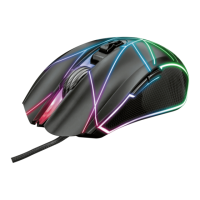
o 7 Color Breath = multiple colours breathing
o Full lighted = one solid colour
o LED Off = disable LED
o Breathing = one breathing colour
o Wave = Rainbow wave effects



 To Next Page