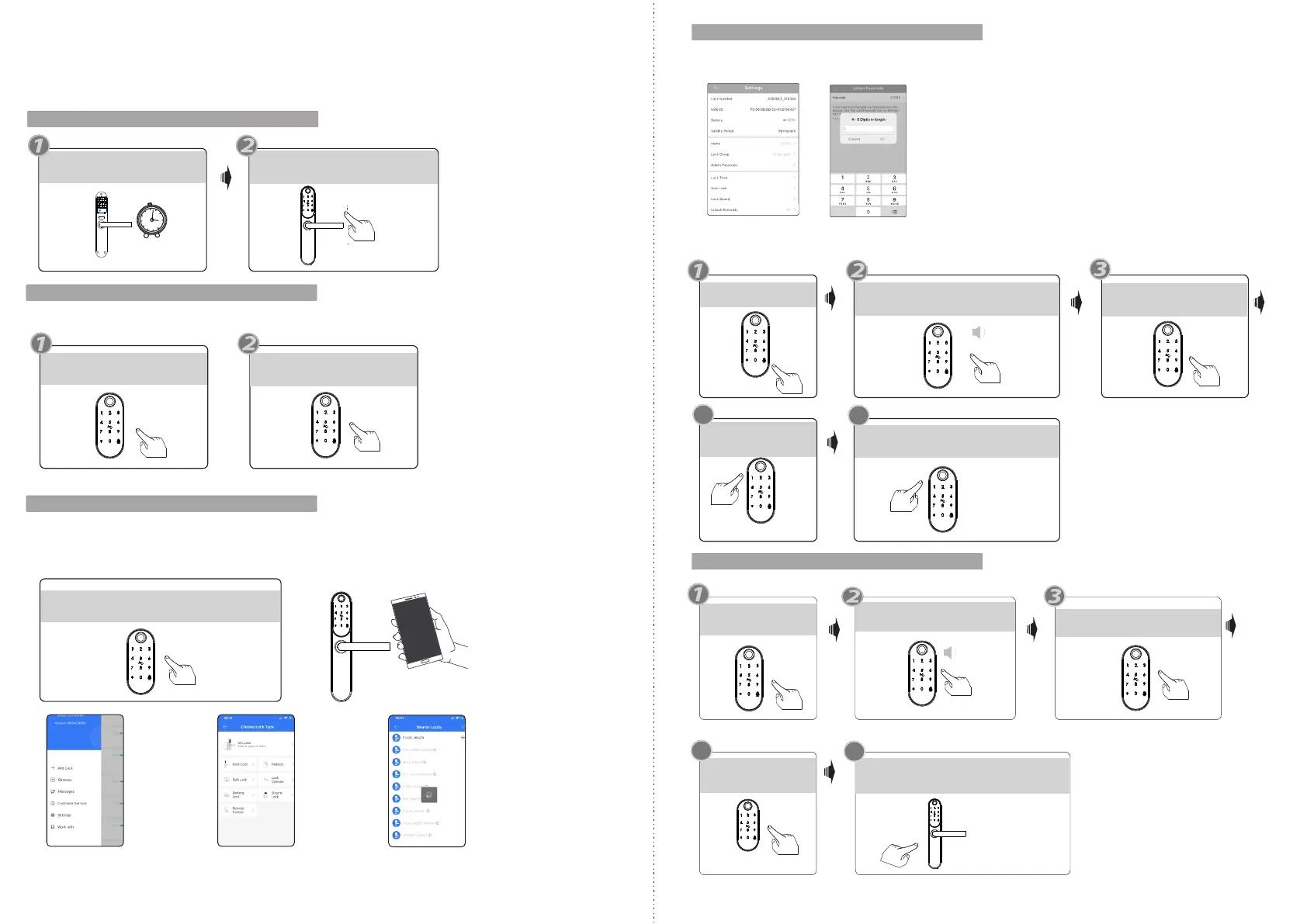
OPERATION STEPS
3sec
Press *39 #123456#2#
Change to English voice tip
Press the reset button
and hold 3 seconds
Please input initialization passcode,
enter: , with sound : “Successful”000#
Please enroll the administrator before you start to use this lock. you can follow the
operation steps as below:
1.Initialization
2.Change Language
000#
2.Enroll Mobile Administrator
Factory state: Default master passcode is: .123456
or
Press *39 #123456#1#
Change to Chinese voice tip
Touch screen, light on
Voice tip:”please add Bluetooth administrator”.
2.1 Factory state: press .*12#123456#new passcode#new passcode#
2.2 You can use the mobile APP to add the Bluetooth administrator.
When adding the door locks, operations must be completed near the lock.
Step 1: Click “+” button
Step 2: Select the lock Step 3: Click the device name
Please input Administrator
passcode like: 123123
Input new Master passcode
Such as:654321
Please enter fingerprint or
passcode:Press your finger
4
please input again
Operation successful!You
can test the new passcode
Enter same password
3.Change Master Passcode
4.Enroll User Fingerprint
“Please Input
Administrator passcode”
Press *12 #
you can find the new master passcode in the mobile APP under “Settings”.also you can edit the master
passcode on App directly and upload Admin passcode to the lock like the below photo.
you can also change the master passcode on the lock directly.
Please find the operation steps below:
Press *80 # button
4
please press again
5
Input successful! You can continue
to add the new fingerprint
4 times
5
8
7



 To Next Page