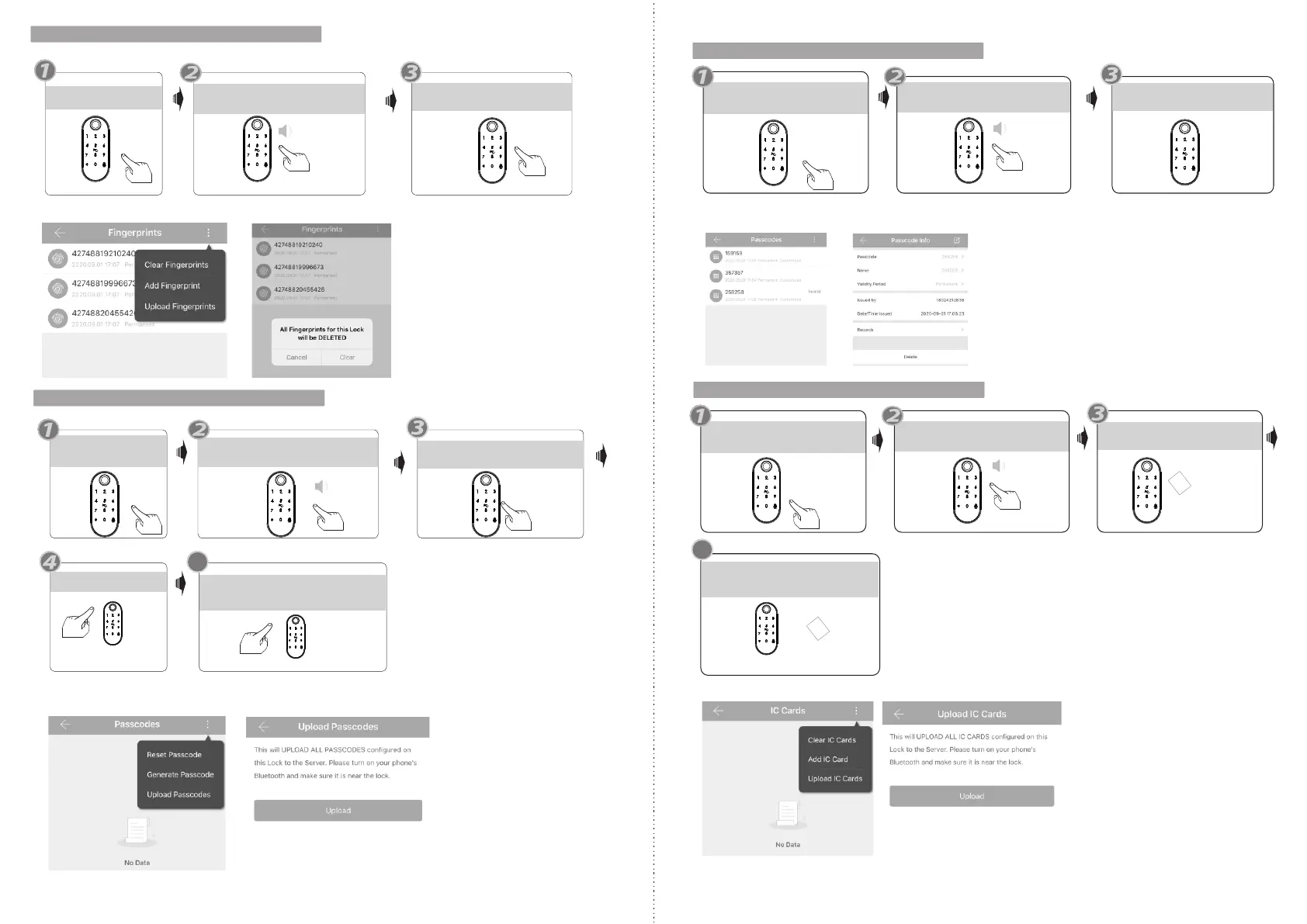
Press * 80 # button
Please enter passcode,confirm
with # key. such as:654321
5
6.Enroll User Password
“Please Input Administrator
passcode”
Please enter again
Enter same passcode
confirm with # key
Input successful! You can continue
to add the new passcode
Under the mobile APP, you can upload the added passcodes to the lock and server.
Operation successful!
All fingerprints are deleted.
5.Delete User Fingerprint
“Please Input Administrator
passcode”
Press *70 # button
APP operation: you can deleted the added fingerprints one the lock and server.
7.Delete User Passcode
Press *71 # button
“Please Input Administrator
passcode”
Operation successful!
all passcodes are deleted.
Under the mobile APP, you can find the added passcodes, you can edit any passcode and
click Delete button to delete the passcode.
Touch one IC card to
the induction area
Input successful!please
input fingerprint or passcode
You can continue to add user card
IC C
a
r
d
8.Enroll User Card
Press * 80 # button
“Please Input Administrator
passcode”
Please enter fingerprint or
passcode
I
C C
ar
d
Under the mobile APP, you can upload the added cards to the lock and server.
4
10
9



 To Next Page