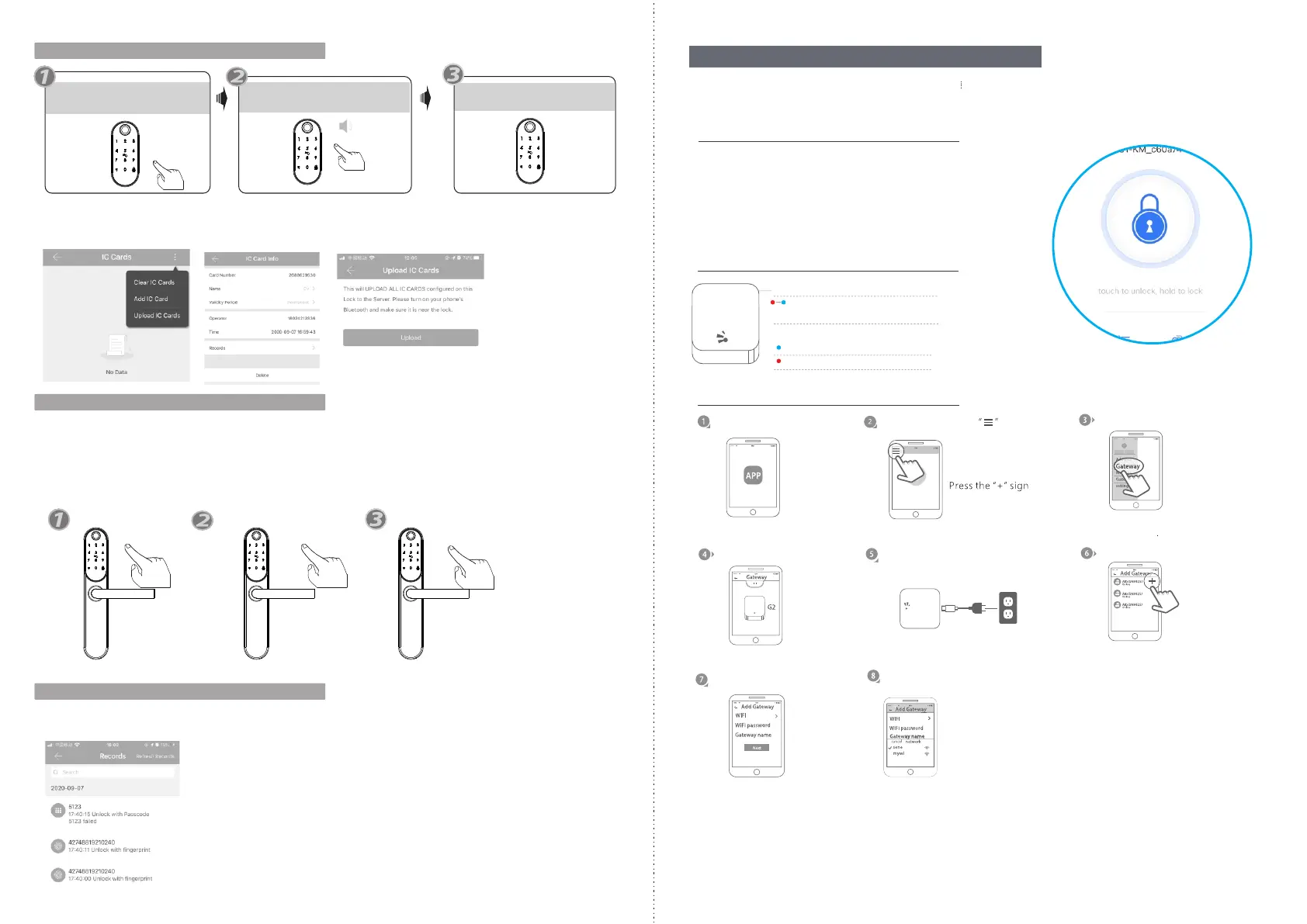
9.Delete User Card
Press *69 # button
“Please Input Administrator
passcode”
Operation successful!
all user cards are deleted.
Under the mobile APP, you can find the added IC Cards, you can edit any username and click
Delete button to delete the card, also you can choose upload IC Cards to ensure the card is
deleted in the server.
10.Passage Mode
Unlock the door with any valid passcode or fingerprint.
Press 123# button during the time of unlocking.
Sound tip: the lock set to passage mode
Then the lock is under always open state, you can enter any valid
passcode or fingerprint to cancel this function.
Press 123#
any valid passcode
or fingerprint
11.Unlock Records
You can find the unlock records for the passcode/IC Card/Fingerprint etc.
More details, you can refer the manual of our TTLOCK App operation steps.
10.Wi-Fi Gateway (G2 / Optional)
The new version Wi-Fi gateway is with improved performance and long communication
distance. when you connect the lock with gateway, you can remote unlock the door with
simple operation to click the icon of the app, please refer to the below parameters and
operations:
Model: G2
Dimension: 70x70x26mm
Network: Wi-Fi 2.4G
IEEE Standard: 802.11b/g/n
Power Interface: Type C USB
Power Input: DC5V/500mA
Light Status:
When the gateway is powered on:
Light flashes alternately with red and blue:
Stand-by mode,ready for connection
Blue light: working mode
Red light: network failure
Pair the Gateway with APP
Activate the APP
Press the button
Select the [Gateway]
Select the [G2]
Plug the gateway and power
on it, light flashes alternately
with red and blue.
Press the “+”.
Add Gateway
Select Wi-Fi and enter password
Finish paring gateway
12
11



 To Next Page