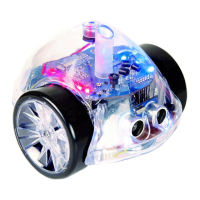
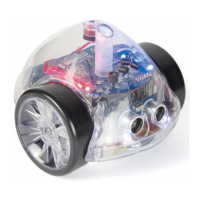
Example 2: Reversing when front touch sensor is pressed
Press followed by New Procedure
Select Procedure 33 ‘Front touch sensor’ [33 FRONT]
Press and hold the button to access the special commands menu.
Select ‘Sound 3’ to make Pro-Bot beep its horn
Press the back arrow key to program Pro-Bot to reverse
Press the left arrow key to insert a turn (by doing this Pro-Bot will continue
reversing and turning until there are no obstacles in front of it)
Press to return to the main screen
Press the forward key and enter a large number such as 300 (This will
ensure that Pro-Bot hits an object in the room before the program ends)
Press to start Pro-Bot
The program will look as follows in the two procedures
Connecting to a PC
Only use the special USB cable provided with your copy of Probotix software (TTS
Code – EL00477) (available separately) to connect Pro-Bot to the PC. Follow the
instructions with Probotix to install the PC software.
The upload/download process is managed completely from the PC and all that
needs to be done on the Pro-Bot is to ensure that it is switched on.
Main
Fd 300
33 FRONT
Sound 3
Bd
Lt
19
Pro-Bot
®


 To Next Page