www.participate.co.za
@participateSA
facebook.com/participateSA
+27 (0) 861 10 63 65
info@participate.co.za www.participate.co.za
CONTACT US
QT Device 2
Find Channels
1
Press the Channel
button.
2
Press the middle function key below
. The QT Device scans for receiver(s ) within range.
3
Use the arrow keys to scroll through available channels.
4
Press the function key below OK to select the channel.
Responding
During the presentation, the QT Device prompt s you to enter t he proper response type. An indicator appears at the top left of
the screen for special question types.
Numeric Response question
Multiple Response question with numeric answer values
Multiple Response question with alpha answer values
Short Answer and Essay questions
The following icons appear at the bottom center of the screen when sending a response:
The res ponse is being sent.
The res ponse was sent successfully.
The res ponse was not sent successfully.
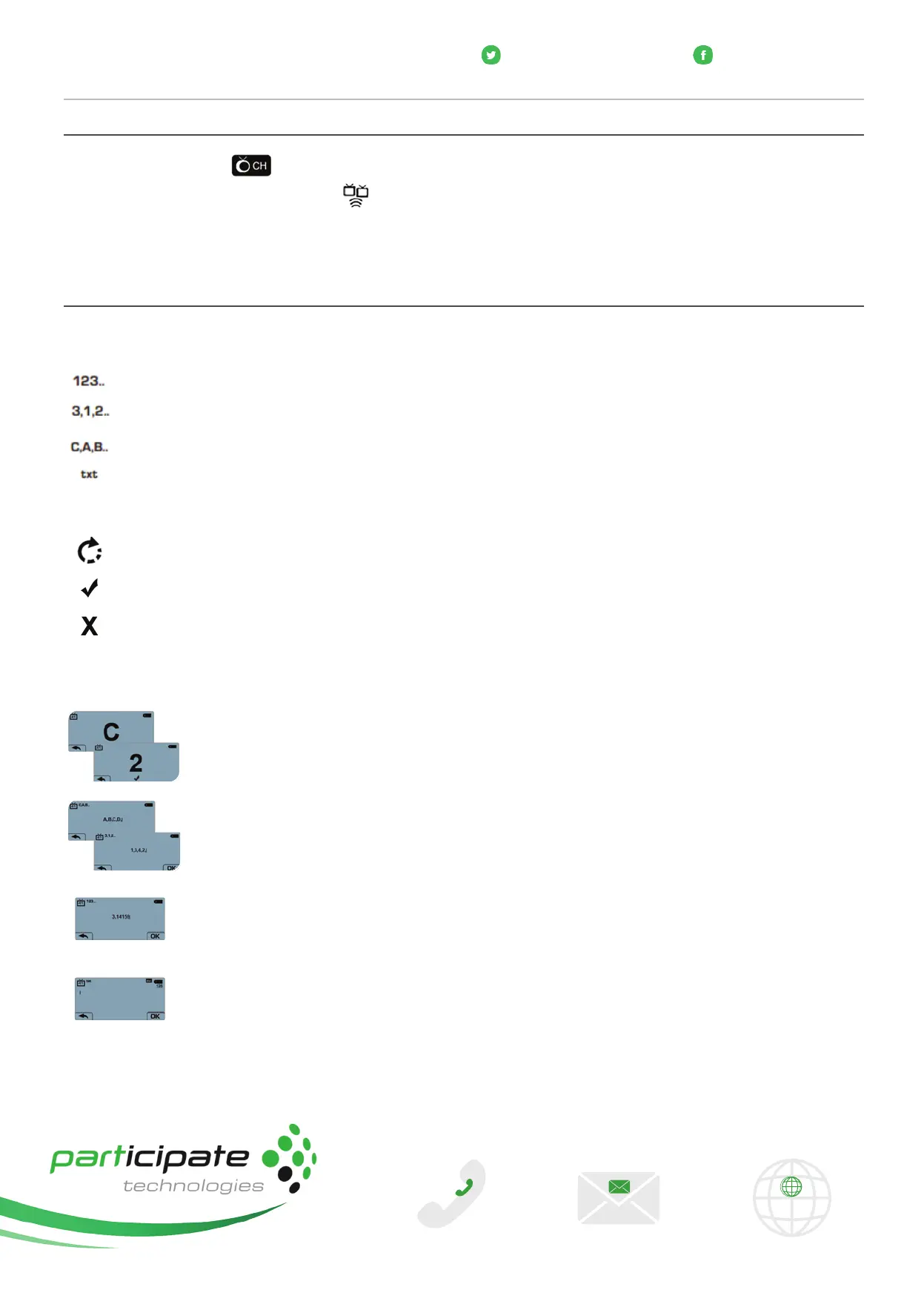
Example Screens
Singl e Response - Single Response questi ons are multiple c hoic e questions, where only one answer is
selected. Press the button on the number pad that corresponds to your answer choice for alpha and
numeric responses. For example, press 1/A for answer choice A.
Multiple Response - Multiple Response questions are multiple choice questions, where multiple
answers can be submitted. Use the number pad to enter your alpha or numeric answer choi ces and
press the function key below OK to submit your response. For example, press 1/A and 2/B for answer
choi ces A and B.
Numeric Response - Numeric Response questions require a numeric value to be entered. Use the num-
ber pad on the keyboard to enter your answer and press the function key below OK to submit your
response. Numeric responses accept a +/- sign at the beginning of an answer and one decimal point.
Short Answer/Essay - Short Answer and Essay questions require a text response. Use the keyboard to
enter your text and press the function key below OK to submit your response. The available number of
remaining characters is indic ated in the upper right of the screen.



 To Next Page
 Loading...