QT Device 5
Taking a Test
Use the arrow keys to move on to t he next questi on.
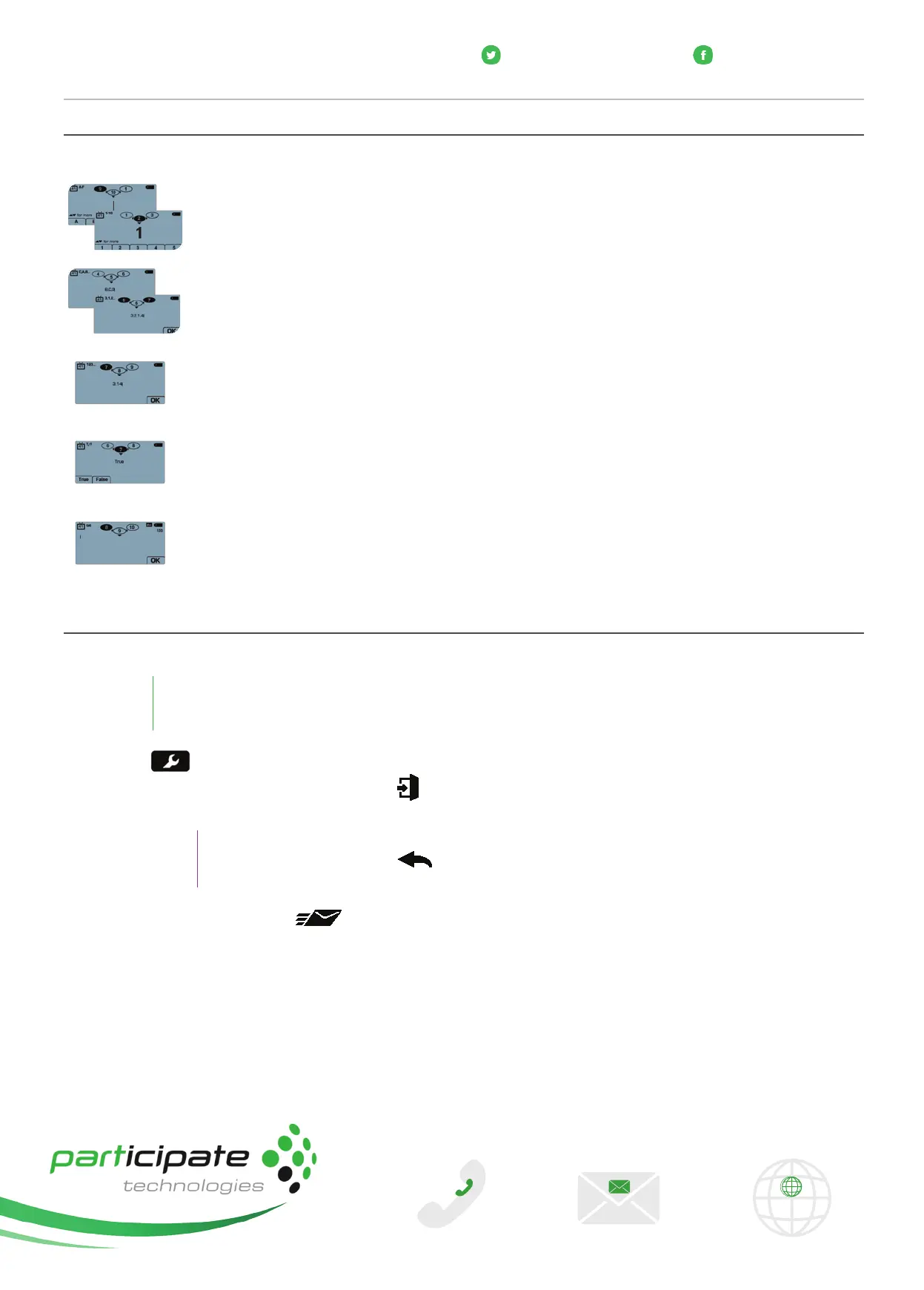
Singl e Response - Press the function key below your answer choice. Up to five answer c hoic es will be
vi sible on the QT Device screen. Pres s the up or down arrows to view more answer choices. Alternatively,
select y our answer by pressing the corresponding key on the number pad.
Multiple Response - Use the number pad to enter your answer choices and press the function key
below OK once you have made your selecti on.
Numeric Response - Use the number pad to enter your answer and press the function key below OK
once you have made your selection.
True or False - Press the function key below your answer.
Short Answer/Essay - Use the keyboard to enter the answer text and press the function key below OK
once you have made your selection. The available number of remaining characters is indicated in the
upper right of the screen.
Sending a Test
Use the Toolbox to send your test. To send your test follow the steps below.
NOTE
When answering the last question of the test, you will receive a message that the test is complete or
incomplete. If you receive this message skip to s tep 3.
1
Press
on the keypad.
2
Use the arrow keys to highlight the Exit Test
ic on and press the function key below OK.
A message is displayed t hat the test is complete or incomplete.
TIP
Press the function key below
twice to return to the test to complete any unanswered
questions and review your answers.
3
Press the function key below
to send the test.
A message is displayed t o confirm that you would like to send the test.
4
Press the function key below OK.
The test is saved and sent to the host computer.
www.participate.co.za
@participateSA
facebook.com/participateSA
+27 (0) 861 10 63 65
info@participate.co.za www.participate.co.za
CONTACT US



 To Previous Page
 Loading...