QT Device 3
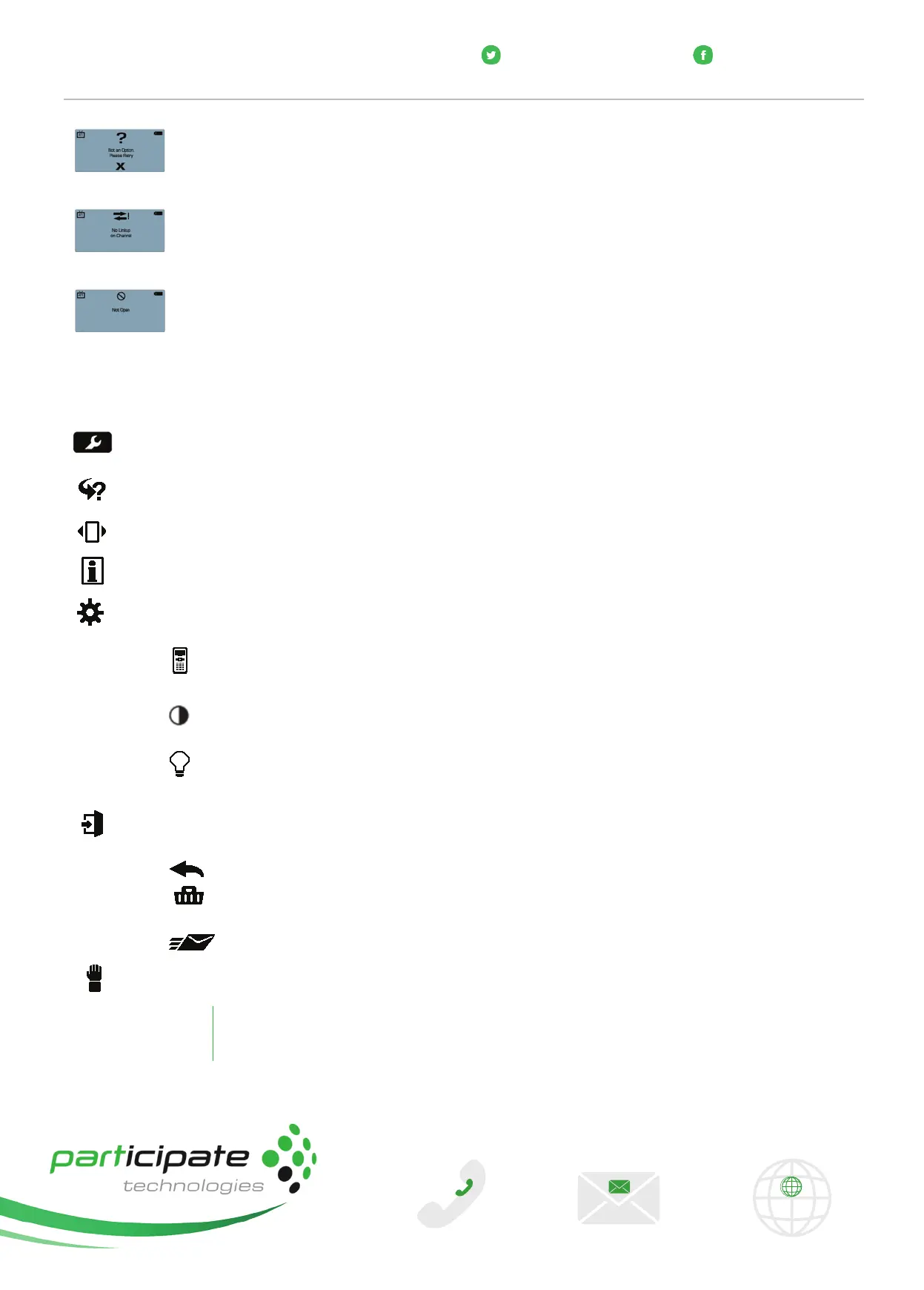
Invalid Response - If this screen is displayed after submitting a response, it means that the response
was invalid. For example, answer options are A - D, and you submitted E as your answer c hoic e.
No Linkup on Channel - This screen is to alert you that the QT Device is not on the correct channel or is
unable to communicate wi th the receiver.
Polling Closed - This screen indicates that polling is closed and answers are not being accepted.
Test Mode
The Toolbox
Go to Question - Select a specific question. Use the number pad to enter the question number and press the func-
tion key below OK.
Skipped Question - View the next unanswered questi on.
Test Info - Displays the test name, version (if applicable) and number of questions.
Settings - Press the function key below OK to open the settings and use the right or left arrow keys to scroll through
the options. The settings contain:
Device Info - Press t he function key below OK to display the Device I D. Press the right arrow once to
display the firmware version and language.
Contrast - Press the function key below OK and use the left or right arrows to adjust the contrast of the
objects. Press the function key below OK to save.
Brightness - Press the function key below OK and use the left or right arrows to adjust the LCD display
on the QT Device. Press the function key below OK to save.
Exit Test - Exits a test. A message is displayed that the test is incomplete. Unanswered questions are also
displayed. Use the arrow keys to scroll through the options.
Go Back Arrow - Press the corresponding function key to return to the Tools.
Delete Test - Press the corresponding function key to delete the test. To confirm deletion press the
function key below OK.
Send Test - Press the c orresponding function key to send the test to the host computer.
Send Message - Send a message to the presenter. The presenter is unable to respond via the same method.
NOTE
The presenter may have this feature disabled in the software. If disabled, you will see "Not
Open" when trying to send a message.
www.participate.co.za
@participateSA
facebook.com/participateSA
+27 (0) 861 10 63 65
info@participate.co.za www.participate.co.za
CONTACT US



 To Next Page
 Loading...