EasyManua.ls Logo

Turtle Beach Ear Force PX3 - User Manual

Turtle Beach Ear Force PX3
21 pages
Print Icon
To Next Page IconTo Next Page
Loading...
TB521-2241-01
User Guide /
Guide dUtilisation
Join The Conversation / Participez à la conversation
Question and Answer IconNeed help?

Do you have a question about the Turtle Beach Ear Force PX3 and is the answer not in the manual?

Summary

Package Contents

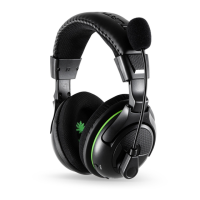
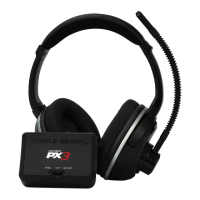
PX3 Headset

The PX3 headset unit.

Headset Charging Cable

Cable for recharging the PX3 headset.

XBOX 360 Talkback Cable

Cable for Xbox 360 chat audio.

PX3 Transmitter

The wireless transmitter unit for the PX3 headset.

Transmitter USB Cable

Cable to connect the transmitter to a computer.

Audio Splitter Cable

Cable to split audio signals.

PX3 Presets Reference Card

Card with reference information on PX3 presets.

Turtle Beach Sticker

Branding sticker included with the product.

PX3 Headset Controls

Headset Controls Overview

Details on the main power, preset selection, volume, and mic mute buttons.

PX3 Transmitter Controls

Transmitter Controls Overview

Details on mode selection, LED indicators, and input/output ports.

Headset and Transmitter Pairing

Step 1: Ensure Headset is OFF

Initial step to power off the headset before pairing.

Step 2: Initiate Headset Pairing Mode

Pressing the headset POWER button to enter pairing mode.

Step 3: Initiate Transmitter Pairing Mode

Pressing the transmitter PAIR button to begin pairing.

PS3 Console Setup

PS3 Setup via HDMI Cable

Connection diagram for PS3 using an HDMI cable.

PS3 Setup via A;V Cable

Connection diagram for PS3 using an A/V cable.

Configure PS3 Sound Settings

Steps to adjust sound output settings on the PS3.

PS3 Chat Settings Configuration

Configure PS3 Audio Devices and Microphone

Steps to set input/output devices and microphone level.

XBOX 360 Console Setup

XBOX 360 Setup via HDMI Cable

Connection diagram for XBOX 360 using HDMI.

XBOX 360 Alternate Setup

Alternative connection diagram for XBOX 360.

XBOX 360 Chat Settings Configuration

Configure XBOX 360 Voice Output

Instructions for setting voice output preferences on XBOX 360.

PC;Mac Wireless Setup (Presets Deactivated)

PC;Mac Wireless Mode Configuration

Steps to set up the headset in wireless mode for PC/Mac.

Adjust Game and Chat Volume

How to adjust game and chat volumes on PC/Mac.

PC;Mac Wireless Setup (With Presets)

PC;Mac Wireless Mode Configuration

Steps to set up headset wirelessly with presets.

Connect Transmitter to Computer Headphone Jack

Connecting the transmitter via a 3.5mm cable to the computer.

Adjust Headset Volume

Adjusting game and chat volume directly on the headset.

PC;Mac Wired Setup (Presets Deactivated)

PC;Mac Wired Mode Configuration

Steps to set up the headset in wired mode for PC/Mac.

Enter Wired Mode

How to activate wired mode by double-pressing the power button.

Adjust Game and Chat Volume

Adjusting game and chat volumes from the headset and computer.

Preset Functionality and Selection

Main Preset Functionality

Explanation of the main preset's sound processing.

Alternate Preset Selection

How to select one of the eight alternate presets.

Downloading New Presets and Software

Connect Transmitter to Computer

Instructions for connecting the transmitter to your computer.

Download PX3 Software and Presets

Where to find and download the PX3 software and new presets.

Recharging the Headset

Headset Recharging Process

How to charge the PX3 headset using the included cable.

Safety Notice

Hearing Safety Warnings

Important warnings about protecting hearing from high volume levels.

EC Declaration of Conformity

Product Compliance Directives

List of EU directives the product complies with.

Test Reports and Notified Bodies

Information on test reports and approving bodies.

FCC Declaration of Conformity

FCC Compliance Statement

Statement regarding FCC compliance and operating conditions.

User Information and Warnings

Information for users and warnings regarding interference.

Limited Warranty for Turtle Beach Products

Warranty Service

Details on obtaining warranty service and procedures.

Exclusions from Limited Warranty

Conditions under which the limited warranty does not apply.

FCC and IC Interference Statements

FCC Interference Statement and RF Exposure

FCC interference limits, warnings, and RF exposure guidelines.

Canada IC Interference Statement and RF Exposure

Industry Canada interference limits, warnings, and RF exposure guidelines.

Summary

Package Contents

PX3 Headset

The PX3 headset unit.

Headset Charging Cable

Cable for recharging the PX3 headset.

XBOX 360 Talkback Cable

Cable for Xbox 360 chat audio.

PX3 Transmitter

The wireless transmitter unit for the PX3 headset.

Transmitter USB Cable

Cable to connect the transmitter to a computer.

Audio Splitter Cable

Cable to split audio signals.

PX3 Presets Reference Card

Card with reference information on PX3 presets.

Turtle Beach Sticker

Branding sticker included with the product.

PX3 Headset Controls

Headset Controls Overview

Details on the main power, preset selection, volume, and mic mute buttons.

PX3 Transmitter Controls

Transmitter Controls Overview

Details on mode selection, LED indicators, and input/output ports.

Headset and Transmitter Pairing

Step 1: Ensure Headset is OFF

Initial step to power off the headset before pairing.

Step 2: Initiate Headset Pairing Mode

Pressing the headset POWER button to enter pairing mode.

Step 3: Initiate Transmitter Pairing Mode

Pressing the transmitter PAIR button to begin pairing.

PS3 Console Setup

PS3 Setup via HDMI Cable

Connection diagram for PS3 using an HDMI cable.

PS3 Setup via A;V Cable

Connection diagram for PS3 using an A/V cable.

Configure PS3 Sound Settings

Steps to adjust sound output settings on the PS3.

PS3 Chat Settings Configuration

Configure PS3 Audio Devices and Microphone

Steps to set input/output devices and microphone level.

XBOX 360 Console Setup

XBOX 360 Setup via HDMI Cable

Connection diagram for XBOX 360 using HDMI.

XBOX 360 Alternate Setup

Alternative connection diagram for XBOX 360.

XBOX 360 Chat Settings Configuration

Configure XBOX 360 Voice Output

Instructions for setting voice output preferences on XBOX 360.

PC;Mac Wireless Setup (Presets Deactivated)

PC;Mac Wireless Mode Configuration

Steps to set up the headset in wireless mode for PC/Mac.

Adjust Game and Chat Volume

How to adjust game and chat volumes on PC/Mac.

PC;Mac Wireless Setup (With Presets)

PC;Mac Wireless Mode Configuration

Steps to set up headset wirelessly with presets.

Connect Transmitter to Computer Headphone Jack

Connecting the transmitter via a 3.5mm cable to the computer.

Adjust Headset Volume

Adjusting game and chat volume directly on the headset.

PC;Mac Wired Setup (Presets Deactivated)

PC;Mac Wired Mode Configuration

Steps to set up the headset in wired mode for PC/Mac.

Enter Wired Mode

How to activate wired mode by double-pressing the power button.

Adjust Game and Chat Volume

Adjusting game and chat volumes from the headset and computer.

Preset Functionality and Selection

Main Preset Functionality

Explanation of the main preset's sound processing.

Alternate Preset Selection

How to select one of the eight alternate presets.

Downloading New Presets and Software

Connect Transmitter to Computer

Instructions for connecting the transmitter to your computer.

Download PX3 Software and Presets

Where to find and download the PX3 software and new presets.

Recharging the Headset

Headset Recharging Process

How to charge the PX3 headset using the included cable.

Safety Notice

Hearing Safety Warnings

Important warnings about protecting hearing from high volume levels.

EC Declaration of Conformity

Product Compliance Directives

List of EU directives the product complies with.

Test Reports and Notified Bodies

Information on test reports and approving bodies.

FCC Declaration of Conformity

FCC Compliance Statement

Statement regarding FCC compliance and operating conditions.

User Information and Warnings

Information for users and warnings regarding interference.

Limited Warranty for Turtle Beach Products

Warranty Service

Details on obtaining warranty service and procedures.

Exclusions from Limited Warranty

Conditions under which the limited warranty does not apply.

FCC and IC Interference Statements

FCC Interference Statement and RF Exposure

FCC interference limits, warnings, and RF exposure guidelines.

Canada IC Interference Statement and RF Exposure

Industry Canada interference limits, warnings, and RF exposure guidelines.

Turtle Beach Ear Force PX3 Specifications

General IconGeneral
Headset typeBinaural
Product typeHeadset
Product colorBlack
Wearing styleHead-band
Volume controlRotary
Recommended usageGaming
Frequency band2.4 GHz
RF connectivityYes
Connectivity technologyWireless
Impedance- Ω
Driver unit50 mm
Magnet typeNeodymium
Ear couplingCircumaural
Headphone frequency20 - 20000 Hz
Headphone sensitivity120 dB
Total Harmonic Distortion (THD)1 %
Microphone frequency50 - 15000 Hz
Continuous audio playback time10 h
CompatibilityPS3, X-Box 360
Cables includedRCA, USB
Weight and Dimensions IconWeight and Dimensions
Weight260 g

Related product manuals