To set the headset as the default device, right-click the speaker icon in the Taskbar (at the
bottom-right of the screen), and then click "Open Sound Settings". You'll then be able to set the
Input and Output device to the headset, if needed.
The settings for the game itself would be found in within the game's menus. Make sure the
headset is the default input and output device, that voice chat is enabled, and that any Push-To-
Talk feature is disabled.
PLAYSTATION
PS4 SETUP
1. Go to Settings >> Devices >> Audio Devices
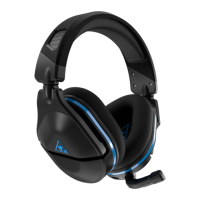
• Select Stealth 600 Gen 2 MAX for Input & Output Device
• Set Output to Headphones to All Audio
• Set Volume Control (headphones) level to maximum
2. Select Adjust Microphone Level and follow the on-screen instructions to calibrate your
microphone.
• Please Note: At this point, if desired, you can enable the 3D Audio function to enhance
the audio. Then, go to Adjust 3D Audio Profile to select the best profile option for your
game.
With the headset set as the default device in the console settings, please go into the audio settings
for the games/programs you will be using the headset with. Make sure the headset is set as the
default device in the game. You'll also want to confirm that voice chat is enabled within the
audio settings of the game, and that any Push-to-Talk features are disabled.
PS5 SETUP
1. Go to Settings >> Sound >> Audio Output >> Output Device
• Select Stealth 600 Gen 2 MAX for Output Device
• Set Output to Headphones to All Audio
• Set Volume Control (headphones) level to Maximum
2. Adjust your microphone levels by going to Settings >> Sound >> Microphone >> Adjust
Mic Level >> Microphone Level



 To Next Page