EasyManua.ls Logo

TUYA E202 - User Manual

TUYA E202
2 pages
Print Icon
To Next Page IconTo Next Page
Loading...
e

 
   






















°







Name





O.



1
 

4.BV

<
=

  
















 
 

 






 














 












Len out
 
 




 
















0



+


Question and Answer IconNeed help?

Do you have a question about the TUYA E202 and is the answer not in the manual?

Summary

Safety and General Warnings

Operational Safety Guidelines

Key safety precautions and operational guidelines for using the smart lock, including power, cleaning, and environmental conditions.

Smart Lock Features Overview

System Capabilities

Overview of system capacity, touch button, password support, low power warning, and volume/door bell functions.

Installation Overview and Components

Component Identification

Identifies all components of the smart lock system, including panels, screws, lock body, and handles.

Door Opening Direction Confirmation

Guidance on determining the correct installation direction based on left/right and inward/outward door opening.

Hole Preparation for Installation

Instructions to refer to the opening hole drawing and drill the correct holes on the door.

Lock Body Installation Steps

Steps for adjusting latch-bolt direction, securing the lock body into the door frame, and tightening screws.

Detailed Installation Guide

Component Selection and Assembly

Table for selecting parts based on door thickness and steps for installing front and back panels.

Battery and Buckle Box Installation

Instructions for installing batteries, battery cover, and the buckle plate/box.

Using the Smart Lock

Administrator and User Management

Procedures for adding administrators, adding users via fingerprint, card, or password, and deleting users.

Lock Reset and Factory Defaults

How to perform a factory reset on the lock, returning it to its default settings.

APP Integration and Network Setup

Steps for downloading the TuyaSmart app, registering, and configuring the lock for Wi-Fi connectivity.

Lock Operation Modes

Details on self-locking, low power warnings, virtual password usage, volume adjustment, and door bell function.

Debugging and Troubleshooting

Operational Checks

Guide to check latch-bolt and dead-bolt functions in various handle operation states.

Function Verification

Verifying other functions like self-locking, virtual password, settings, and APP connectivity.

Overview

This document describes the E202 (Tuya WiFi) Smart Lock, a user manual providing installation instructions, safety warnings, and operational details for the device.

Function Description:

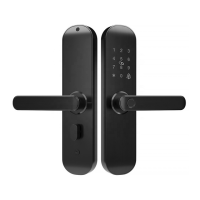
The E202 Smart Lock is a versatile security device designed for residential use, offering multiple unlocking methods and smart home integration via Tuya WiFi. It supports fingerprint, card, password, key, and APP-based unlocking. The system has a total capacity of 100 users, with the first three designated as administrators. It features a durable touch button interface and includes a doorbell function. The lock is designed to provide security and convenience with its various access options and smart features.
Important Technical Specifications:

  • System Capacity: 100 users (first three are administrators).
  • Fingerprint Sensor: Semiconductor.
  • DPI: 500.
  • Identify Time: 0.3 seconds.
  • Unlock Way: Fingerprint, Card, Password, Key, and APP.
  • Supply Voltage: 6V (requires 4 AA batteries).
  • Low Voltage Warning: 4.8V.
  • Standby Current: <=50uA.
  • Door Thickness Compatibility: Suitable for doors 1.57 to 3.94 inches thick (optional for >3.94 inches with specific parts).
  • Work Temperature Range: -22°F to 131°F.
  • Password Support: 6-8 digit passwords and 20 virtual passwords.
  • WiFi Connectivity: 2.4GHz WiFi network only.
  • FCC Compliance: This device complies with Part 15 of the FCC Rules, ensuring it does not cause harmful interference and accepts any interference received. It also complies with FCC radiation exposure limits for an uncontrolled environment, requiring a minimum distance of 20cm between the radiator and the user's body.

Usage Features:

  • Multiple Unlocking Methods: Users can unlock the door using a registered fingerprint on the front handle sensor, an RFID card placed near the lock pad, a password entered on the keypad (ending with '#'), a physical key, or through the Tuya Smart APP.
  • Administrator Management: The first three registered users are automatically designated as administrators, having full control over user addition and deletion.
  • User Management: Administrators can add new users by registering their fingerprints (3 times), cards, or passwords (6-8 numbers, entered twice).
  • Password Security: Supports both standard and virtual passwords. Virtual passwords allow users to enter random numbers before or after the actual password to prevent onlookers from guessing the code.
  • Self-locking Mechanism: If an incorrect password is entered 5 times consecutively, the system locks for 180 seconds. Fingerprint or card unlock can bypass this self-locking. If an incorrect fingerprint is entered 8 times consecutively, the system locks for 180 seconds, and card unlock can bypass this self-locking.
  • Volume Adjustment: The lock's voice prompts can be adjusted to Mute, Low, Medium, or High by pressing '333#' on the keypad.
  • Doorbell Function: A doorbell can be activated by pressing '#' when the LED is off.
  • Emergency Power: In case of battery depletion, the lock can be temporarily powered using a power bank connected via a Micro USB line through the Emergency Power Port. However, APP network functions will be disabled in this mode.
  • APP Integration: The lock integrates with the Tuya Smart APP, allowing for remote unlocking, network configuration, and management. Users can add the device to their Tuya Smart account, connect it to their 2.4GHz WiFi network, and control it remotely. Remote unlocking requires activating the lock by pressing '4#' and then using the 'Click open remotely' icon in the app.

Maintenance Features:

  • Battery Replacement Warning: The lock provides a low power warning when the battery voltage drops below 4.8V, prompting users to replace the 4 AA batteries. The lock can still be unlocked approximately 50 times after the warning.
  • Factory Reset: The lock can be reset to its factory default settings by long-pressing the 'Set' button for 3 seconds. This action will delete all stored information, including administrators, and restore the default password to '1234567890'. A new administrator must be added immediately after a reset.
  • Emergency Key: Users are advised to keep the emergency key accessible or in a safe outdoor location for manual unlocking in case of electronic malfunction or inability to unlock via other methods.
  • Cleaning: It is important to avoid using corrosive materials to clean the lock's surface to prevent damage.
  • Installation Guidance: The manual recommends professional installation or careful adherence to video instructions. It emphasizes proper handling of connection lines, correct selection of the lock based on door opening direction, and testing all functions after installation.
  • Troubleshooting: If the lock does not function properly after installation, users should check for improper installation or loose power cords.
  • Debugging: During debugging, the door should remain in a half-open state. Users are instructed to verify the functionality of the latch-bolt and dead-bolt with both front and back handles, as well as self-locking, virtual password, and APP settings.

TUYA E202 Specifications

General IconGeneral
BrandTUYA
ModelE202
CategoryLocks
LanguageEnglish

Related product manuals