1615
1. Connect the machine with the computer installed with LaserGRBL
software with USB data cable.
2. Plug in the power.
3. Open LaserGRBL on the computer.
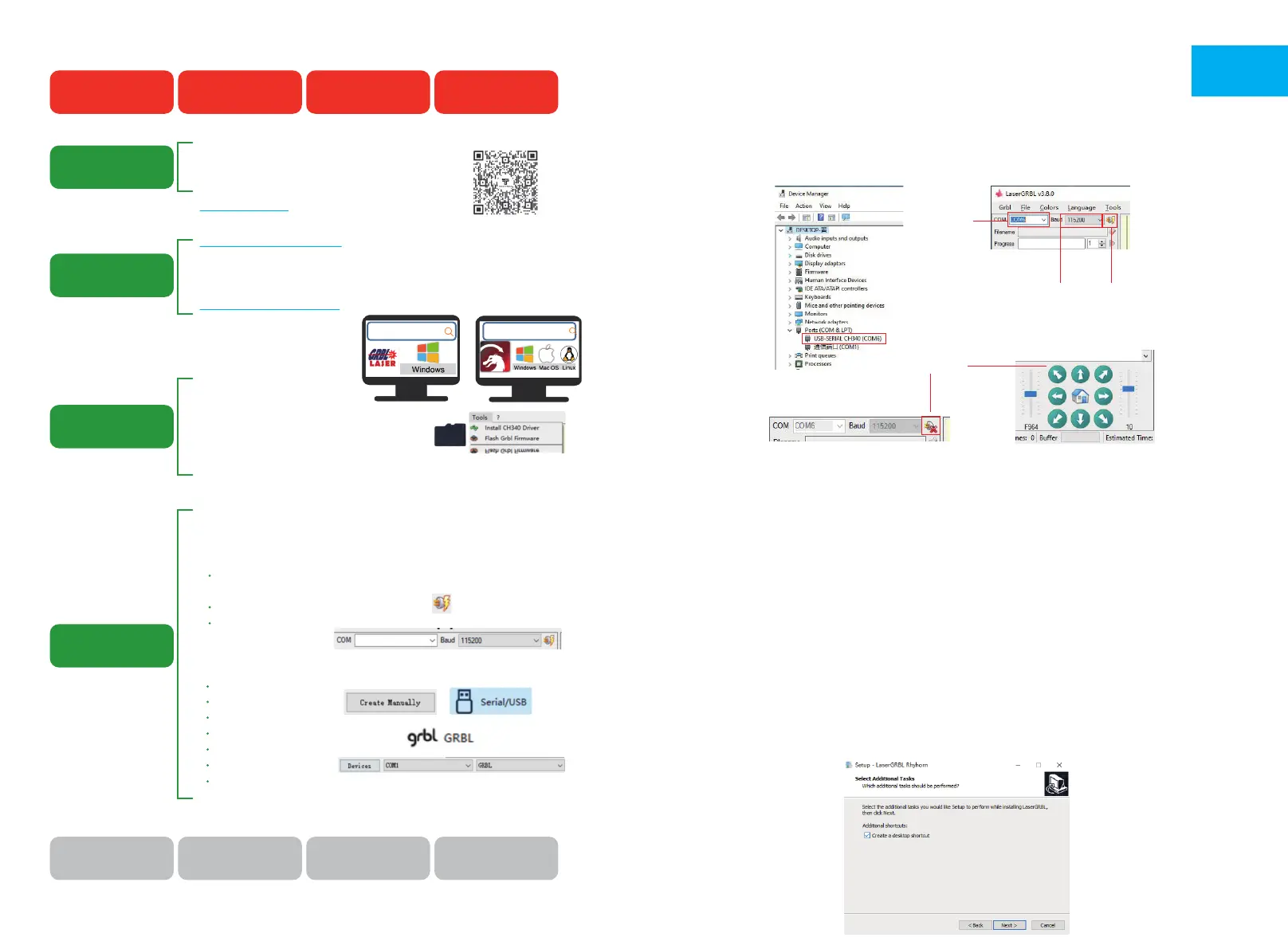
4. Select the specific port number and baud rate——115200 (Figure A.10)
5. Click the lightning sign. When the lightning sign changes to the red “X” and the direction sign is lit, it indicates
that the connection is successful. (Figure A.11)
Generally, the COM port does not need to be selected manually, unless multiple serial port devices are connected to
the computer, you can find the port of the machine in the device manager of the windows system (as shown in
Figure A.09). A simpler way is to try the displayed port number one by one.
CONNECT PC
A.11
A.10
Successful
Choose the
correct port
Choose baud rate 115200 Lightning sign
Note:
If you cannot find the correct port in the “Ports”, you may need to
Method 1: Click "Tools" in the menu to install CH340 driver (This function is not available
in some software versions);
Method 2: Copy the "CH340ser. Exe" file in the TF Card (USB flash disk) to the computer
and install it.
1. Software Downloading
LaserGRBL is one of the most popular DIY laser engraving software, which can be downloaded in LaserGRBL
website http://lasergrbl.com/download/ (The installation package is also available on the TF card from the
manufacturer or USB flash disk).
Brief introduction:
LaserGRBL is easy to use. However, LaserGRBL only supports Windows system (Win XP/Win 7/Win 8/XP/Win 10).
For Mac users, you can also choose LightBurn, which is also an impressive engraving software, but it's not free. And
this software also supports Windows system.
Note: The engraving machine needs to be connected with the computer during engraving, and the software of
the engraving machine cannot be turned off.
2. Software Installation
Double click the software installation package to start the software installation and click “Next” until the
installation is complete.
GRBL INTRODUCTION
EN
Driver Name: CH340SER.EXE
Where is the program?
1. The TF card attached by the manufacturer.
Search: CH340SER
2. Open the LaserGRBL software on your computer
The "Tools" menu of the LaserGRBL software.
LightBurn is a paid software, only 30 days for free.
https://lightburnsoftware.com/ (The installation package is also available on
the TF card from the manufacturer)
LightBurn For Windows, MAC
HOW TO START ?
Engraving Learning Process!
Assemble the machine
How to Assemble
the machine
How to Install
control software
How to Install
driver on computer
How to connect
the Machine &
the computer
Install the control
software on the
computer
Install the driver
on the computer
Connect the machine
to the computer
Learn to use LaserGRBL
or lightburn.on websites
Learn to focus laser
via manual or video
Test speed and power
(Results for different
materials)
Communicate and share
via Facebook and YouTube
1. Read the product manual in detail and follow the steps in the manual
to assemble the machine.
2. Tutorial Video Watch it on Youtube!
www.youtube.com Search : TWO TREES Official
Note: Install the driver unsuccessfully will cause the computer to fail to connect
to the machine
Operating steps:
1. Turn on the machine.
2. Connect the machine to the computer with the USB cable.
3. Open LaserGRBL software
In the COM checkbox, choose the COM number of the machine. (usually not
COM1)
In the Baud checkbox, choose 115200.
Click on the "Connect" button to connect successfully.
(detailed operation)
Please check the back of the manual for
4. Open LightBurn software(Activated)
Choose “Create manually” .
Choose “GRBL” ,NEXT.
Choose “Serial/USB” .
Set the length of the working area.
Set Origin: Front left.
Turn off auto "home“, NEXT.
In the COM checkbox, choose the COM number of the
machine. (usually not COM1, MAC not showing COM)
Downloaded in LaserGRBL website, it's free.
http://lasergrbl.com/download/ (The installation package is also available on
the TF card from the manufacturer)
LaserGRBL For Windows
Watch video
"Connect" button
lasergrbl.com
lightburnsoware.com


 To Next Page
 Loading...