Event
1/15
00:53
VID_001.AVI
00:53
VID_004.AVI
00:53
VID_006.AVI
00:53
VID_005.AVI
00:53
VID_003.AVI
00:53
VID_002.AVI
04:20 05:00
FHD
VID_001.AVI
Menu
Video Setting
Gallery
Camera
1
2 3
4K + FHD
2022.01.29 17:44:20
00:00:15
1
2 3
11
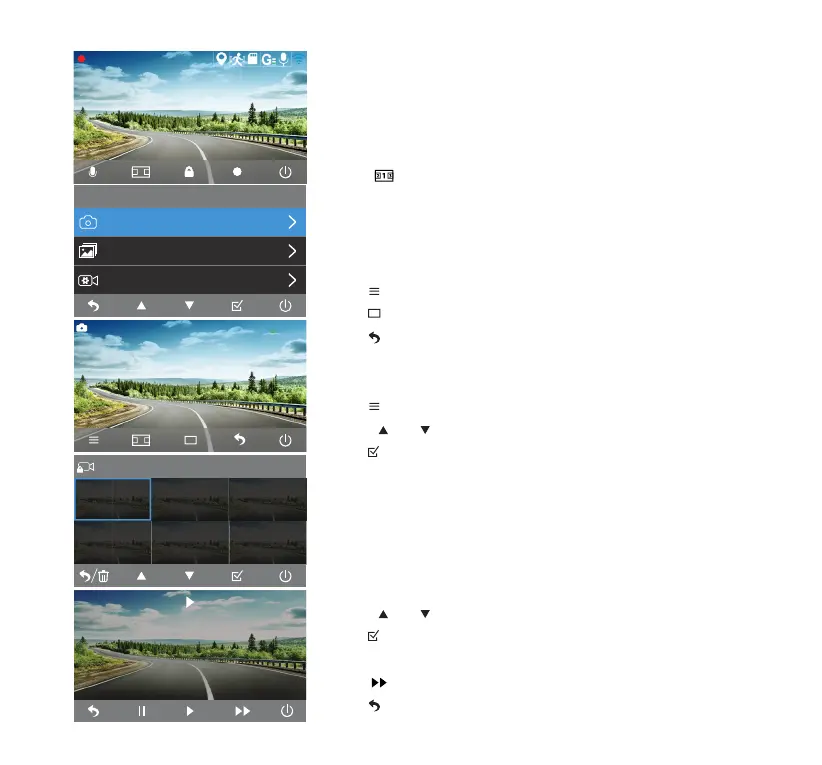
10. MENU SETTINGS
Video Mode
• The Dashcam will start recording automatically upon being
connected to power.
• If you have connected an add-on 1080P Rear Camera (BT532838,
sold separately), the display will default to 3-in-1 view.
• Click to switch between front, cabin, rear and 3-in-1 view.
• Recording must be stopped manually to switch between
modes. Click
●
to stop recording.
Camera Mode
• Click to open menu and select Camera Mode.
• Click to take a photo.
• Click to return to Video Mode.
Gallery Mode
• Click and select Gallery Mode in menu.
• Utilize and to cycle through Event, Video and Photo folders.
• Click to enter the selected folder.
• In each folder, you can select between browsing front and cabin
view camera footages or photos. You may also browse rear
camera footages and photos if you have the add-on 1080P Rear
Camera (BT532838) connected.
Playback and manage les
• Utilize and to browse through the previews.
• Click to play back the selected video le or enlarge the
selected photo into full screen.
• Click to adjust video speed to X2 or X4.
• Click to return to the previews for next video.



 To Next Page