80
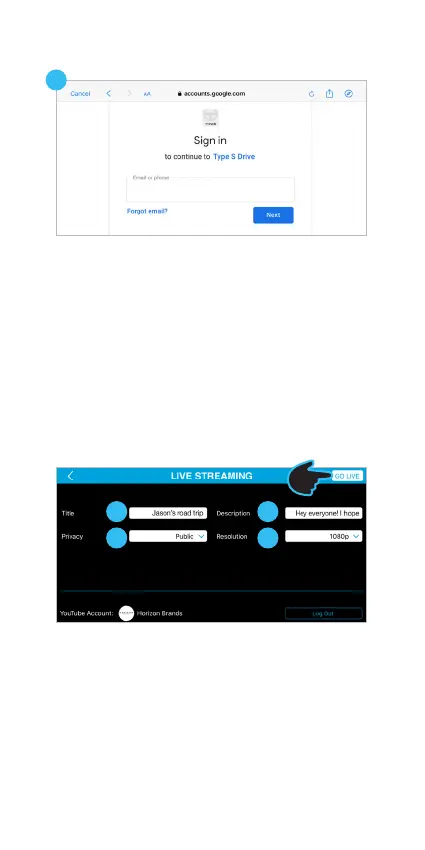
9. Sign in the Google account using the email
address that is associated with your
YouTube account* and tap Next.
9
*NOTE: Make sure you complete the following before
reaching step 8:
i. You have already signed up for your YouTube
account and have created your YouTube channel.
ii. Conrm that your account is veried and that you
have no live stream restrictions in the last 90 days.
Visit support.google.com/youtube/answer/2474026
for all questions related to Go Live on YouTube.
10. Create a title.
11. Select a privacy setting. Tap the down arrow
under "Privacy" and choose Public, Private, or
Unlisted.
12. Add a description.
13. Choose resolution of your live stream. Tap the
down arrow under "Resolution" and choose
720p, or 1080p.
14. Tap GO LIVE to start the live stream.
10 12
11 13
14


 To Next Page