The Tyro Mobile EFTPOS machine is a portable electronic funds transfer point-of-sale device designed for businesses to process card payments. It offers a comprehensive solution for accepting various payment types, managing transactions, and integrating with existing business systems.
Function Description:
The primary function of the Tyro Mobile EFTPOS machine is to facilitate secure and efficient card payment processing. It allows businesses to accept a wide range of payment methods, including contactless (Tap & Go), chip-and-PIN, and magnetic stripe transactions. The device is designed for mobility, enabling payments to be taken anywhere within a business's operational area, whether at the counter, at the table, or on the go.
Key functionalities include:
- Payment Acceptance: Processes transactions from Visa, Mastercard®, eftpos, UnionPay, Google Pay™, Apple Pay, Samsung Pay, Alipay, American Express/JCB, and Diners Club.
- Refunds: Allows for the processing of full or partial refunds directly on the machine, requiring a refund password for security.
- Dynamic Surcharging: Automatically applies configured surcharges to eligible card transactions, helping businesses recover payment processing costs. This feature can be enabled via the Tyro Portal and requires clear communication of surcharge rates to customers.
- Tipping: Includes a discreet tipping feature, allowing customers to add a dollar amount or percentage tip to their payment.
- MOTO (Mail Order/Telephone Order): Subject to approval, businesses can process transactions over the phone by manually entering credit card details (card number, expiry date, CVV). Note that MOTO is exclusively for credit cards, and eftpos cards are rejected.
- Pre-authorisations: Enables placing a hold over funds in a cardholder's credit card account, which are then transferred and settled upon transaction completion. The card must be physically present for pre-authorisations.
- Cash Out: Offers customers the option to get cash out when making a purchase.
- POS/PMS Integration: Can be paired with Point of Sale (POS) or Practice Management Software (PMS) for integrated EFTPOS transactions and Medicare Easyclaim, streamlining business operations.
- Reporting and Insights: When paired with the Tyro App and Tyro Portal, the machine's transaction data provides real-time hourly transaction reports, detailed card and verification method insights, and reconciliation reports.
Important Technical Specifications:
While specific technical specifications like processor speed or memory are not detailed in the provided manual, the device's operational capabilities imply certain underlying technologies:
- Connectivity: Supports both WiFi and 3G/4G (via an included SIM card) for internet connection, ensuring transaction processing even if one connection method is unavailable. WiFi is recommended as the primary connection.
- Security: Features password protection for administrative functions (Admin Password) and specific operations like refunds and tipping. It enforces temporary lock-outs after multiple unsuccessful password attempts.
- Display: Equipped with a screen that displays transaction information, menus, and network status.
- Keypad: Includes a numeric keypad for PIN entry and menu navigation, along with dedicated function keys (e.g., 'Stop', 'Corr', 'OK').
- Card Readers: Incorporates multiple card reading technologies:
- Contactless reader for Tap & Go payments.
- Chip reader for EMV chip cards.
- Magnetic stripe reader for swipe transactions.
- Power: Powered by a long-life rechargeable battery and includes a power adapter for charging.
- Serial Number: Each machine has a unique 7-digit alphanumeric serial code (e.g., AAA2222) located on the bottom of the device, essential for activation and customer support.
- Regulatory Compliance: The EFTPOS machine and its power supply comply with relevant Australian safety standards for electrical equipment, indicated by a regulatory compliance mark on the power supply label.
Usage Features:
- Activation: The first step involves calling Tyro Customer Support to activate the machine, providing the business trading name and the serial number. This process assigns a Merchant ID (MID).
- Getting Started:
- Network Setup: Requires connecting to the internet, ideally via WiFi. Users select WiFi, enter the password, and choose DHCP unless specific network requirements dictate otherwise. A 3G/4G SIM acts as a backup.
- Admin Password: Users must set a four-number Admin Password (no sequences or repetitions) to access the Configuration menu and enable features.
- Feature Configuration: Through the Configuration menu, eligible features like Refunds, MOTO, Cash Out, Pre-authorisations, Pair with POS, and Tipping can be enabled and configured, often requiring additional passwords for security.
- Password Management:
- The Admin password protects machine settings and other passwords.
- Passwords for refunds and tipping can be set and changed via the 'Menu' and 'Change Passwords' options.
- In case of forgotten passwords, a 'HELP' option in the 'Configuration' menu can email temporary passwords to authorised signatories/administrators.
- Transaction Processing:
- To accept a payment, the customer taps, inserts, or swipes their card.
- To process a refund, users select 'Transactions' then 'Refund' from the Menu, enter the refund password and amount, and have the cardholder swipe/insert their card.
- POS/PMS Pairing: Involves selecting 'Menu' > 'Configuration' > 'Integrated EFTPOS' > 'Pair with POS'. The machine displays Merchant ID and Terminal ID for input into the POS/PMS software, followed by initiating pairing sequences from the software and pressing "start" on the machine.
- Rebooting: To resolve issues, the machine can be rebooted by holding the yellow 'Corr' key for approximately eight seconds until "Reboot Now" appears, then releasing the key.
- Switching Connectivity: Users can switch between WiFi and 3G/4G via 'Menu' > 'Network and Diagnostics' > '3G/4G' or 'WiFi'.
Maintenance Features:
- Cleaning: Regular cleaning is crucial for hygiene and maintenance.
- Use a solution of 70%-75% ethanol with water applied to a cloth.
- Do NOT spray cleaners directly onto the machine or use solvents like acetone, white spirits, or isopropanol.
- Gently rub the exterior, paying attention to the keypad.
- Clean the display with an antistatic cloth.
- Daily cleaning is recommended, or multiple times a day with significant use.
- A tip suggests keeping hand sanitiser nearby for users.
- Troubleshooting: The user guide provides steps for common issues, including rebooting the machine and switching between WiFi and 3G/4G connectivity.
- Customer Support: Tyro offers 24/7, 365-day Australian-based Customer Support (1300 00 TYRO / 8976) for activation, assistance with features, password resets, ordering paper rolls, and resolving machine damage or issues.
- Tyro Portal: The online portal (merchant.tyro.com) allows businesses to view transactional reports, manage contact details, and access insights, ensuring smooth operation and communication from Tyro.
- Tyro App: Provides real-time EFTPOS data, hourly transaction reports, Tyro Service Status, and access to Tyro Help on mobile devices.

 Need help?
 General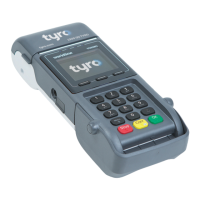

 To Next Page
