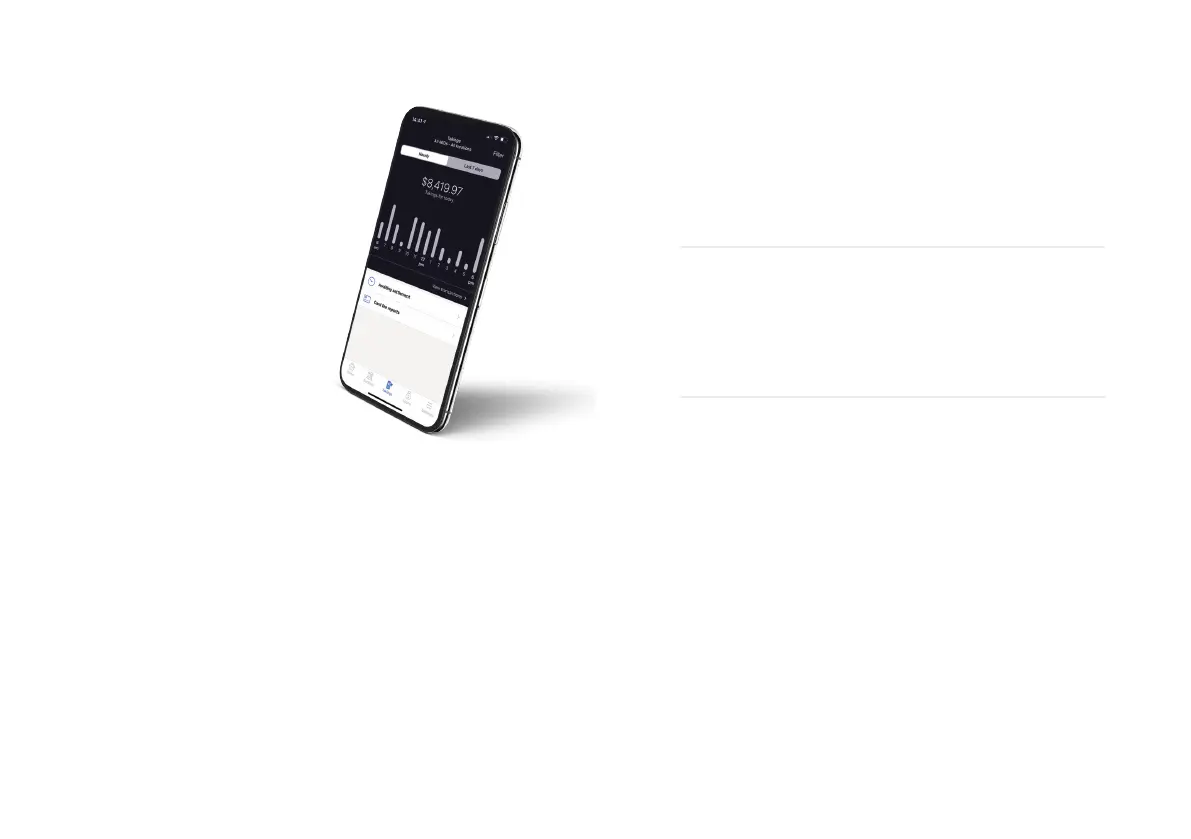
Tyro App
You can’t be in-store all the time.
But with the Tyro App you can stay
on top of business with real-time
EFTPOS data, letting you access
hourly transaction reports for each
of your locations, check Tyro Service
Status and access Tyro Help.
If you haven’t already, download
the Tyro App from Google Play®
or the App Store.
Tyro Service Status
Every now and then things don’t go to plan. At status.tyro.com
you can see our systems’ real time status and opt-in to
notifications for systems including transaction processing,
EFTPOS machine connectivity and the Tyro Portal.
Pairing your POS/PMS
with your EFTPOS machine
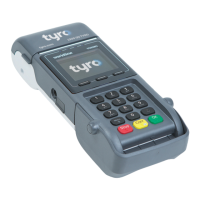
To process integrated EFTPOS transactions and/or Medicare
Easyclaim, your EFTPOS machine must be paired with your
Point of Sale (POS) or Practice Management Software (PMS).
To pair your EFTPOS machine follow these steps:
1. Press ‘Menu’
2. Select ‘Configuration’
3. Select ‘Integrated EFTPOS’
4. Select ‘Pair with POS’
Your merchant ID and terminal ID will be displayed on the
EFTPOS machine. You can use this information to input into
your POS/PMS software. You will then have to initiate the pairing
sequences through the POS/PMS software and press “start” on the
machine. Once successfully paired, the POS/PMS name will
appear on the EFTPOS machine.
If your EFTPOS machine doesn’t react to a POS/PMS initiated
transaction, follow the instructions that appear on your POS/PMS
display or call our Customer Support team on 1300 00 TYRO (8976).
1110
Tyro Mobile EFTPOS machine user guide Getting set up


 To Next Page