Notes on passwords
The Admin password is used to modify machine settings and to
set and change passwords for refunds and tipping. All passwords
protect the security of your EFTPOS machine, so you don’t want
them to be too easy to guess.
You can change your passwords by selecting ‘Menu’ and ‘Change
Passwords’. The machine will automatically enforce a temporary
lock-out after three or more unsuccessful password attempts.
If you have forgotten your password follow these steps:
1. Press ‘Menu’
2. Select ‘Configuration’
3. Instead of entering the Admin Password, note the
additional option for ‘HELP’ at the bottom of the screen
4. Select ‘HELP’ and ‘Yes’. The email address where the
passwords have been emailed to will show on the screen
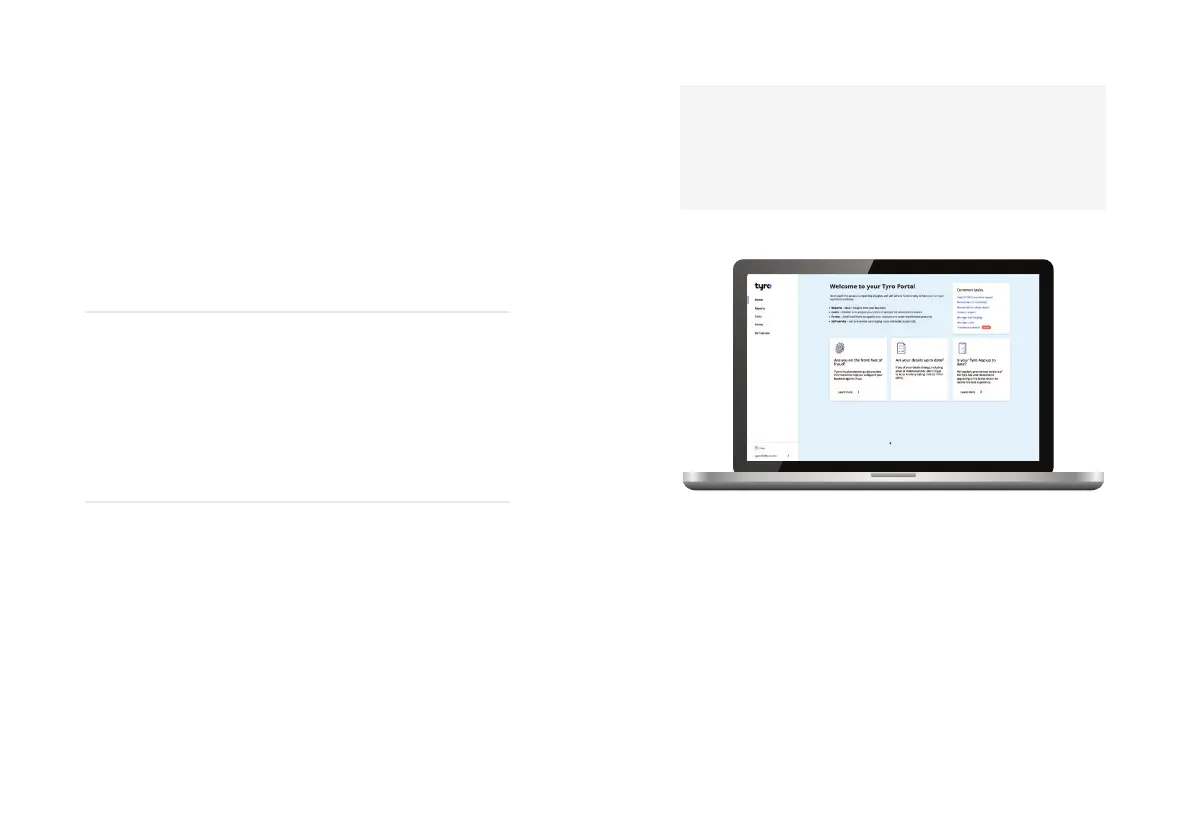
Tyro Portal
When you log in to the Tyro Portal you can view your EFTPOS
transactional reports and insights to help you run your business.
Specifically you will have access to: a deeper dive to determine
card details and verification method; cancelled and declined
transactions; ability to create a reconciliation report that details
total transaction amounts for each EFTPOS machine over a
specific time period; and much more.
Visit merchant.tyro.com to get started.
Authorised Signatories and Administrators will receive an
email with a temporary password for both the Tyro Portal and
Tyro App. This temporary password expires within three days.
If you haven’t received it or can’t find the email, call Customer
Support to reset.
98
Tyro Mobile EFTPOS machine user guide Getting set up


 To Next Page