5
Let’s get started.
STEP 1
Before we ship your terminal/s, we:
• create a merchant account at Tyro
• assign you a Tyro merchant ID number (MID)
• send you an email on how to access the
Tyro Merchant Portal
If you have not received the email by the time your
terminal arrives, check your spam folder or call Tyro
Customer Support to conrm your email address.
Network settings
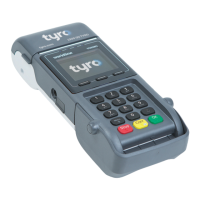
Your new Tyro terminal provides both 3G and Ethernet
network connectivity options. These options can be
selected through the terminals conguration menu
on your terminal. To change connectivity Press Menu
> (Network and Diagnostics) Network Connection >
3G/Ethernet.
To connect via Ethernet ensure you connect the
terminal to your network by plugging one end of
the Ethernet cable into the available socket on the
terminal base and the other end to a spare port on
your modem, router or switch. If the terminal does
not detect the network, check that the Ethernet cable
is correctly plugged in. Also, check if there is activity/
power on the connection at the router/modem/hub.



 To Next Page