assigned a static IP address of 192.168.1.1. To configure the EdgeRouter,
proceed to the appropriate section, DHCP or “Static IP Address”.
DHCP
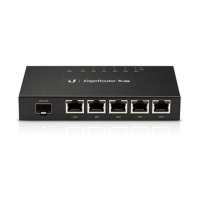
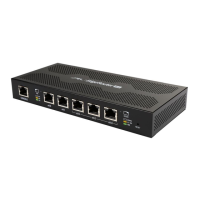
1. Connect an Ethernet cable from eth1 on the EdgeRouter to a LAN segment
that has an existing DHCP server.
2. To check the IP address of the EdgeRouter, use one of the following methods:
Set up the DHCP server to provide a specific IP address to the EdgeRouter
based on its MAC address (on the label).
Let the EdgeRouter obtain an IP address and then check the DHCP server
to see which IP address was assigned.
3. Launch your web browser. Enter the appropriate IP address in the address
field. Press enter (PC) or return (Mac).
4. Enter ubnt in the Username and Password fields. Read the Ubiquiti License
Agreement, and check the box next to I agree to the terms of this License
Agreement to accept it. Click Login.
The EdgeOS Configuration Interface will appear, allowing you to customize your
settings as needed. For more information, refer to the EdgeOS User Guide, which
is available at ui.com/download/edgemax
Static IP Address
1. Connect an Ethernet cable from the Ethernet port on your computer to the port
labeled eth0/PoE In on the EdgeRouter. If you are using PoE, then connect
your computer to the EdgeRouter via a PoE switch or to the adapter’s LAN
port.




 To Next Page