14
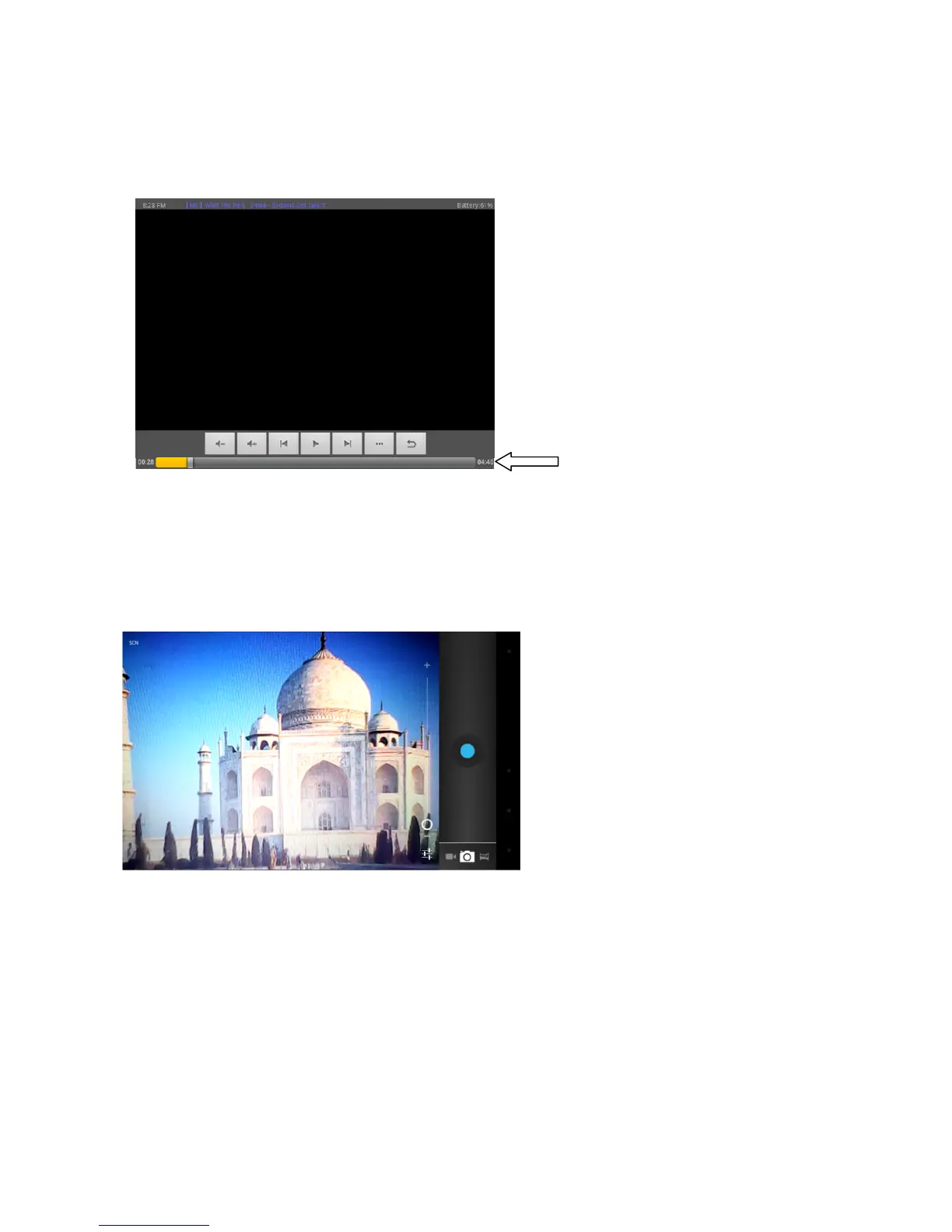
Tap on video, it will show the list of the video files in a small
icon.
Tap the file that you want to
view to start playback. You can adjust
the
volume, play/pause, backward, forward, go back or
go to submenu
for
more setting options by tapping the appropriate icon on the function
bar.
Function
bar
Tap on camera, it will show the list of the recorded videos and image
files
in a small icon. Tap
the file that you want to view to start. For
photo
viewing, the function bar provides options
such as enlarge photo,
reduce
photo, slideshow, share, delete, crop, rotate left, rotate right,
etc
for
your
selection.
Set Language
From the application menu, tap on “Settings” and select “Language
&
input” from the list.
Tap on “Language” and you can see
a
list of compatible languages. Tap on the language that
you want and
it
will be set
instantly. In the same area, you can also set the language of the
keyboard that you would like to use when you need to input language on screen.



 To Next Page