8
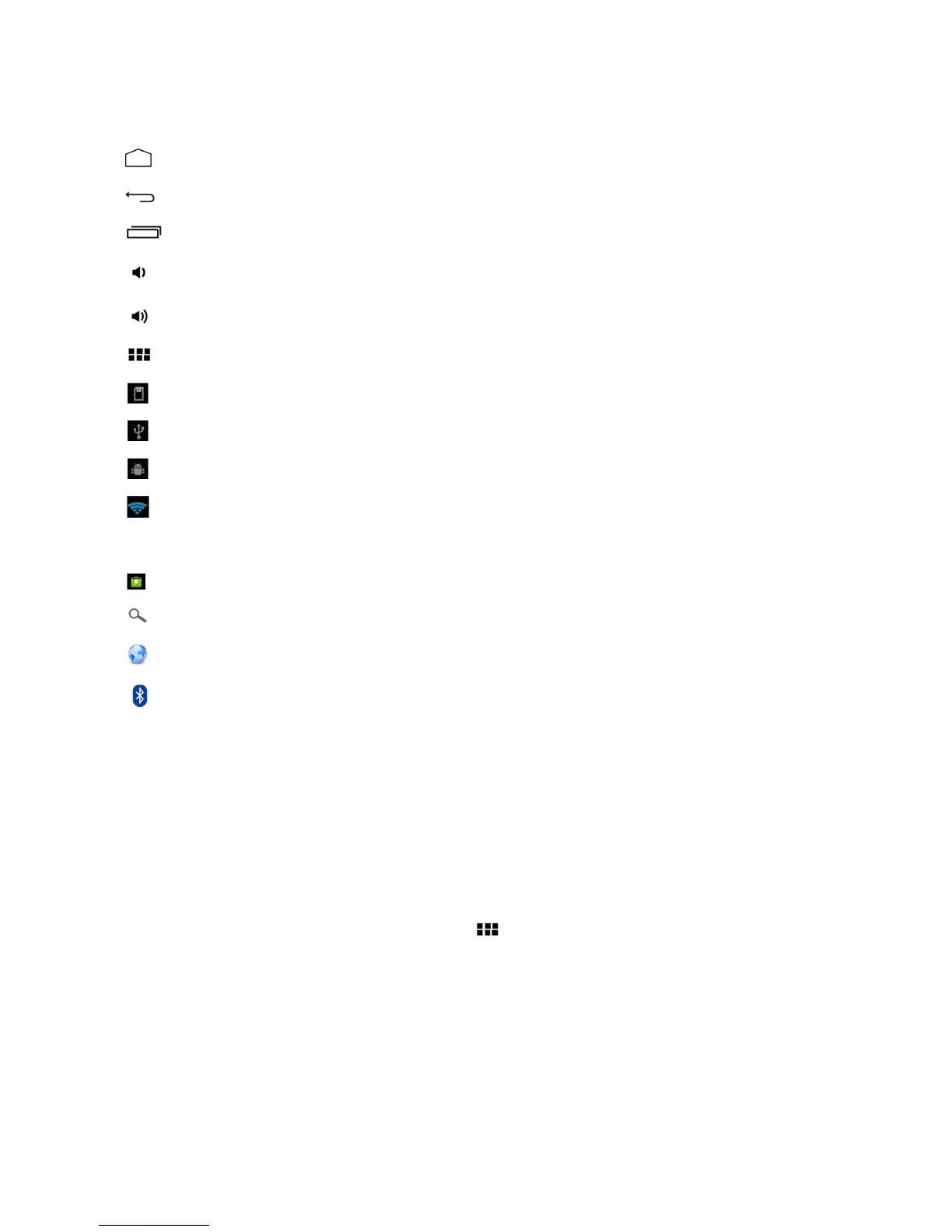
The status bar is located on the bottom of the
desktop.
Home Page - Tap to return to the desktop
Back - Tap to return to the last screen
Recent Apps - Tap here for a list of recently opened applications
Volume - - Tap here to decrease the volume of audio output
Volume + - Tap here to increase the volume of audio output
Applications - Tap here to go to the application menu
MicroSD - This icon appears when a MicroSD card is inserted into the device
USB - This icon appears when a USB device is connected to the device
Android - This icon appears when the device is connected to a PC
Wi-Fi - This icon appears when the device is connected to a Wi-Fi network
5:46 Time - The current time is listed at the bottom right of the main screen
Battery- This icon displays the level of battery power remaining
Search - This icon will launch a search engine
Internet - This icon will launch the UbiSurfer Internet Browser
Bluetooth - This Icon appears when Bluetooth is enabled
Shortcut menu
● Tap “Wallpaper” to select new wallpaper for the home
screen.
● Tap “Manage apps” to go the list of installed applications
where you can modify, add or
remove them
●Tap “System settings” to go to settings interface
WIFI
Settings
From the desktop, Tap the applications icon “ ” and tap on “Settings” followed by
“Wireless & networks” to enter the wireless settings
page.
Tap or slide the box at end of the Wi-Fi bar to the right to turn on Wi-Fi or do the reverse
to
turn it off. Go to Wi-Fi settings to select the appropriate Wi-Fi
network
from the list of Wi-Fi
networks and follow the instructions to enter
the
password assigned by the Wi-Fi network
provider. Enter
the
assigned IP address information if the chosen network requires
such
information in order to obtain their Wi-Fi network (please contact
the
Wi-Fi network
provider if a password or IP address is required for Wi-Fi
access).



 To Next Page