6
Bluetooth Pairing
Pairing your UbiSlate7CZ to your Bluetooth headset may differ for every headset; however the
premise of searching for Bluetooth devices by the UbiSlate7CZ is fairly universal. A pairing system
will then usually require passwords entered on both devices to finalize the pairing. Usually this
pairing will only have to be performed once.
Orientation Sensor
Setting
The device contains a sensor that will automatically change
the
orientation of most screens
as you rotate the device. The sensor
works
best when the device is rotated perpendicular to
the ground. i.e.:
when
the device is held upright and not flat on its
back.
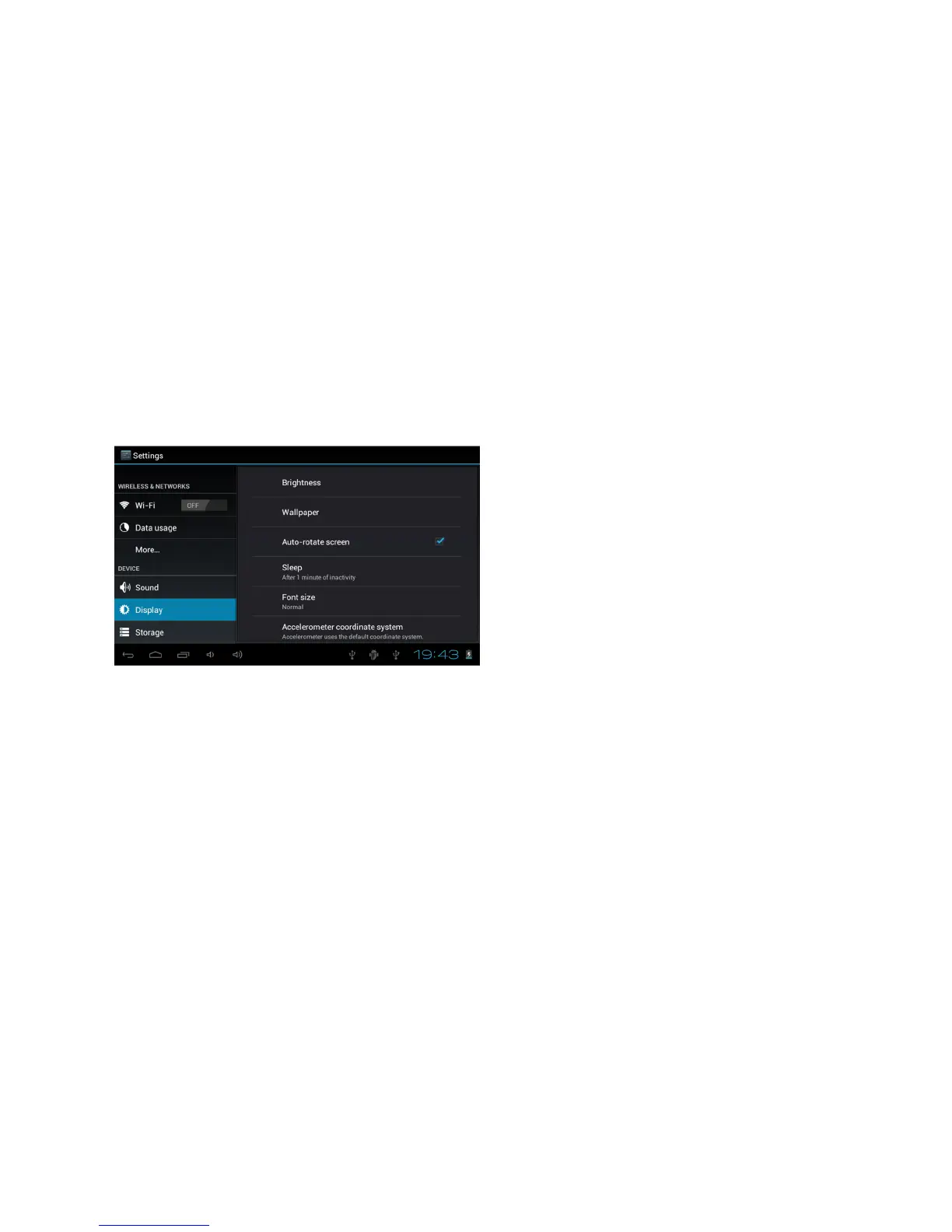
The Orientation
sensor can be activated or deactivated in the
Setting
menu: Setting
>
Display
>
Auto-rotate
screen. Check the box if
you
want to activate the sensor or uncheck the box to deactivate
it.
(See picture below)
Using the Touch screen
Your device comes with a responsive touch screen which works as follows:
●Tap: To acvate an on-screen item (e.g., application icons, buttons, menu items, and the
letter/symbols of the on-screen keyboard), simply tap them with your fingertip or compatible
stylus.
●Double Tap: Quickly tap the screen twice on a webpage or other application screen to zoom
(the application must support the double-tap/zoom function). Within the browser, double-
tapping a webpage section will cause the browser to zoom and fit that section to the width of
the screen.
●Drag and drop: Drag an on-screen item to change its position (e.g., an application icon on the
home screen). To drag an item, touch and hold it for a moment, then without lifting your
fingertip/stylus, move your fingertip/stylus on the screen until the item reaches its target
destination.
●Swipe: Swipe up/down on the screen to scroll through a list. On some screens, you may be
able to swipe left/right to change the view. To swipe, touch the screen and then quickly move



 To Next Page