If
a
driver update
is
available, you
will
see
a
blue
arrow here
(
)
.
Clic
k
the arrow to update your driver.
1.9. Click our logo to visit our website.
Image 4-11: UGEE logo
Mac
To
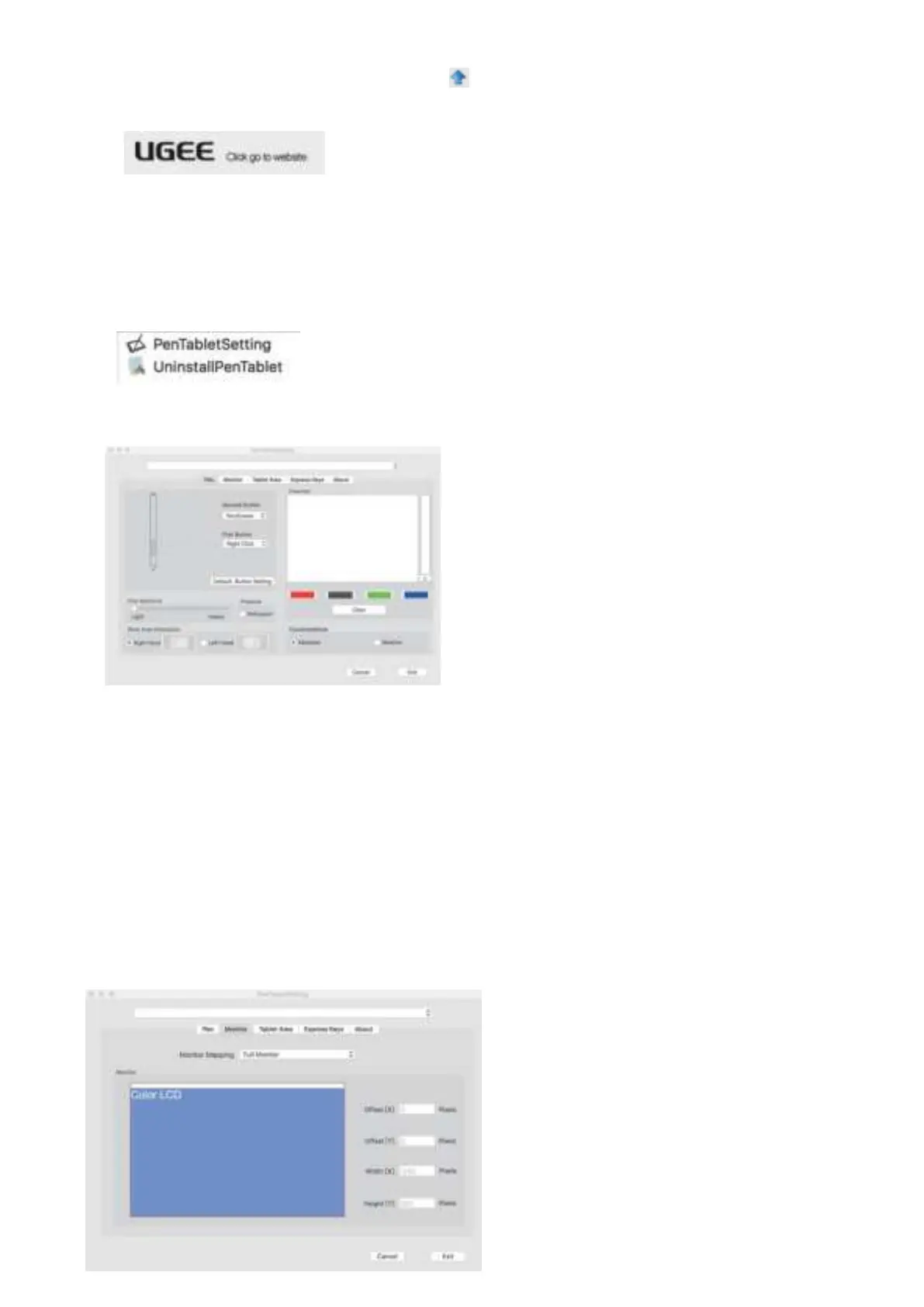
open the M708's driver settings, open Finder > Applications >PenTabletSetti
ng.
Driver UI
Image 4-12: Tablet Setting
1.1.
Pen
Image 4-13: Pen
Note:
Pen/Eraser Toggle
With the stylus in range of the M708's active area, press the assigned barrel
button to toggle between pen and eraser modes in compatible
drawing
software. The current mode will briefly be displayed on your monitor.
(1). In this tab, you may customize the functions of your stylus
' barrel buttons, adjust pressure sensitivity, and test your pen pressure.
(2). Click "Default Button Setting
" to revert to factory settings.
(3). Press "No Support" function can disable pen pressure when
drawing.
(4).
Lighter sensitivity means that digital pressure level will rise with less
applied physical pressure.
(5)
.Absolute (Pen) Mode: Standard pen tablet mode; Each point of the pen tablet's active area corresponds to an absolute point on your computer
display.
Relative (Mouse) Mode: Mouse mode; The pen tablet's active area does not
correspond to absolute points on your computer
display and your pen works as a standard mouse.
(6).Right & Left Hand mode: The M708 are set up for right-handed use by default
. When switching to left-handed mode, be sure to rotate the
actual physical
pen
tablet 180 degrees to place its shortcut keys on its opposite side.
1.2.
Monitor
The "Monitor" tab allows you to configure your pen tablet for use with single
or dual monitors. The pen tablet can also be configured to
use only a portion
of your display.


 To Next Page