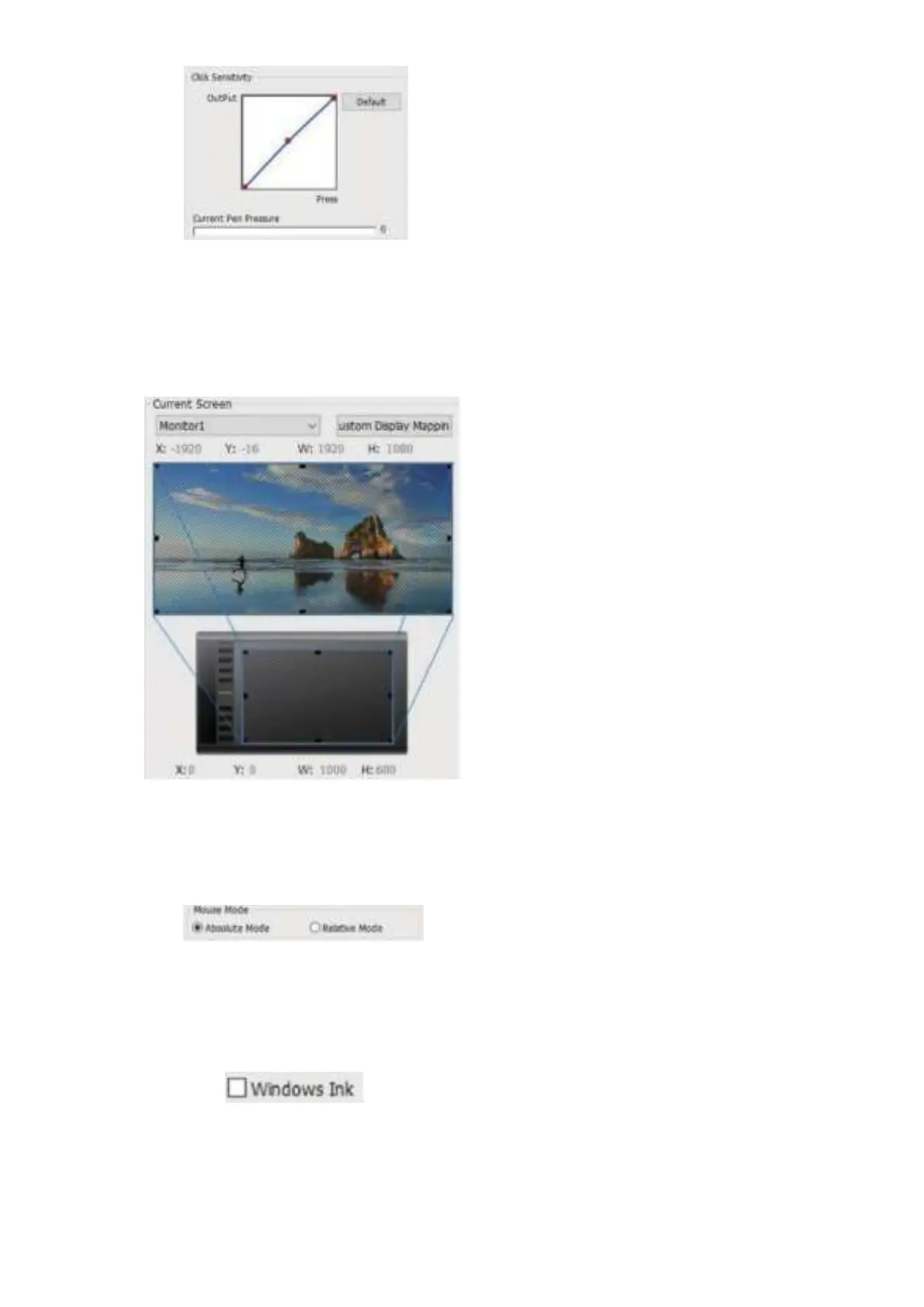
Image 4-3: Click Sensitivity & Current Pen Pressure
1.3.
Current Screen
The M708 may be configured for use with single or dual monitors.
And the dimensions of your pen tablet's on-screen active area can be changed here.
Image4-4: Current Screen
1.4.
Mouse Mode
Absolute (Pen) Mode: Standard pen tablet mode; Each point of the pen tablet's active area corresponds to an absolute point on your
computer
display. Relative (Mouse) Mode: Mouse mode; The pen tablet's active area does not correspond to absolute
points on your computer display and your pen works as a standard mouse.
lmage4-5: Mouse Mode
1.5.
Windows Ink
Windows lnk capability can be toggled on and off here. Enabling this will
allow support for Windows Ink and applications that run using
Windows Ink.
Image 4-6: Windows Ink
1.6.
Right/Left Hand Mode & Max Active Area/Display Ratio
The M708 are set up for right-handed use by default. When switching to left-handed mode, be sure to rotate the actual physical pen
tablet 180 degrees to place its shortcut keys on its opposite side. Max Active Area &
Display Ratio You can set your M708 active
area to the max or adjusts the pen tablet’s on-screen active area to match your monitor’s resolution.


 To Next Page