EasyManua.ls Logo

Uniden BCT15 - User Manual

Uniden BCT15
152 pages
Print Icon
To Next Page IconTo Next Page
Loading...
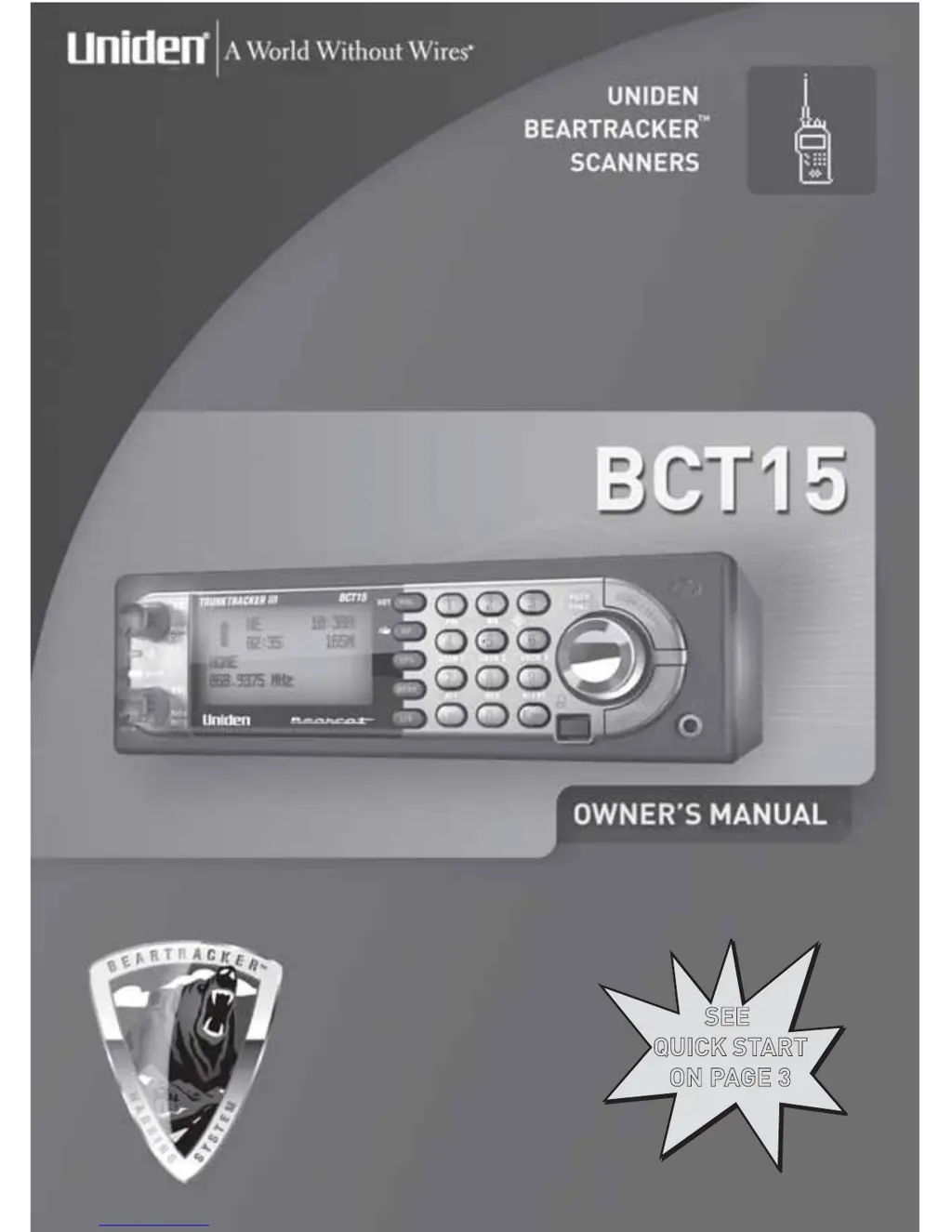
SEE
QUICK START
ON PAGE 3
SEE
QUICK START
ON PAGE 3

Table of Contents

Questions and Answers

  • J
    Jeffrey BrooksJul 25, 2025
    What to do if my Uniden Scanner doesn’t work?
    • J
      Jorge SotoJul 25, 2025
      If your Uniden scanner isn’t working, it might not be receiving power. Ensure the AC adapter is correctly connected to both the AC outlet and the scanner. If connected correctly, the display should light up and cycle when you repeatedly press the [VOL] button. Also, if the AC outlet is controlled by a wall switch, ensure that the switch is turned on.
  • W
    William AndersonJul 29, 2025
    Why won't my Uniden BCT15 stop scanning?
    • C
      Christopher LoveJul 30, 2025
      If your Uniden scanner won't stop scanning, consider these potential causes: * The squelch threshold might need adjustment. * The antenna connection might need to be checked. * One or more channels might be locked out. * The channel’s frequency might not be stored in memory. * The channel might not be active, so wait for a transmission.
  • E
    Eric NguyenAug 3, 2025
    Why is my Uniden Scanner reception so bad?
    • C
      Cody MartinezAug 3, 2025
      Poor reception on your Uniden Scanner could be due to the antenna needing adjustment. Check the antenna connection, or try moving or repositioning the antenna. Also, try moving the scanner to a different location. If you are in a remote area, you might need a multi-band antenna.
  • S
    shawnalexanderAug 7, 2025
    Why won’t my Uniden BCT15 track a trunked system?
    • S
      stacy82Aug 7, 2025
      If your Uniden scanner won’t track a trunked system: * Change to another system and try scanning that system. * Enter the data frequency. * Program one or more ID’s or use the ID Search mode. * Wait for the ID’s to become active or scan another system.
  • M
    Melissa HillAug 11, 2025
    Why is my Uniden BCT15 not acquiring the data channel?
    • R
      Robin LopezAug 11, 2025
      If your Uniden scanner isn’t acquiring the data channel, the squelch might need adjustment. Also, check your frequency list for the data channel, as the frequency used for the data channel might be missing.
  • A
    Andrew BarronAug 16, 2025
    What to do if my Uniden BCT15 Scanner has missing replies to conversations?
    • S
      Samantha FarmerAug 16, 2025
      If your Uniden scanner has missing replies to conversations: * Make sure all the system’s frequencies have been entered. * Try another preset fleet map or program your own fleet map.
  • M
    Michelle MejiaAug 21, 2025
    Why does the weather scan not work on my Uniden Scanner?
    • J
      Jessica HicksAug 21, 2025
      If the weather scan isn’t working on your Uniden scanner, the squelch might need adjustment, or the antenna connection may need to be checked. Additionally, there might not be a NOAA weather broadcast in your current area, so try moving to an area with a NOAA weather broadcast.

Summary

Precautions

BCT15 Quick Start Guide

Controls, Keys, and Functions

Controls, Keys, and Functions

Detailed description of all scanner buttons and their functions.

Power VOL, Mute

Operation of power, volume, and mute controls.

Squelch [SQ] control, [STATE] Key

Operation of squelch and state selection keys.

Scroll Control, Function Key, Enter Key

Operation of navigation and function keys.

Function Plus

Describes advanced key combinations for specific actions.

Key Functions

Describes the function of individual keys like GPS, L/O, MENU.

Operation

Turning On the Scanner and Setting the Squelch

Initial setup for audio reception.

Scanning Systems

How to initiate scanning of programmed systems.

Locking;Unlocking Systems

Enabling or disabling entire systems for scanning.

Programming General Settings

Introduction

Trunk Tracking

Explanation of how the scanner tracks trunked radio systems.

Searches and Scanning

Details various search and scan modes.

A Short User’s Guide to Assist the First-Time Scanner Enthusiast

Using the BearTracker System

Guide to initiating scanning with the BearTracker system.

Understanding Scanning and the BCT15

What is Trunk Tracking?

Introduction to trunk tracking technology.

Setting Up Your Scanner

Base Station

Instructions for setting up the scanner as a base station.

Vehicle Installation

General guide for mounting the scanner in a vehicle.

Mounting Using the Optional DIN-E Sleeve

Specific instructions for DIN-E sleeve mounting.

Mounting Using ISO Technique

Instructions for mounting using the ISO technique.

A Look at The LCD Display

Introduction to BearTracker Operation

Using BearTracker Scanning

How to use the state-based scanning feature.

Using the BearTracker Warning System

How the warning system alerts the user.

Using the Menu

Programming Your Scanner

System Settings

Settings applicable to all system types.

System Options

Settings specific to system types.

Site Option Settings

Settings for scanner sites.

Channel Option Settings

Settings for scanner channels.

Programming Conventional Systems

Steps to program conventional systems.

Programming Trunked Radio Systems

Steps to program trunked radio systems.

Programming System Settings

Settings for different system types.

Specifying the Correct System Type

How to select the correct system type.

Setting the System Lockout

How to lock out systems from scanning.

Programming Sites

Settings and steps for programming sites.

Setting Site Lockout

Enabling or disabling sites for scanning.

Locking Out Channel Groups

Disabling channel groups from scanning.

Creating a Channel

Steps to create a new channel.

Setting Lockout

Locking out channels.

Searching and Storing

Service Search

Searching predefined service ranges.

Custom Search

Programming and performing custom searches.

Search with Scan

Combining search with scanning.

Auto Search and Store

Automatically searching and storing frequencies.

Using the Close Call Feature

Setting Close Call Options

Configuring Close Call search parameters.

Search and Close Call Options

Managing Locked-Out Frequencies

How to manage locked out frequencies.

Priority Scan

Setting priority scanning behavior.

Using Weather Alert (SAME)

Searching For a Weather Broadcast

How to find weather broadcasts.

Turning Weather Scan Alert On;Off

Enabling/disabling weather alerts.

Fire Tone-Out Introduction

Setting Up Tone-Out

Configuring specific tone-out settings.

Using the BCT15 with a GPS

Location-Based (GPS) Scanning

How GPS data controls scanning.

Care and Maintenance

Troubleshooting

Scanner won’t track a trunked system.

Troubleshooting trunk tracking.

Uniden BCT15 Specifications

General IconGeneral
TypeBase/Mobile Scanner
Dynamic MemoryYes
Close Call RF Capture TechnologyYes
PC ControlYes
DisplayBacklit LCD
GPS CompatibilityYes
Weather ScanYes
Priority ScanYes
Preprogrammed Service SearchesYes
PC ProgrammableYes
BatteryNot applicable (AC/DC powered)
BandsVHF, UHF
Power12V DC
Frequency Coverage25-54, 108-174, 406-512 MHz

Related product manuals