Need help?
Do you have a question about the UniFi USW-Flex-Mini and is the answer not in the manual?
Describes the status and behavior of the System LED indicator.
Explains the RJ45 port LEDs indicating link, speed, and activity.
Details the PoE In port, supporting 10/100/1000 Mbps Ethernet and PoE input.
The UniFi Switch Flex Mini is a compact and versatile network switch designed for small to medium-sized deployments. It offers essential networking capabilities within a sleek and unobtrusive form factor, making it suitable for various environments, from home offices to small businesses. The device is primarily used to expand network connectivity, providing additional Ethernet ports for wired devices. Its plug-and-play nature allows for quick and easy setup, while integration with the UniFi Controller software offers advanced management and monitoring features.
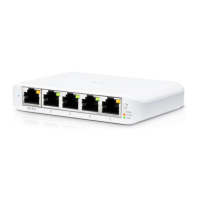
The UniFi Switch Flex Mini serves as a 5-port Gigabit Ethernet switch, enabling high-speed wired connections for multiple devices. It supports 10/100/1000 Mbps Ethernet connections across all its RJ45 ports, ensuring compatibility with a wide range of network devices such as computers, printers, IP cameras, and other network-attached peripherals. One of its key features is the PoE In port, which allows the switch to be powered by an 802.3af/at Power over Ethernet (PoE) source. This capability provides flexibility in deployment, as the switch can be placed in locations without direct access to a power outlet, drawing power from an upstream PoE-enabled switch or injector. Alternatively, for deployments where PoE is not available, the switch can be powered using the included 5V, 1A power adapter, which connects to the dedicated Power Port.
The switch is designed to integrate seamlessly with the UniFi Network Controller software, a centralized management platform that allows users to configure, monitor, and manage all their UniFi devices from a single interface. When adopted by the UniFi Controller, the Flex Mini becomes part of a larger UniFi ecosystem, enabling features such as network topology visualization, device status monitoring, and firmware upgrades. This integration simplifies network administration, especially in environments with multiple UniFi devices.
The UniFi Switch Flex Mini is engineered for ease of use and flexible deployment. Its compact size allows it to be placed discreetly on a desk, shelf, or mounted in various locations.
System LED: The System LED provides crucial status information about the device:
RJ45 Link/Speed/Activity LEDs (Ports 1-5): Each RJ45 port has its own LED indicator, providing visual feedback on the link status, speed, and activity:
PoE In Port: This port is a standard RJ45 Ethernet port that supports 10/100/1000 Mbps connections and can receive 802.3af/at PoE input. This means the switch can be powered directly through an Ethernet cable from a compatible PoE source, eliminating the need for a separate power adapter and simplifying cable management.
Power Port: For installations without PoE, the dedicated Power Port allows the use of the included 5V, 1A power adapter. This provides an alternative power source, ensuring the switch can be deployed in any location.
Reset Button: The Reset Button is a critical maintenance feature. To reset the device to factory defaults, the device must be running after bootup. Press and hold the Reset button for approximately 10 seconds until the LED starts flashing and then becomes solidly lit. After a few seconds, the LED will turn off, and the device will automatically reboot, returning to its default configuration. This is useful for troubleshooting or reconfiguring the device.
Software Installation and Adoption: To fully utilize the UniFi Switch Flex Mini, users need to download and install the UniFi Controller software (version 5.12.5 or newer) on a Linux, Mac OS X, or Microsoft Windows 7/8/10 system. A Java Runtime Environment 1.8 or above is recommended. Google Chrome is the recommended web browser for accessing the UniFi Controller interface. Once the software is installed and the UniFi Installation Wizard is completed, users can log in to the management interface. From the UniFi Controller dashboard, navigating to the "Devices" section allows administrators to locate the UniFi Switch Flex Mini (which will initially show a "Pending Adoption" status) and click "Adopt" to integrate it into the network. Upon successful adoption, the System LED on the switch will turn steady blue, confirming its operational status within the UniFi ecosystem.
The UniFi Switch Flex Mini is designed for minimal maintenance, but certain aspects ensure its longevity and reliable operation.
Firmware Upgrades: The UniFi Controller software facilitates easy firmware upgrades for the Flex Mini. When new firmware versions are available, the controller can push updates to the device, ensuring it benefits from the latest features, security patches, and performance improvements. During a firmware upgrade, the System LED will alternate white/blue, indicating that the device is busy and should not be unplugged or interfered with.
Ventilation: Proper ventilation is crucial for the device's performance and lifespan. The manual emphasizes the importance of providing at least 20 mm of clearance next to the ventilation holes to ensure adequate airflow. This prevents overheating, which can lead to reduced performance or device failure.
Environmental Considerations: The device is designed for indoor use and should not be exposed to rain or moisture. It should also not be used in locations that can be submerged by water. Avoiding use during electrical storms is recommended to mitigate the remote risk of electric shock from lightning.
Troubleshooting: The Reset Button serves as a primary troubleshooting tool, allowing users to revert the device to a known good state (factory defaults) if configuration issues arise. The LED indicators also play a vital role in diagnosing network connectivity problems, providing immediate visual feedback on link status and activity.
Centralized Management: The UniFi Controller software is the central hub for managing the Flex Mini. It provides a comprehensive overview of the device's status, network statistics, and configuration options. This centralized approach simplifies maintenance tasks, as administrators can monitor and manage the switch remotely, apply settings, and review logs without needing physical access to the device. The controller also allows for network topology visualization, which helps in identifying and resolving connectivity issues within the broader network.
In summary, the UniFi Switch Flex Mini is a powerful yet simple network switch that offers essential connectivity and integrates seamlessly with the UniFi ecosystem for advanced management. Its intuitive LED indicators, flexible power options, and robust software support make it an ideal choice for expanding wired networks with ease and reliability.
 General
| PoE Input | 802.3af/at |
|---|---|
| Max Power Consumption | 5W |
| Operating Temperature | 0 to 40° C (32 to 104° F) |
| Operating Humidity | 10 to 90% Noncondensing |
| Certifications | CE, FCC, IC |
| Enclosure Material | Polycarbonate |
| Total Non-Blocking Throughput | 5 Gbps |
| Switching Capacity | 10 Gbps |
| Forwarding Rate | 7.44 Mpps |
| Management Interface | UniFi Network Application |
| Ports | 5 |
| Power Method | PoE or USB-C |
| LEDs | System: Status |
| Jumbo Frame Support | 9, 000 Bytes |
| Supported Voltage Range | 44-57V DC (PoE), 5V DC (USB-C) |

 To Next Page