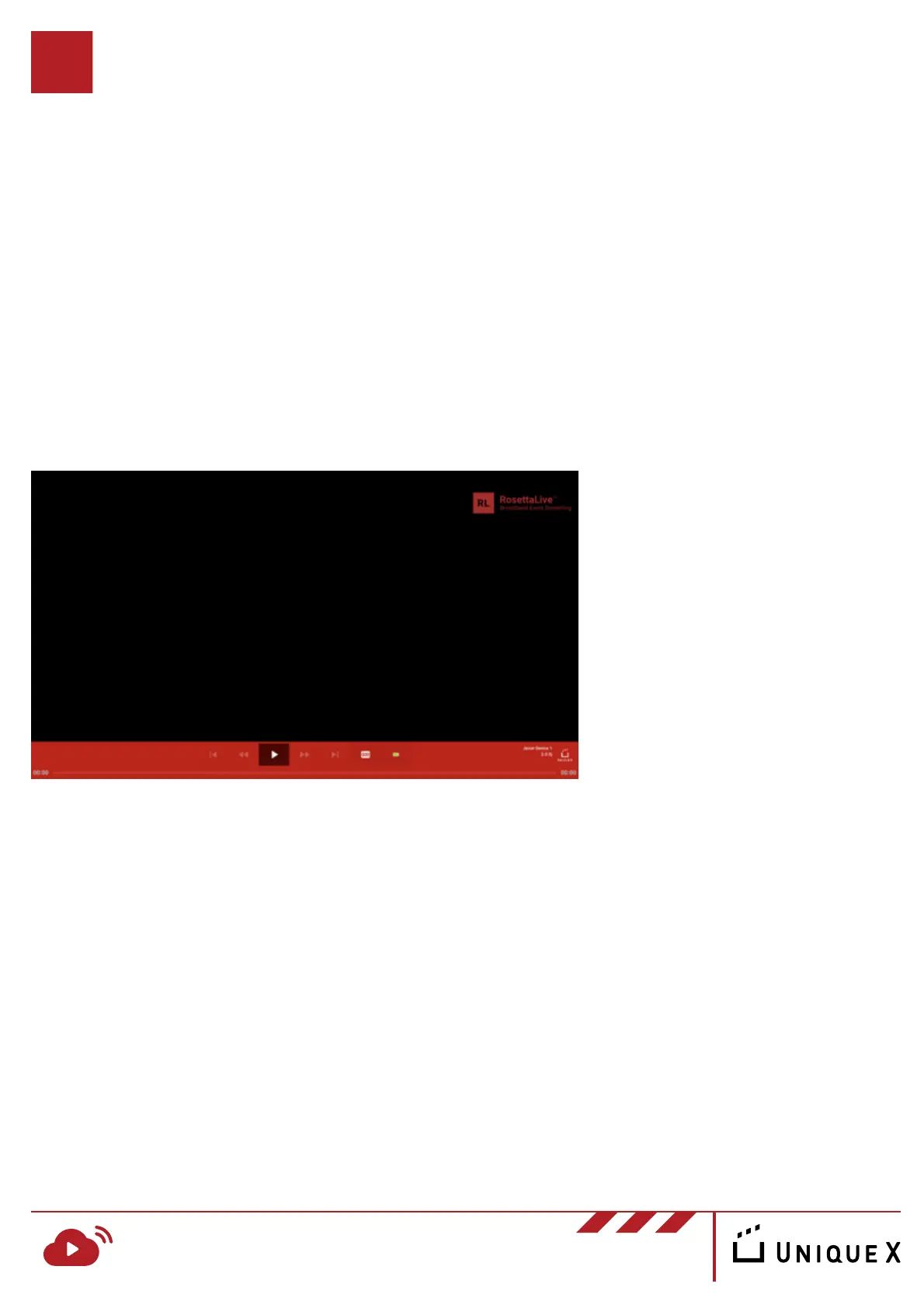
To confirm your device has been installed properly, please turn on the device
and take the following steps:
1. Confirm that you have the following image displayed on your connected
video output. If not, please double-check your cables to ensure they are
connected correctly
Testing your Device’s Connection
RosettaLive Installation Guide v.1
www.uniquex.com/rosettalive/
RL
RosettaLive
TM
Broadband Event Streaming
9
2. Use the provided remote control to navigate to the green camera icon
on the screen and press the “OK” button to enter. This will launch a video/
audio test which will enable you to confirm that the connected devices are
performing correctly. Additionally, this test will also confirm that the
device has a stable network connection.
a. The test source contains: 5.1 dolby audio, lip sync content (to adjust
projector/sound processor calibration), 4k test content and multiple
audio/video codec content such as H.264 H.265 and AAC audio


 To Next Page